

Connect WHMCS
Install the Konrado addon in WHMCS and connect it, so Konrado reads and answers your WHMCS tickets.
With WHMCS connected, Konrado reads your tickets as they arrive and knows the client behind each one: their services, domains and invoices. You install the Konrado addon in WHMCS, paste two keys and connect. It takes about 10 minutes.
What Konrado reads
| Data | How it helps |
|---|---|
| Tickets and their messages | Konrado writes the reply from what the customer wrote |
| Clients, their services and domains | Konrado matches a ticket to the right account and plan |
| Invoices | Konrado answers "is my invoice paid" with the real status |
| Products, add-ons and domain prices | Your catalog becomes part of the Knowledge Base |
| Closed tickets | Past tickets learn from how your team answered. Resolved tickets is on by default. You can pause it in the Knowledge Base |
Konrado writes to WHMCS in two cases only: a reply when Auto replies are Live, and a new ticket when a visitor sends the ticket form in your live chat. A Copilot draft reaches a ticket only when your team inserts it.
What Konrado cannot do
| Not possible | Why |
|---|---|
| Change a product, invoice, service or client | Konrado reads them. Changes stay in your WHMCS admin |
| Read a ticket outside the ticket scope | The departments, blocked tags and blocked senders on the connection decide what Konrado sees |
| Run next to a second help desk | Your organization has one help desk at a time |
| Answer well with nothing to read | Konrado answers from your Knowledge Base, your instructions and the client's data |
Konrado makes two keys in the connect form, an API Token and a Webhook token, and you paste both into the addon. Konrado calls the addon with the API Token. The addon sends new tickets to Konrado with the webhook token. An admin can read the API Token again under Manage. The webhook token shows in full only once, and New token replaces it.
- "Why was this invoice generated?"
- "Which service is connected to this domain?"
- "Is my hosting package active?"
- "Is my invoice from last week paid?"
Before you start
- WHMCS 8.0 or newer, with PHP 7.4 or newer. The addon needs PHP 7.4, and WHMCS 8.0 is the first release that runs it. The addon checks the PHP version when you activate it.
- WHMCS admin access, with permission to manage addon modules.
- An owner or admin account in Konrado, and no other help desk connected.
- If WHMCS is behind a firewall, allow Konrado's IP addresses.
Connect
Install the addon
Sign in to Konrado to download the WHMCS addon.
After the upload, this folder exists in your WHMCS installation:
modules/addons/KonradoAI/Activate it in WHMCS
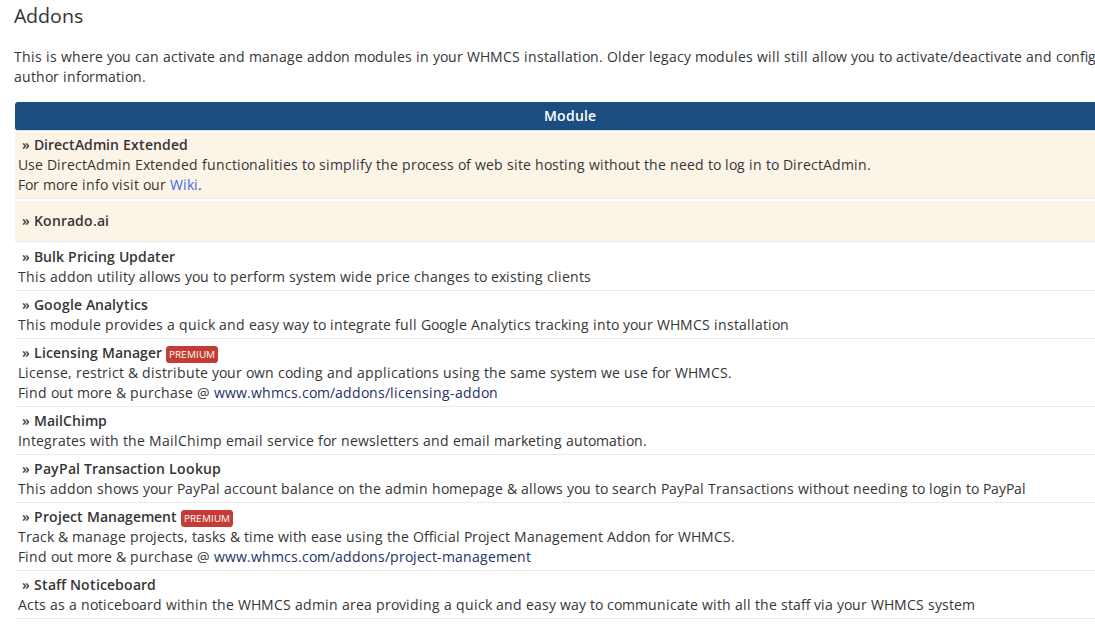
In WHMCS, open System Settings › Addon Modules, find Konrado.ai, click Activate, then Configure. Choose the admin roles that may open the addon and save. Leave the token fields empty for now.
Copy the keys in Konrado
Open Workspace SettingsIntegrations, click Add integration, choose Help desk, then WHMCS. The Keys for the WHMCS addon box holds the API Token and the Webhook token, each with a copy button.
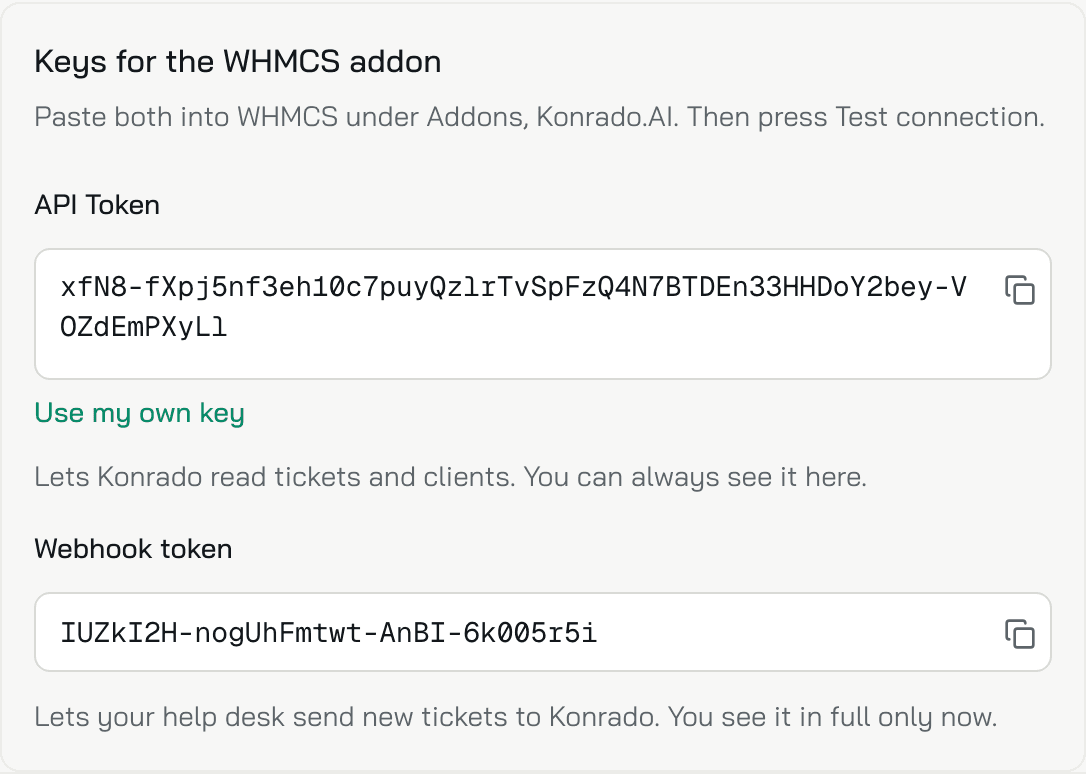
Keep the form open while you paste. The keys are saved only when you click Connect.
Paste the keys in WHMCS
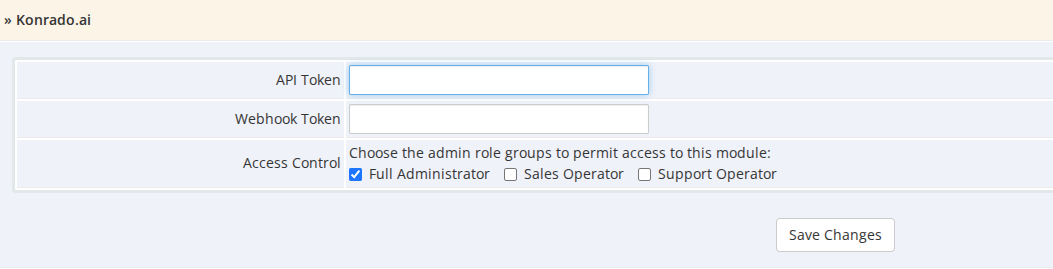
Back in System Settings › Addon Modules, click Configure next to Konrado.ai. Paste the API Token and the Webhook Token, then click Save Changes.
Enter the WHMCS address
In the Konrado form, fill in WHMCS URL: the address you open WHMCS at, with its folder if it has one.
https://yourdomain.com/whmcsKonrado adds the addon path, /modules/addons/KonradoAI/api/index.php. The full path works too.
Ticket URL is optional: Konrado fills it in from your first ticket when you test the
connection.
Test and connect
Click Test Connection. When the test passes, click Connect.
Check it works
WHMCS shows Connected in the table. Konrado adds an agent named Ticket Agent, with a Helpdesk channel for WHMCS and Copilot on. Open a test ticket in WHMCS: it appears in the Inbox. Set up the Helpdesk channel.
The Tools tab of the connection lists what your live chat can look up for a signed-in customer: services and domains, invoices, tickets, account details and the server tools of their service. Set up identity verification.
If something is wrong
| What you see | What to do |
|---|---|
| Test Connection fails | Check that the WHMCS URL is public and reaches /modules/addons/KonradoAI/api/index.php |
| The keys were lost or do not match | Open Manage on the WHMCS row. Copy the API Token again, or click New token for the webhook token, and paste it into WHMCS |
| The addon is missing in WHMCS | Check that modules/addons/KonradoAI/ exists in the WHMCS root folder |
| 403 Forbidden | Your web server or a firewall in front of WHMCS blocks /modules/addons/KonradoAI/api/. Let Konrado's IP addresses through |
| The test times out | Check your firewall and allow Konrado's IP addresses |
| Another help desk is already connected. Disconnect it first. | Your organization has one help desk at a time. Disconnect the other one first |
| This help desk is already connected to another organization. | This WHMCS is connected in another Konrado organization. Disconnect it there first |
| WHMCS turns Not working | Check that the addon is active and that its API Token matches the one under Manage |
Keep the addon up to date
When a new addon version is out, the WHMCS row shows Update to and the version number. Update the WHMCS addon.
Remove the integration
Open Workspace SettingsIntegrations, open the WHMCS row menu (...) and click Disconnect. Konrado stops reading tickets. The keys and the ticket history stay, so you can reconnect later. Then deactivate the Konrado.ai addon in WHMCS if you no longer need it.
Last updated on