

MCP Connection
Connect Claude, Claude Code, ChatGPT, Codex or another AI app to Konrado with one address and your Konrado sign-in.
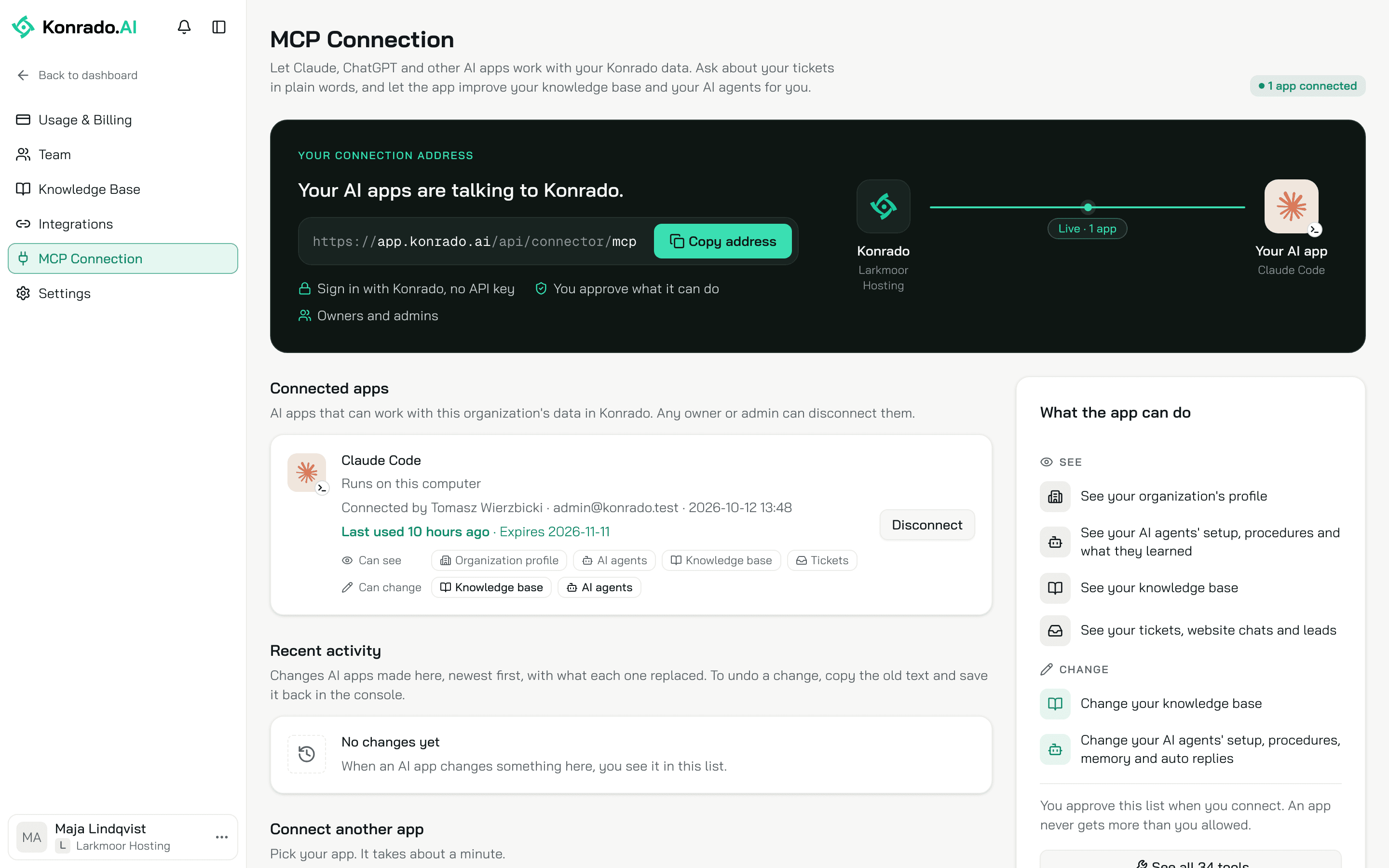
The MCP Connection lets Claude, ChatGPT and other AI apps read and change your Konrado data when you ask. You paste one address into the app and sign in with your Konrado account, with no API key.
MCP is the open standard AI apps use to connect to other software.
Who can connect
Owners and admins. Each person signs in with their own Konrado account, so the console shows who connected what. A member who tries to connect sees Only owners and admins can connect an AI app to Konrado.
Before you start
- Claude, Claude Code, ChatGPT, Codex, or another AI app that supports MCP with OAuth sign-in: the app opens Konrado in your browser and you sign in there.
- For ChatGPT: a plan with developer mode. The ChatGPT tab lists which plans get which tools.
Connect your AI app
Open Workspace SettingsMCP Connection. The card at the top is Your connection address. Click Copy address. The address is the same for every organization:
https://app.konrado.ai/api/connector/mcpYour sign-in decides which organization the app works with. Pick your app below. The console has a short guide for each app under Set it up in your AI app. Once an app is connected, that section is called Connect another app. For Claude and ChatGPT, the steps below follow the menus those apps show today.
- In claude.ai, go to Customize › Connectors.
- Click + Add, then Add custom connector.
- Enter a name, for example Konrado, paste the address and click Continue.
- Check the sign-in settings Claude detected and click Continue.
- Under Authentication, choose Sign in now, then click Add.
- Sign in to Konrado and allow access.
On a Team or Enterprise plan, an owner adds the connector under Organization settings › Connectors: Add, then Custom › Web. Each person then finds it under Customize › Connectors, clicks Connect and signs in with their own Konrado account. On the Free plan, claude.ai allows one custom connector.
Claude's menus move from time to time. Check Anthropic's current steps.
-
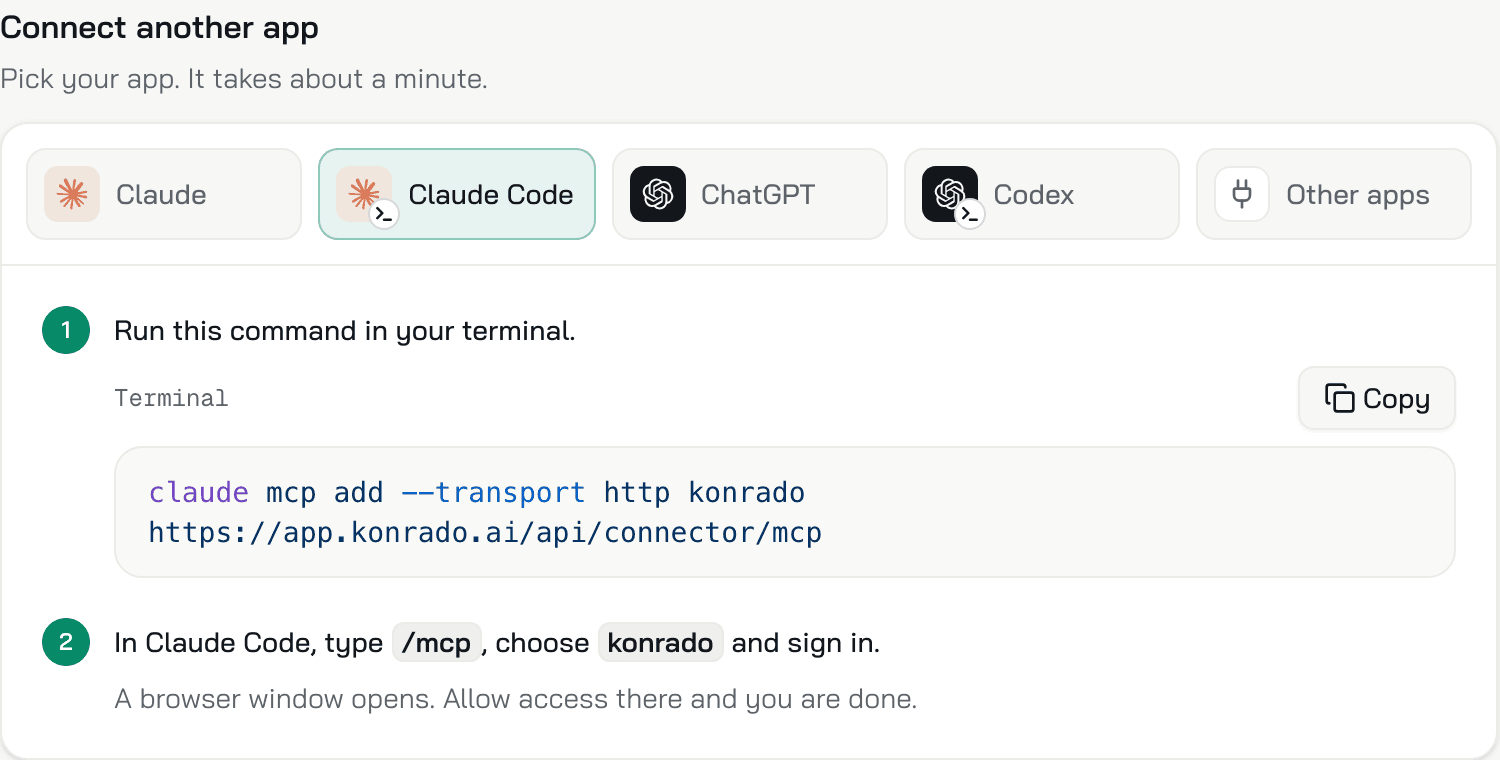
Run this command in your terminal:
claude mcp add --transport http konrado https://app.konrado.ai/api/connector/mcp -
In Claude Code, type /mcp, choose konrado and sign in. A browser window opens. Allow access there and you are done.
ChatGPT connects through developer mode, on the web and not in the mobile apps.
- Turn on developer mode in Settings › Apps › Advanced Settings. On Business, only the workspace's admins and owners have it. On Enterprise and Edu, an admin first allows it for you under Workspace settings › Permissions & Roles › Connected Data.
- Go to Settings › Apps › Create. Admins and owners can also start from Workspace settings › Apps › Create.
- Enter a name, for example Konrado, paste the address and choose OAuth for sign-in.
- Click Scan Tools. When the sign-in opens, sign in to Konrado and allow access, then wait for the scan to finish.
- Click Create. The app shows under Settings › Apps › Enabled Apps with the label Dev. Pick it from the tools menu in a new chat.
What your ChatGPT plan can use:
| Plan | Konrado tools ChatGPT can use |
|---|---|
| Business, Enterprise, Edu | All of them, the tools that change something included. OpenAI calls this full MCP and is rolling it out in beta |
| Pro | Only the tools that read. You turn developer mode on again to use the app |
OpenAI's article lists no other plan. Check OpenAI's current steps.
-
Run this command in your terminal:
codex mcp add konrado --url https://app.konrado.ai/api/connector/mcp -
Then sign in:
codex mcp login konradoA browser window opens. Allow access there. The Codex CLI, the IDE extension and the ChatGPT desktop app share this setup.
Any AI app that supports MCP with OAuth can use the address.
| Setting | Value |
|---|---|
| Connection type | HTTP (remote MCP server) |
| Sign-in | OAuth. The app opens Konrado and you sign in. There is no API key to paste. |
Sign in and allow access
Your app opens Konrado in the browser. Sign in with your Konrado account, if you are not signed in already. If your current organization is not one you can connect, Konrado first asks you to Choose an organization.
Next comes the consent screen, for example Connect Claude Code to Konrado. It names your organization and lists what the app asks for, in the same words as the What the app can do card in the console. An app that wants to stay signed in also asks to Stay connected without signing in again.
One connection works with one organization. If you are an owner or admin of more than one, click Use a different organization to pick another.
Below the list, Konrado says where the app sends you back. For Claude Code it says Claude Code runs on this computer. For a web app it names the website, and for a desktop app the app it opens. Konrado shows no warning when the app runs on this computer or sends you back to Claude or ChatGPT. Any other app gets Konrado does not know this app. Allow it only if you started this connection yourself.
Click Allow. The app shows up under Connected apps right away. Deny sends you back to the app with no access.
Check it works
Back on the MCP Connection page, the pill beside the title says 1 app connected and the card says Your AI apps are talking to Konrado. Under Try asking, click What did our customers ask about most this month? to copy it, and paste it into your app. The app answers with your busiest ticket topics.
What the app can see and change
What the app can do lists the access, in the words of the consent screen:
| Access | What the app gets |
|---|---|
| See | See your organization's profile |
| See | See your AI agents' setup, procedures and what they learned |
| See | See your knowledge base |
| See | See your tickets, website chats and leads |
| Change | Change your knowledge base |
| Change | Change your AI agents' setup, procedures, memory and auto replies |
You approve this list when you connect. An app never gets more than you allowed. Change includes your help desk's Auto replies: an app can switch them to Off, Shadow or Live. On Live, Konrado sends replies to your customers on its own when it is confident enough. Every change lands in Recent activity.
See all 34 tools and what each one reads or changes.
What an app cannot do
| Not possible | Why |
|---|---|
| Write or send a reply to a customer | No tool does it. With Auto replies on Live, Konrado sends its own replies |
| Change a ticket, a chat or a lead | An app can only read them |
| Add a memory | Memory is what Konrado learned. An app can correct a fact or a rule, or remove a memory |
| Change your plan, your team, your integrations, or the chat's Branding & Style, Cards, Triggers or Chat Actions | No tool reaches them. They stay in the console |
| Work with a second organization | One connection, one organization. Connect the other one from its own MCP Connection page |
| Undo a change with one click | Recent activity keeps the old text for you to copy back |
Connected apps
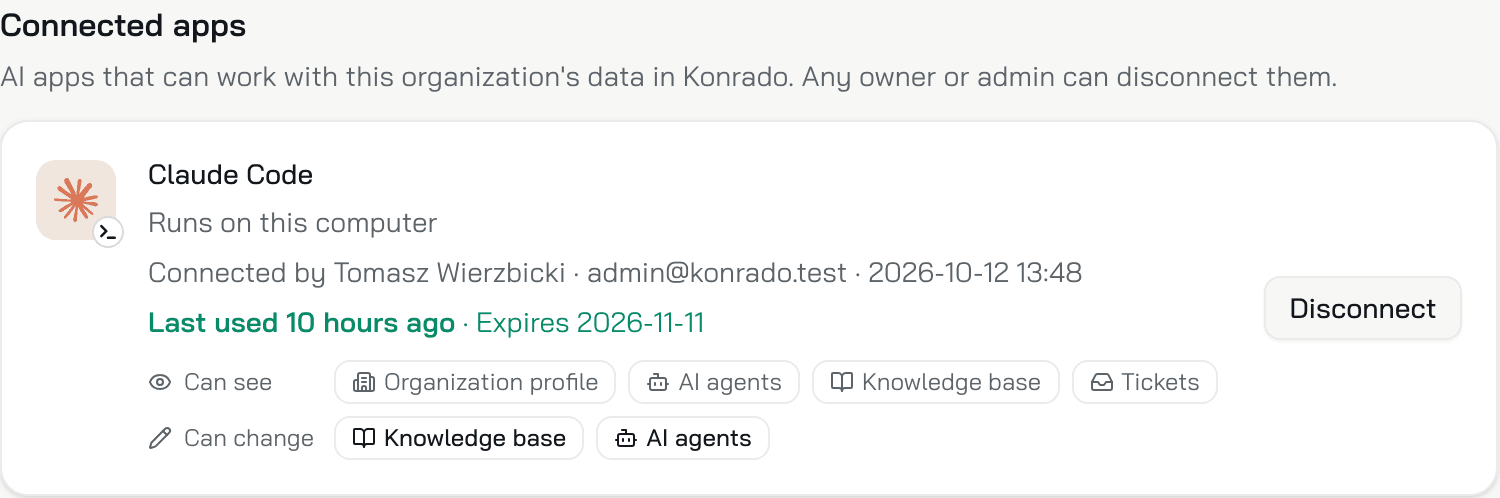
The list shows every AI app connected to the organization, whoever connected it. Any owner or admin can disconnect any of them. Each row shows:
- The app's name and where it sends you back: Runs on this computer, Sends you back to and a website, or Opens the and the name of a desktop app.
- Who connected it and when: Connected by, then the name, email, date and time.
- Last used, then when the connection ends: Expires and a date, or Active while the app stays signed in for an app that did not ask to stay connected.
- Can see and Can change: the access you approved.
The name is the one the app gave itself. Konrado shows the logo of Claude, Claude Code, ChatGPT or Codex only when the name and where the app sends you back agree. A look-alike gets a plain window icon.
A row marked Konrado staff is a Konrado support person who opened your organization from their own connection. You can disconnect it like any other. No longer a member marks the app of a person who left your team.
Konrado disconnects an app nobody used for 90 days.
Recent activity
Recent activity lists the last 50 changes AI apps made, newest first. Each row says what changed, for example Changed the communication style of Ticket Agent, then the app, the person and when. Show what it replaced opens the old text field by field, each field with its own copy button. For a delete it reads Show what was deleted.
There is no undo button. To undo a change, copy the old text and save it back where it lives in the console. The section shows once an app is connected.
Disconnect an app
Click Disconnect on the app's row, then Disconnect in the dialog that asks Disconnect Claude Code? (with your app's name). The app stops working with this organization right away. Konrado refuses its next call with This connection was disconnected. Connect again from your AI app. The person who connected it can connect it again from the app.
Removing a person from your team, or making them a member, disconnects their apps too.
A row that already stopped working shows Remove instead: an expired app, or the app of a person who left. Remove only takes the row off the list.
If something is wrong
| What you see | What to do |
|---|---|
| Only owners and admins can connect an AI app to Konrado. | You are a member of this organization. Ask an owner to connect the app, or to make you an admin. |
| The consent screen names the wrong organization | Click Use a different organization and pick the right one. |
| The app asks you to sign in again and again | Access lasts 15 minutes at a time. An app that asked to stay connected renews it on its own. One that did not signs in again, and its row says Active while the app stays signed in. |
| This connection was disconnected. Connect again from your AI app. | An owner or admin clicked Disconnect, or nobody used the app for 90 days. Connect again from the app. |
| A row says Expired | Connect again from the app, and the row works again. If an old row stays, click Remove on it. |
| Your app is not one of the five | Use Other apps. Any app that supports MCP with OAuth works with the address. |
| The app is not under Connected apps | The sign-in did not finish, or someone clicked Deny. Start again from the app. |
| A tool is refused and the app asks for more access | The tool needs access you did not approve yet. Approve it when your app asks. |
| Only owners and admins can use an AI app with this organization | You are no longer an owner or admin here. An owner can make you an admin again. Then connect again from your app. |
| Too many requests from this app. | Each app can make up to 120 calls a minute for each person. Wait the seconds the message gives. |
Related
- See every tool an app gets
- Let Konrado call your own MCP server, the opposite direction
Last updated on