

Inbox
Every chat Konrado had and every help desk ticket it has seen, one row per channel.
The Inbox holds every conversation Konrado had, one row per channel. Owners and admins see it. Members do not.
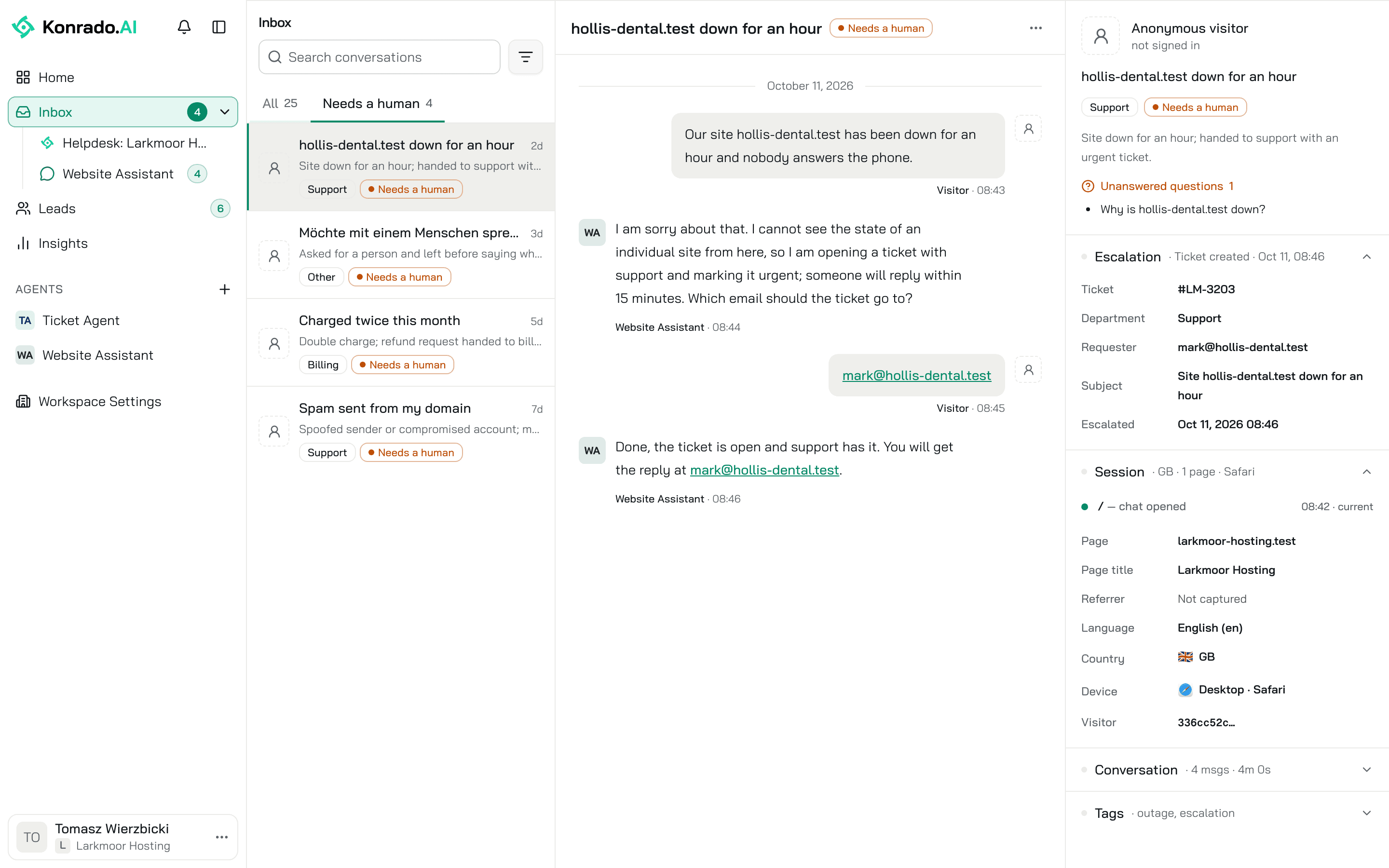
The rows and the count
Inbox shows the chats of every agent. Under it, a live chat row carries its agent's name and shows that agent's chats. The help desk row carries your help desk's name, such as Helpdesk: WHMCS, and shows your tickets.
The number on a row counts the chats that need a human. Spam and the chats your team marked handled are left out. Inbox shows the total. The number refreshes every minute and disappears at 0. The help desk row has none.
Chats
The list
Two tabs, All and Needs a human, each with its count. The newest message comes first, 25 chats at a time. The list refreshes every 30 seconds.
A row shows:
- The visitor's initials, or a person icon when nobody gave a name. A check mark means a customer your website signed in.
- A title and a one-line summary. Konrado writes both once the chat goes quiet.
- The time of the last message.
- The category: Sales, Support, Billing, Feedback or Other.
- The status, from the table below.
- Lead when the visitor left their details in the contact form, Test for a test chat.
| Status | What it means |
|---|---|
| Live | The visitor is still chatting. It shows until Konrado judges the chat, at most 10 minutes after the last message |
| Resolved | The visitor got what they came for |
| Unresolved | The chat waits on the visitor, or ended without a clear result |
| Needs a human | The visitor asked for a person, Konrado could not help with the main question, or the request needs your team to act on the account |
| Handled | The chat needed a human, and someone on your team marked it handled. The visitor's next message puts it back in Needs a human |
| Ticket created | Konrado opened a ticket in your help desk for this chat |
| Escalation failed | Konrado tried to open a ticket and could not |
| Spam | Junk, a bot or abuse |
A chat shows one status. Spam, Escalation failed and Needs a human win over the others. Once your team marks the chat, Handled takes the place of Needs a human. Konrado judges a chat once it has been quiet for a minute after Konrado's last reply.
Search conversations finds a chat by its title, or by the name or email the visitor left in the contact form. The button next to it opens Filters:
| Filter | Options |
|---|---|
| Status | Open, Closed: the visitor ended the chat |
| Outcome | Needs a human, Resolved, Unresolved |
| Category | Support, Sales, Billing, Feedback, Other, Spam |
| Date range | Today, Last 7 days, Last 30 days, by the last message |
| Visitor | Signed in, Anonymous, Test |
| Lead captured | With a lead, Without a lead |
| Agent / channel | All agents, or one agent's chat |
| Escalation | Escalation pending, Ticket created, Escalation failed |
| Sentiment | Frustrated only |
| Country | One country |
No filter is set at first. Pick what you need and click Apply. Clear all resets every filter but Agent / channel. The others you applied show under the search, each with a cross to remove it.
At the bottom, Empty visits: chat opened, no messages holds the chats where nobody wrote a word.
A chat
The visitor writes on the right, Konrado on the left under the agent's name. When a trigger opened the chat, the first line says which one.
A line such as 1 step above a reply lists what Konrado did before it answered: searched the knowledge base, looked up the customer's service, ran a hosting check, showed a card or a form. Click it to see each step, then Details for what Konrado looked for and found.
A card Konrado showed sits in the thread as the visitor saw it. A Contact form or Support ticket form shows what the visitor sent, or only that it was shown. A WhatsApp handoff shows the number and the message Konrado offered. Page under a visitor's message opens the text Konrado read from the page the visitor was on.
The menu at the top right holds This visitor's other chats, Copy transcript and Copy chat ID. On a chat that needs a human, it starts with Mark as handled, or with Mark as not handled once someone marked it.
The details panel
- The visitor's name, or Anonymous visitor, their email, and signed in or not signed in. For a signed-in customer, Client # opens them in your help desk.
- On a chat marked handled, Handled by with the person's name and the time.
- Konrado's summary and Unanswered questions: what the visitor asked and Konrado could not answer. Each one is a gap to fill in your knowledge base.
- Escalation, when Konrado opened a ticket: Ticket, linked to your help desk, Department, Requester, Subject and Escalated. When it failed, the reason.
- Session: the last 10 pages the visitor saw, then Page, Page title, Referrer, Language, Country, Device and Visitor. Not captured marks a value the chat could not read.
- Conversation: Status, Last active, Started, Messages, and History, up to 5 of the visitor's other chats. Status reads Needs attention when an open chat needs a human and nobody marked it handled, or when it ends on the visitor's message. Otherwise it reads Open or Closed.
- Tags: the topics Konrado tagged the chat with.
When a chat needs a human
Your team reaches the visitor through what the chat holds: the ticket Konrado opened, the email the visitor left, or the customer's account.
With Escalations on, Konrado offers the visitor a ticket form. The ticket opens in your help desk, where your team answers it. The Escalation section links to it. Set up Escalations.
Mark a chat as handled
When your team has dealt with a chat that needs a human, take it off the list. Open the menu at the top right of the chat and click Mark as handled. Owners and admins can mark a chat.
- The chat leaves Needs a human. The numbers on that tab, on Inbox and on the agent's row drop by one at once.
- The chat reads Handled. The details panel says who marked it and when.
- From Needs a human, the chat below opens next, or the one above when it was the last. From All, the chat stays open.
- The visitor's next message puts the chat back in Needs a human. Konrado's replies and its next judgment of the chat do not.
To undo, find the chat on All, open the menu and click Mark as not handled.
The Outcome filter reads how Konrado judged the chat, so its Needs a human option still finds a chat marked handled.
The help desk row
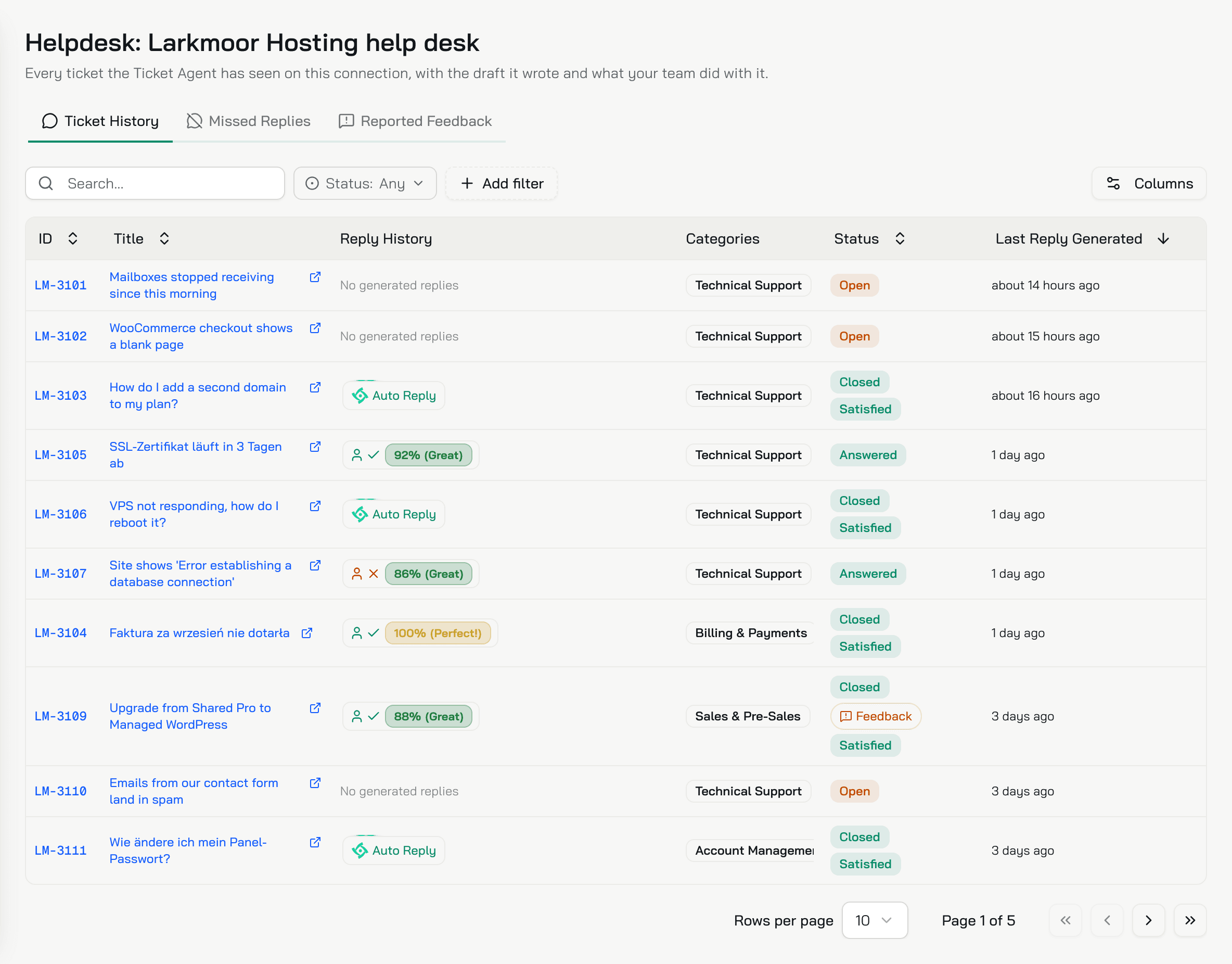
The page carries your help desk's name and three tabs. The tabs list every ticket of your organization.
Ticket history
One row per ticket Konrado has seen, sorted by Last Reply Generated, newest first.
| Column | What it shows |
|---|---|
| ID | The ticket's ID in your help desk. It opens the ticket page |
| Title | The subject. It opens the ticket page, and the icon next to it opens the ticket in your help desk |
| Reply History | One badge per reply sent after a Konrado draft, newest first |
| Categories | One or more of Technical Support, Billing & Payments, Sales & Pre-Sales, Account Management, Security & Abuse and General Inquiry |
| Status | The status in your help desk, a Feedback badge when your team reported feedback on a draft, and the mood once the ticket is closed |
| Last Reply Generated | When Konrado wrote the latest draft that got a reply |
Columns adds Client and Last Updated.
A Reply History badge tells what happened to the draft:
- Auto Reply: Konrado sent the reply itself. Waiting Reply: Konrado sent a holding reply while the answer needs a person.
- A person icon: someone in your team replied. Green means they saw the draft in Copilot, red that they did not, grey that they have no Konrado account. A check means they used the draft: they saw it, and their reply still resembles it. That is a wording match above 30 out of 100. A cross means they did not use it.
- The score: how close the draft's meaning was to the reply that went out. Perfect! at 95% and up, Great 81 to 94, Good 61 to 80, Fair 41 to 60, Low 40 and under. Hover the badge for the details.
Search... finds a ticket ID, a subject or any message text. Status filters by Open, Closed, In Progress, Answered, On Hold and Customer Reply. Add filter adds Mood and Category. Reset clears the search and the filters.
Missed replies
A missed reply is one your team wrote by hand while Konrado's draft said the same thing. The draft matched the sent reply by meaning, 80% or more, and the person did not use it. Each row is time your team could have saved.
The columns are Ticket, Agent for who replied, Status for the reply badge, Date and Action. Compare opens the draft next to the reply that went out. Staff Members narrows the list to people in your team. Search by ticket or reply... finds a subject or a reply text.
Reported feedback
Your team reports on Konrado's drafts in your help desk, with Feedback and Improve. This tab lists those reports in the columns Ticket, User, Reason, Message and Created. A Feedback report's reason reads Reply Helpful, Reply Not Accurate, Bug Report or Other. An Improve instruction reads Improve_instruction. Search... finds a reason or a message.
Click Export, then Export as CSV. The file holds every reported feedback of your organization, whatever the search.
The ticket page
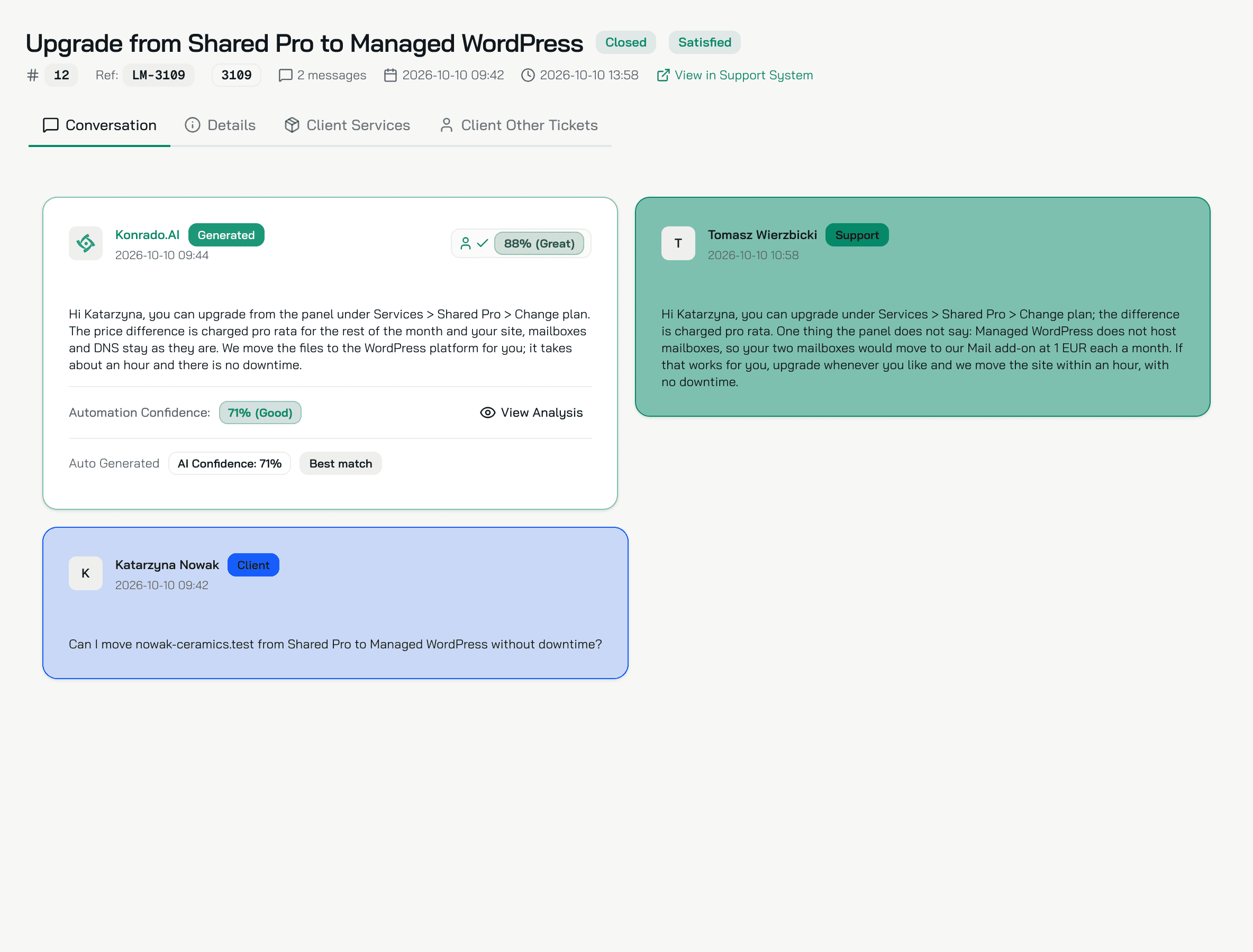
Click a ticket's ID or title. The header shows the subject and the status, and the mood once the ticket is closed. Under them sit the ticket's IDs, the message count, when Konrado first recorded the ticket and when it last changed. View in Support System opens it in your help desk.
Conversation
The newest message comes first. When Konrado wrote a draft for a customer message and your team replied, the draft sits on the left with Generated. The reply your team sent is on the right, and the customer's message under them.
On the draft:
- The Reply History badge: whether the person saw the draft, used it, and how close it was.
- Automation Confidence:, when auto replies decided on this draft, with View Analysis for the decision and why.
- AI Confidence:, how sure Konrado was of the draft itself.
- Auto Generated, or Generated by and a name when someone in your team asked for a new draft.
- Best match on the draft closest to what your team sent. With several drafts, Variants switches between them.
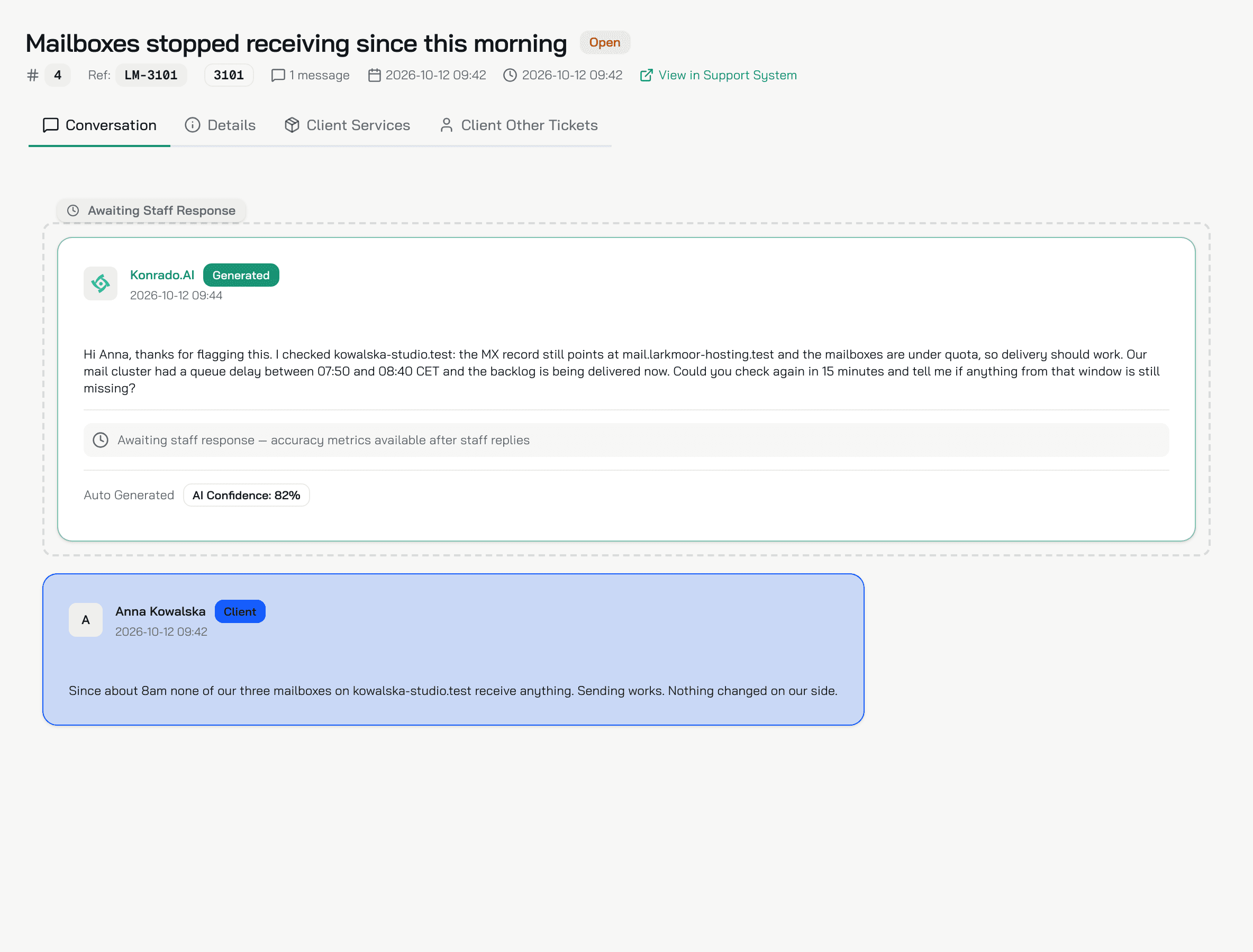
A message your team has not answered yet shows Konrado's draft on top, in a box marked Awaiting Staff Response. The message sits under it. Only the newest message with a draft gets the box. With several drafts, it opens on the one with the highest confidence, and Variants switches between them. The Reply History badge and Best match come once your team replies. A closed ticket shows no box.
When Konrado writes a waiting reply first, the draft has two tabs, Waiting Reply and Original. The waiting tab says one of three things:
- The message was sent to the customer.
- The message is about to go out.
- In Shadow mode, the message would have gone out in Live.
Details
Department Information, Client Information with View Client Profile, and Contact Information, as your help desk sent them. Related Services lists the services that came with the ticket, when there are 3 or fewer. Ticket Metadata holds the other fields.
Client services
The client's services and their invoices, read from your help desk. A ticket from a guest shows No identified client.
Client other tickets
The same client's other tickets, in the Ticket History table. Search client tickets... finds one.
What Konrado cannot do
| Not possible | Why |
|---|---|
| Reply to a visitor from the Inbox | The Inbox has no reply box. Your team answers in your help desk or by email |
| Take over, assign or close a chat | Only the visitor ends a chat |
| Search the messages of a chat | Search conversations reads the title and the contact form's name and email |
| Export chats or tickets | Export is on Reported Feedback only |
| Show one help desk's tickets apart | The help desk tabs list every ticket of your organization |
Related
Last updated on