

Settings
Your organization's name, company details and report emails, and your own account.
Workspace SettingsSettings holds what is true for the whole organization, in three tabs: General, Company details and Notifications. Only owners and admins see it. Your own photo, password and language are on Account, which every role has.
General
Organization details
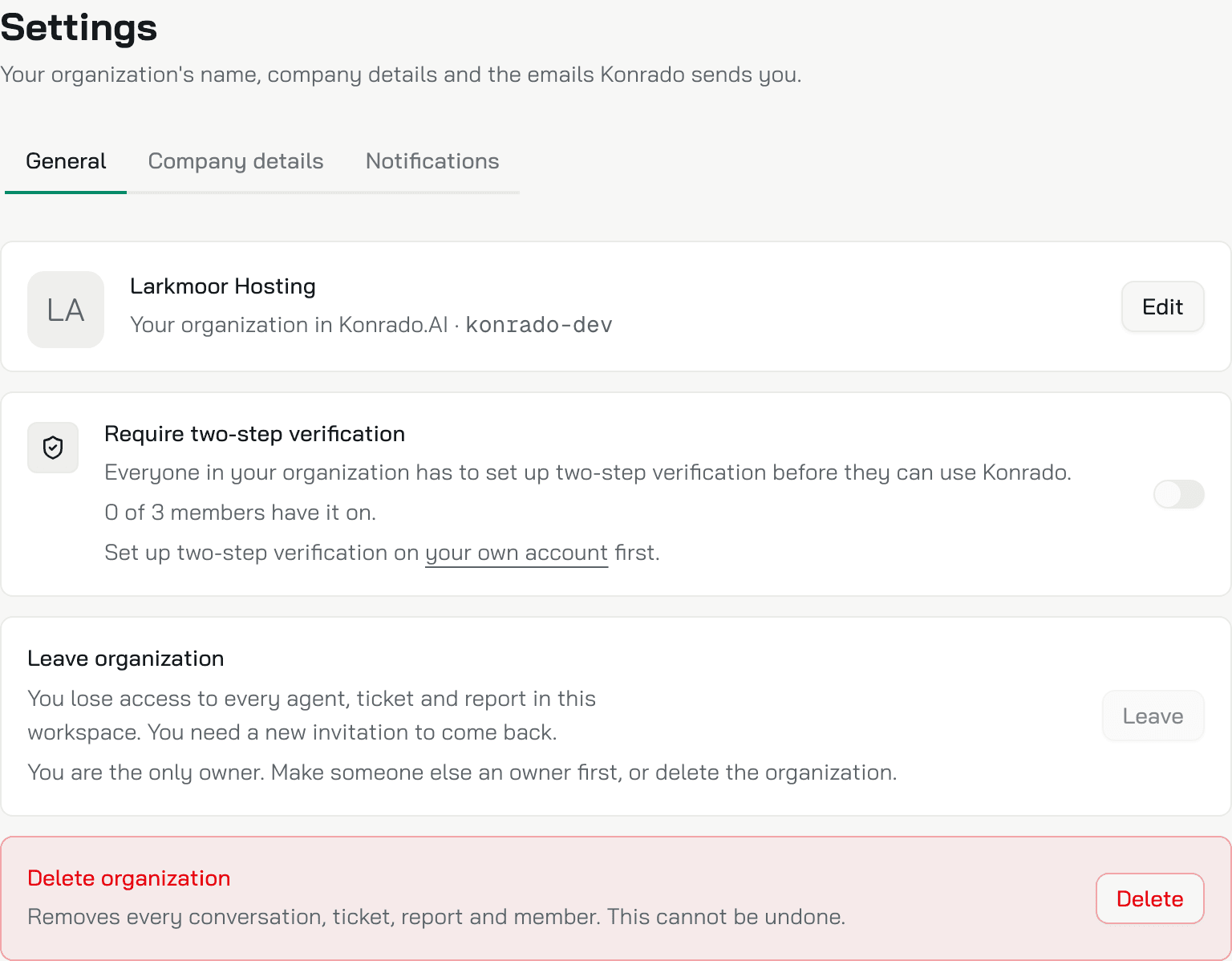
The first row shows your organization's logo and name. Edit opens Organization details. A new Logo, from Change logo, saves as soon as it uploads. Change the Organization name, up to 256 characters, and click Save. People see both in the menu, in every invitation and in the emails Konrado sends. When Konrado found a logo or a name on your website, the row offers it with Review and use.
Require two-step verification
Switch it on and everyone in the organization has to set up two-step verification before they can use Konrado. The row counts who has it on, for example 0 of 3 members have it on. You can switch it on only once you have it yourself: set it up under AccountSecurity first.
From then on, a person without it lands on a page that asks them to set it up, or to switch to an organization that does not require it. The browser extension asks for it too.
Leave organization
Leave takes you out of the organization. You lose access to every agent, ticket and report in it, and you need a new invitation to come back. The only owner cannot leave: make someone else an owner first, or delete the organization.
Delete organization
Only owners see this row. Delete removes every conversation, ticket, report and member, and it cannot be undone. Konrado asks you to confirm with Delete organization.
Konrado then deletes the files it stored for the organization, such as knowledge base files and ticket attachments, in the background. Every owner gets an email that says what was deleted, who deleted it and when. See what Konrado deletes and keeps.
An organization with a subscription in Stripe cannot be deleted until the subscription has ended. A subscription you cancelled still runs to the end of its period.
Company details
What Konrado knows about your company. When you change a field, Unsaved changes appears with Save and Reset.
Learn your brand sits on top. Learn from website reads your website and suggests values for the fields below, and for the logo and the name on General. See what Konrado learned lists what it found, and Use fills a field. Nothing changes until you save.
| Field | What Konrado does with it |
|---|---|
| Organization ID | Konrado support asks for it. It also names your organization in the API and the MCP tools |
| Description | One paragraph on what you sell and to whom. Your agents read it before every reply |
| Website | Your main site. Konrado reads it to learn what you do, and keeps the website agent on your own pages. A domain that belongs to another organization is refused |
| Team language | The language your team writes in. Konrado uses it for ticket analysis and the insights email, and for a reply when it cannot tell what language the customer wrote in |
| Country | Where the company is registered. Your agents use it when an answer depends on local rules, such as tax or consumer law |
| Timezone | Your agents convert every date and time into it before they mention one to a customer |
| Additional notes | Up to 4,000 characters: hours, channels, links, what you are and are not. Your agents read it before every reply, in tickets and on your website. Product answers belong in the Knowledge Base |
Notifications
Two report emails, each with its own switch.
| Report | What it sends | When |
|---|---|---|
| Daily Insights Report | Yesterday's support insights | Every day, at the hour in Send at |
| Weekly Insights Report | The week's support insights | On the day in Send on, at the hour in Send at |
Recipients takes people from your team or any other email address. A report that is on with nobody in Recipients says Nobody will receive this, and nothing goes out. Send at is in your browser's time zone. Click Save in the Unsaved changes bar.
Health alerts, such as an integration that stopped working, have no switch here. They show under the bell at the top of the menu, and in the insights emails.
Your account
Click your name at the bottom of the menu, then Account. Every role has this page, members included. Your profile and your security settings follow you into every organization you belong to.
Profile
- Change photo sets your picture.
- Full name is what teammates see in the members list.
- Email is your sign-in address. Change asks for the new one. Konrado first emails your current address: click Approve the change there. Then the new address gets a link to confirm. Nothing changes until you open both.
Security
- Password: Change password signs out every other device. If you have no password yet, the row sends you a link to set one.
- Two-step verification: Turn on asks for a code from an authenticator app at every new sign-in, and gives you backup codes. Once it is on, Backup codes makes a new set and Turn off switches it off.
- Active sessions lists every browser signed in to your account. Revoke signs one out. Sign out other devices keeps only the one you use, and Sign out everywhere signs that one out too.
- Delete account, under Danger zone, deletes your account and your access to every organization you belong to. It cannot be undone. The only owner of an organization makes someone else an owner, or deletes the organization, first.
Preferences
- Theme: System, Light or Dark. Cmd+D on a Mac, Ctrl+D elsewhere, switches between light and dark from any page.
- Language: the language of the console, English or Polish.
Both apply to the browser you set them in.
What Konrado cannot do
| Not possible | What to do instead |
|---|---|
| Restore a deleted organization | Leave it instead if you only want out |
| Delete an organization while its subscription runs | Wait until the subscription has ended |
| Change another person's name, email or password | Each person changes their own on Account |
| Exempt one person from required two-step verification | Switch the requirement off for everyone |
Related
Last updated on