

Knowledge Base
What Konrado knows about your business, from your website, documents, products, past tickets, text and Q&A.
The Knowledge Base is what Konrado knows about your business: your website, your documents, your products, the tickets your team already solved, and answers you write. Konrado looks here before it answers.
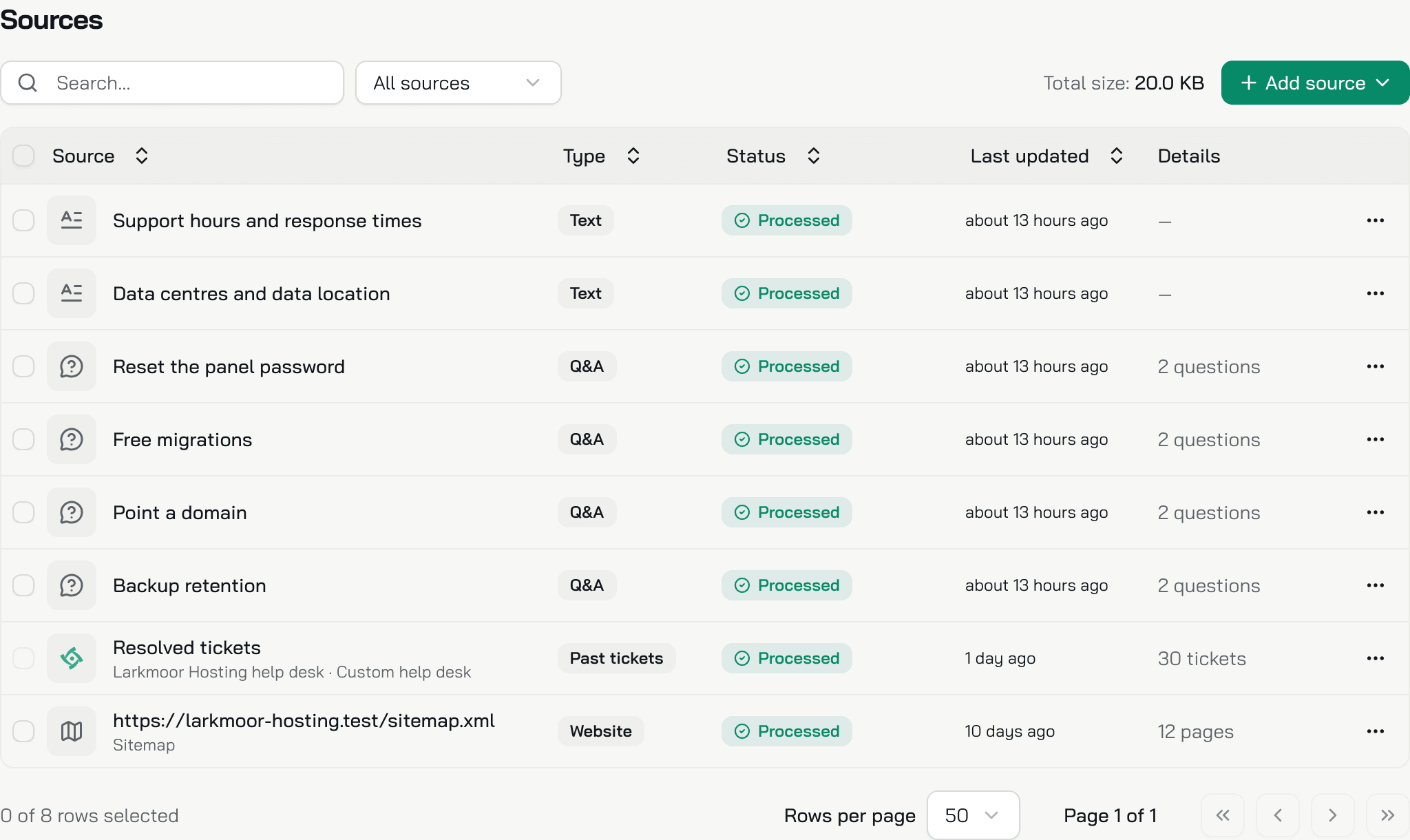
Open Workspace SettingsKnowledge Base. Every agent in your organization answers from this one list.
What goes where
The Knowledge Base holds what is true. Instructions and procedures say how to behave.
| Put it in | For |
|---|---|
| Knowledge Base | Facts customers ask about: plans, prices, how-tos, policies. Konrado looks up what matches each question |
| Instructions | Who the agent is, how it answers, when it hands over. Konrado reads them on every reply. Write the instructions |
| Procedures | The steps for one kind of request, such as a refund. Add procedures |
The list
Each row is one source, with its Type, Status, Last updated and Details, such as how many pages or questions it holds. Pick a type in the All sources filter to see only that type, or search by name or address. Click a row to open it, or View file in a document's menu.
A source is Queued or Processing while Konrado reads it, Processed when it is done, and Error when Konrado could not read it. Resolved tickets reads On by default until you first click Sync now, and a paused source reads Paused. A website source with pages Konrado could not read says how many, such as 2 failed. When something failed, a banner above the list says how many sources need attention, and Show lists only those.
Add a source
Click Add source. The menu has the four things Konrado imports, then the two you write. With nothing added yet, the page shows the six as buttons instead.
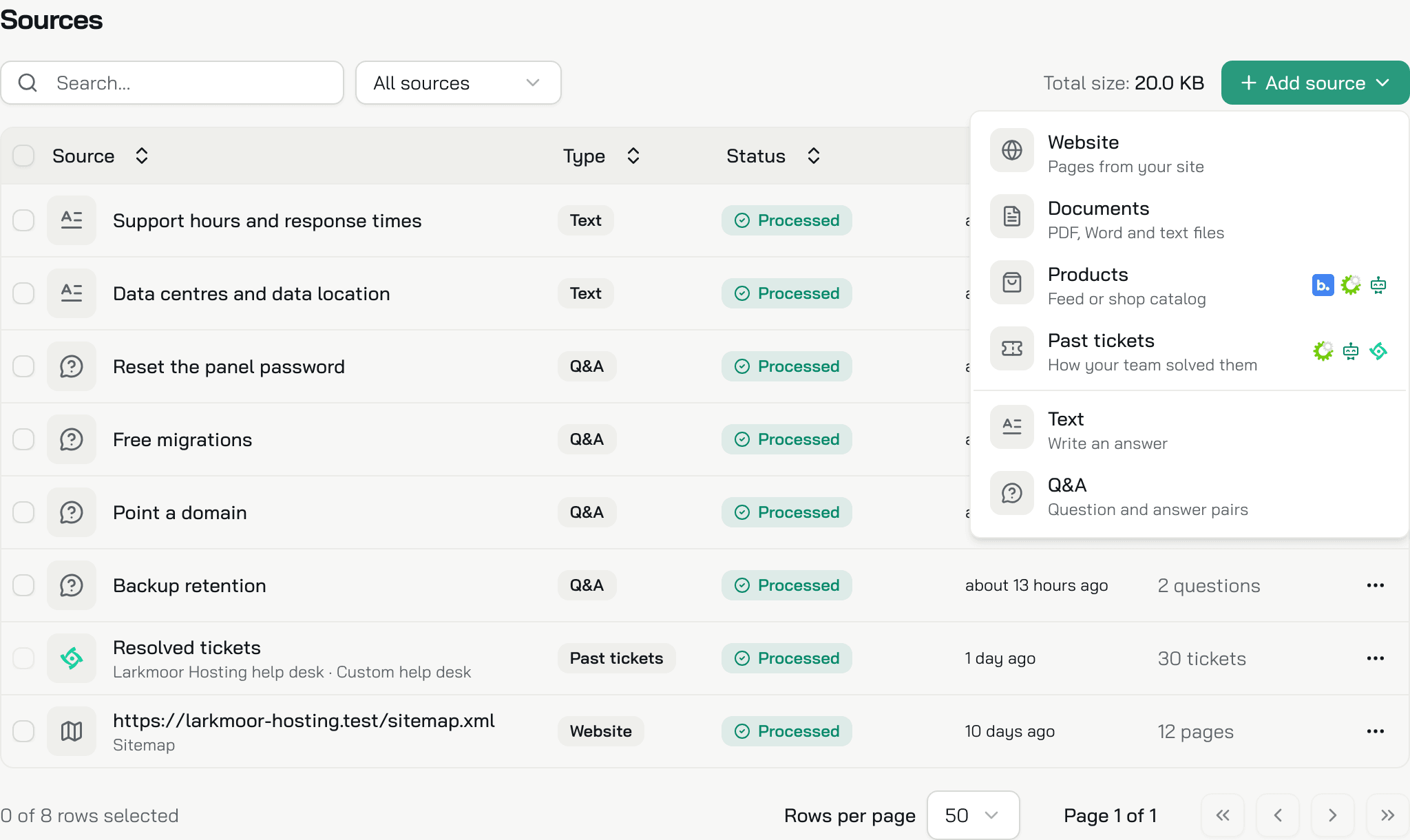
Website
Add Website has three tabs. Paste full addresses, up to 100 at once, one per line or separated by commas.
- Sitemap: paste your sitemap, such as
https://example.com/sitemap.xml, and click Add sitemaps. Konrado reads every page it lists. A sitemap index works too, with up to 25 sitemaps in it. - Crawl links: paste your website's address and click Fetch. Konrado follows links and
reads every page it reaches on the same site, up to 2,000 pages. Start from a folder, such as
https://example.com/help, and the crawl stays inside it. - Individual link: paste page addresses and click Add links. Konrado reads each page on its own, not the pages it links to.
Every night, around 02:00 UTC, Konrado reads each page again and updates the ones whose text changed. A sitemap source also adds the pages your sitemap gained and drops the ones it lost. A crawl source adds the new pages it finds in your sitemaps and in links on its pages. Konrado drops a page that answers "not found" twice, at least 48 hours apart, and marks it Gone. If one refresh would drop more than half of a source's pages, and more than 5, Konrado drops none. If your site really lost them, delete them from the source's page list.
Some pages change during the day, such as payment options or delivery times. For those, pick a Refresh frequency other than Daily (default): Every 6 hours, Every hour or Every 15 minutes. Set it when you add an Individual link, or later on any page of a source. Up to 20 pages in your organization can refresh more often than daily.
A good website source is your help center, your docs, your plans and prices, your terms. Konrado
reads the text in the page itself. It does not run JavaScript, so a page that builds its text in
the browser reads as empty, and so does a page behind a login. A crawl skips files, such as PDFs
and images, and login, cart and checkout pages. It follows your robots.txt rules for
KonradoAI.
Documents
Add Files takes PDF, DOCX, HTML, TXT and Markdown (.md) files, up to 4 MB each and 20 at a
time. Drag them in or click to browse.
Konrado reads a file once, when you upload it. To change it, delete it and upload the new
version. Give every file its own name: Konrado keeps one text per file name. It reads the text of
a PDF, not its images, so a scanned page gives it nothing to read. An .xml file is never a
document: when it is a product feed, Konrado offers Add under Products.
Products
Add products lists where your products can come from:
- Works with any shop: the Product feed, the Google Shopping file your shop exports.
- Your platforms: the catalog of each system you connected. Click one, then Add catalog.
- Connect a platform: the systems with a catalog that you have not connected yet. Connect opens Integrations.
Konrado reads a Feed link again every night, around 03:00 UTC, up to 25 MB. Paste it and click
Check feed. Upload a file gives a snapshot of today, an .xml up to 4 MB, and Konrado
checks it as soon as you choose it. To update a file, use Replace file in its row menu. When
the checks pass, click Add product feed.
A feed must be public and in Google Shopping format (RSS 2.0 or Atom 1.0). Its products need an id, a title, a link, a price and the availability. Add a description too: without one, Konrado knows less about the product. Bring each shop's products in from one place, because a feed next to a catalog of the same shop can list every product twice.
| Catalog from | What Konrado imports |
|---|---|
| Your billing system, through WHMCS, SupportPal or a custom help desk | Products and config options, add-ons, and domain prices to register, transfer and renew. Konrado syncs prices, billing cycles and descriptions every night, and skips the product groups hidden from your store menu |
| Base.com | Products, variants, prices and availability, up to 10,000 products per catalog. Konrado syncs them every night. Stock shows only as in stock or out of stock. Shop address, for WooCommerce shops, links each product to its page. Connect Base.com first |
Past tickets
Learn from past tickets reads the help desk you connected: WHMCS, SupportPal or a custom help desk. Resolved tickets is already ticked there and marked Added. To add Learned from tickets, pick the help desk, tick it, and click Add & sync now.
Resolved tickets are the answers your team already gave. When you connect your help desk, this source joins your list, On by default. From then on, Konrado adds each ticket to the Knowledge Base when it closes. Connecting imports no older tickets. Sync now imports your newest closed tickets from the last 18 months, up to Tickets to import: 50 to 5,000, 1,000 to start. Konrado keeps a ticket only when it has at least 2 messages and a reply from your team. It never imports tickets outside the departments set on your help desk connection, or tickets with a tag you blocked there. Each night, tickets closed more than 18 months ago leave the Knowledge Base.
In the text Konrado searches, it leaves out the customer's name, email and IP address, the ticket, client and service numbers, the client and staff notes, the server's hostname, the panel username and domain, the virtual machine details, and the invoice numbers, amounts and due dates. The customer shows as "Client" and your team as "Support Staff". The rest stays: the messages as written, the ticket's title, department and custom fields, and whether the customer uses two-factor sign-in. For each service, the product, panel type, status, dates, options and add-ons stay, with whether its invoices are paid and its extra fields, such as the registrar and nameservers. For a ticket that closes while your help desk is connected, Konrado replaces the stored ticket about 36 hours later with a summary written without personal details.
Next to the text, Konrado keeps the ticket's ID on your help desk, its title and its link, also after the summary. Every agent, the live chat included, sees them with each past ticket it finds.
Learned from tickets reads your newest closed tickets, up to Tickets to process (50 to 1,000). It writes what it found as one text, which you read and edit in the Contents tab of its row. The first run starts when you add it. Run now in its Settings starts another, once every 7 days. A new run replaces the text, your edits included.
Pause on Resolved tickets stops new tickets and takes the stored ones out of every agent's search, the live chat included. You can pause it, not remove it. To keep Konrado away from your tickets, pause it. Resume turns it back on. Pause on Learned from tickets stops new runs, and Konrado keeps using its text.
Text
Add Text takes a Title, 3 to 200 characters, and the Content, up to 500,000 characters, with headings, lists and links. Write here what no page says: your support hours, a policy, what you do not offer. Konrado uses it as soon as you save it.
Q&A
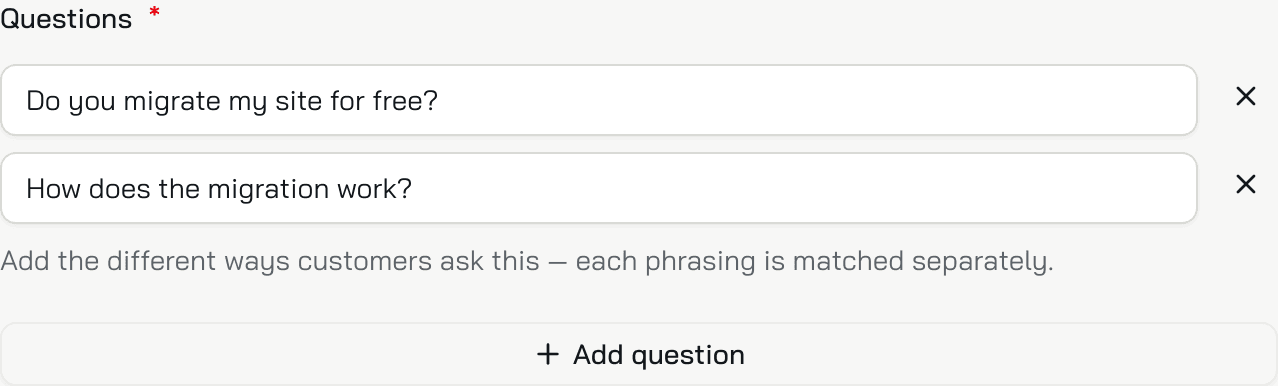
Add Q&A holds one answer and the questions it answers. Konrado uses it as soon as you save it, so write the answer for your customers.
- Title: only shown to you, to find the entry in the list.
- Questions: the ways customers ask it, up to 10. Each one is matched on its own, so use your customers' words.
- Answer: what Konrado tells them, up to 2,486 characters.
Refresh or remove a source
Each row has a menu (...) with what that source allows.
| Source | Refresh | Remove |
|---|---|---|
| Website | Refresh reads every page again | Delete takes its pages out at once. It cannot be undone |
| Documents | Delete it and upload the new version | Delete |
| Text, Q&A | Edit | Delete |
| Product feed | Sync now, or Replace file for an uploaded one | Remove |
| Catalog | Sync now | Remove, or Pause to stop using it |
| Resolved tickets | Sync now | Pause |
| Learned from tickets | Run now, in its Settings | Remove deletes its text, your edits included |
To act on several sources at once, tick their boxes. Refresh Selected reads the website sources again, and Delete Selected deletes them all. Product feeds, catalogs and past tickets go one at a time, from their row menu.
Click a website source to see its pages, each with its status and when Konrado last read it.
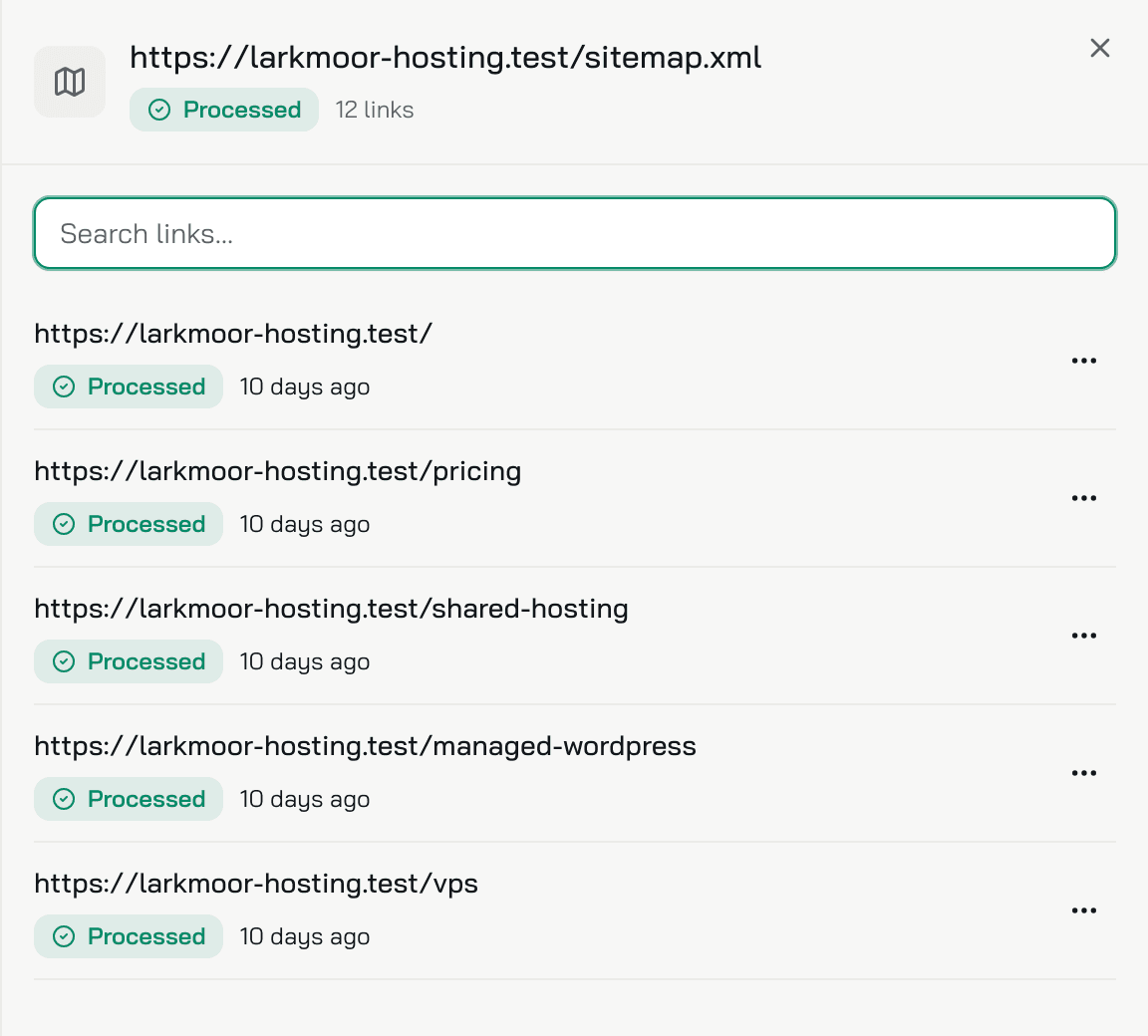
A page's menu has Refresh, Refresh frequency and Delete. A page you delete from a sitemap or a crawl stays out when the site is read again, until you Restore it. A page that failed says why under its address.
Total size
Total size: in the toolbar is how much text Konrado reads from all your sources. Hover it for the breakdown: pages, files, products, text snippets, Q&As and tickets, each with its size. It counts the text Konrado keeps, which is usually smaller than the files and pages it came from. There is no limit on it.
Detected documentation
While Konrado reads your website during setup, it notes the help centers, documentation and status pages your site links to. Each one that no source covers yet shows above the list, under Detected documentation, one per site. Add as source adds it: a site's front page as a crawl, any other page as an individual link. Dismiss, the cross, hides the list in this browser until Konrado finds a new one.
If a source shows an error
| What you see | What to do |
|---|---|
| Access denied or Blocked by bot protection | Your firewall stops Konrado. Allow the user agent KonradoAI. In Cloudflare the rule is (http.user_agent contains "KonradoAI"). View whitelisting instructions in the banner above the list shows it too, or Crawler info once you close the banner |
| Page not found (404) | The page moved. Add the new address and delete the old one |
| No extractable content | The page needs a login, or builds its text with JavaScript. Paste its text as Text instead |
| Request timed out or Server error | Your site was slow or down. Konrado tries again on its own, first after 2 days. Refresh tries now |
| A sitemap source shows Error | Konrado could not read the sitemap, so it kept the pages it had. Open the sitemap in a browser: it must be plain XML, not .xml.gz |
Inside an agent
AgentsKnowledge opens this same list, with a note: all your agents share it, so a change there reaches every agent.
What the Knowledge Base cannot do
| Not possible | What to do instead |
|---|---|
| Read a page behind a login, or text a page builds with JavaScript | Paste the text as Text, or save the page and upload it as a file |
| Read the images in a PDF, such as a scanned page | Upload a PDF with real text, or paste the text |
Read a compressed sitemap (.xml.gz) | Add the plain .xml sitemap, or crawl the site |
| Read an uploaded file again | Delete it and upload the new version |
| Give one agent sources of its own | All your agents share the Knowledge Base |
| Remove Resolved tickets | Pause them |
| Pause Resolved tickets while your help desk is Not working or Disconnected | Click Reconnect on the help desk in Integrations, then pause. The pause stays when you disconnect again |
Related
Last updated on