

Base.com
Connect a Base.com (formerly BaseLinker) store to Konrado.AI with a dedicated read-only API token

Use Base.com when shoppers ask your website chat about their orders, parcels, payments, invoices, or returns, and when agents should answer product, price, and availability questions from your Base.com catalog.
Base.com was formerly called BaseLinker. The API still runs on api.baselinker.com, and the Base.com panel may show Polish labels. This guide gives both the English and the Polish names.
How Konrado.AI Uses Base.com
One Base.com connection gives your agents two capabilities:
| Capability | Used by | What it does |
|---|---|---|
| Order lookup | Website chat agent | Finds one order the shopper asks about and reads its status, items, payment, delivery, parcels, invoices, and returns |
| Product catalog | Every agent, through the Knowledge Base | Imports your products, variants, prices, and availability as knowledge, synced every night |
The order lookup runs only in the website chat. Ticket replies do not call Base.com directly, but they can use the product catalog because it is part of the Knowledge Base.
Base.com is a single hosted service, so the connection needs no URL, only an API token. Each organization can have one Base.com connection.
What It Can Do
Order Lookup
The website chat agent has one tool, base_find_orders. The shopper gives an order number and the e-mail address or phone number they placed the order with. Konrado.AI returns the order only when both halves match the same order.
| Order context | What the agent can read |
|---|---|
| Order | Status name, order source, order and confirmation dates, currency, ordered items, quantities and prices, the customer's own note |
| Payment | Payment method, cash on delivery, amount paid, and the payment history |
| Delivery | Delivery method and price, delivery address or pickup point |
| Parcels | Courier, tracking number, and tracking URL |
| Invoices | Invoice number, issue date, and gross amount |
| Returns | Return status, date, reason, and refunded amount |
The order number can be the Base.com order ID, the shop's own order number, or a marketplace number such as Allegro or Amazon. Orders that are not yet confirmed are included, so a shopper can check a payment right after checkout.
Each detail block loads on its own. If Base.com cannot return invoices, for example, the agent still answers about the parcel and says the invoice could not be checked.
Product Catalog
After Base.com is connected, you can add it as a platform source in the Knowledge Base. Konrado.AI then reads your Base.com catalogs (inventories) and creates one knowledge document per product:
| Imported | Details |
|---|---|
| Products and descriptions | Name, category path, manufacturer, SKU, EAN, weight, dimensions, descriptions, and features in the catalog's default language |
| Variants and sizes | Every variant with its own SKU, EAN, price, and availability |
| Prices and availability | Gross price from the default price group, with VAT rate, and stock shown only as in stock or out of stock |
Every catalog is imported by default. In the source settings you can pick which ones to import, and leave out a test or wholesale catalog. For a WooCommerce shop you can also give the shop address, and every product then carries a link to its page in your shop, so the agent can send the customer straight to it.
The catalog syncs every night. Prices and availability are a snapshot of the last sync, and the agents present them that way. Products with zero stock are still imported and marked out of stock, so the agent can say "yes, but not right now" instead of "we don't sell that".
What It Cannot Do
| Not supported | Why this matters |
|---|---|
| Create, edit, cancel, or refund an order, or change its status | Konrado.AI uses read methods only; order changes stay in Base.com |
| Look up an order from the order number alone, or list all orders for an e-mail or phone | Both the number and the contact must match one order, so the chat cannot be used to discover other orders |
| Send, attach, or link an invoice file | The agent can quote the invoice number, date, and amount; the shopper gets the document from the shop |
| Interpret courier tracking status codes | The agent gives the tracking number and tracking URL instead of guessing a delivery state |
| Show exact stock quantities, purchase costs, suppliers, or warehouse locations | The catalog is shown to a public chat, so only shopper-facing fields are imported |
| Read staff-only order comments, commissions, refund bank accounts, or invoice billing addresses | These fields are dropped before any data reaches the AI |
| Import a catalog with more than 10,000 products in one inventory | The sync refuses to write a partial catalog; the stored copy stays unchanged |
Security Model
Create a dedicated Base.com API token for Konrado.AI with Read (Odczyt) permissions. Do not use a token with full permissions or share your Base.com password. The token is write-only in Konrado.AI: after it is saved, the dashboard shows only its last characters.
The order lookup is built for anonymous website visitors, who have no verified identity:
- An order is disclosed only when it carries the quoted number and its own e-mail address or phone number matches what the visitor typed. A phone number needs at least 9 digits; a country prefix is tolerated.
- A failed lookup gives one answer for "no such order" and "not your order", so the chat never confirms whether an order number exists.
- After 3 failed lookups in one conversation, the tool stops and the agent hands the visitor to a human.
- An order result is not carried forward into later turns of the conversation.
- Only an allow-list of order and product fields is read. Everything else in the Base.com response is dropped.
Konrado.AI calls the following read-only Base.com API methods:
| Purpose | Methods |
|---|---|
| Connection test and status names | getOrderStatusList |
| Order lookup | getOrders, getOrdersByPhone, getOrderPackages, getOrderPaymentsHistory, getInvoices, getOrderReturns |
| Product catalog | getInventories, getInventoryProductsList, getInventoryProductsData, getInventoryCategories, getInventoryManufacturers, getInventoryPriceGroups |
| Catalog settings | getExternalStoragesList |
Give Access to Only These Methods
Read (Odczyt) is the simplest safe choice, and it still covers every read method in your account. If you do not want to grant full read access, choose Selected methods (Wybrane metody) when you create the token in Base.com and tick exactly these 14 methods:
getOrders
getOrdersByPhone
getOrderPackages
getOrderPaymentsHistory
getInvoices
getOrderReturns
getOrderStatusList
getInventories
getInventoryProductsList
getInventoryProductsData
getInventoryCategories
getInventoryManufacturers
getInventoryPriceGroups
getExternalStoragesList
Leave out the catalog methods if you only want the website chat to track orders, and never add a method that writes: Konrado.AI never calls one.
A Selected methods token has to be kept in step with Konrado.AI. If a later Konrado.AI release reads something new, a missing method shows up as an error on the connection or on the Knowledge Base source. Switching the token to Read (Odczyt) removes that maintenance.
base_find_orders is the name of the Konrado.AI chat tool, not a Base.com API method. Do not enter it in Methods (Metody). Base.com rejects it with Invalid API method (Nieprawidłowa metoda API).
Base.com allows 100 API requests per minute per account, shared by every tool that uses your tokens. Konrado.AI spaces its requests and runs the nightly catalog sync at a slower pace, but other heavy API integrations can still hit the limit.
Ticket Examples
- "Where is my package? My order number is 12345678 and I ordered with anna@example.com."
- "Did you receive my payment for order 1024? My phone number is +48 601 234 567."
- "Has the invoice for my Allegro order been issued yet?"
- "What is the status of my return, and has the refund been sent?"
- "Do you have the Nova city sneakers in size 42, and how much do they cost?"
- "Is the Breeze rain jacket in stock?"
Prerequisites
- Access to Konrado.AI Integrations.
- A Base.com account with access to My account > API.
- The Konrado.AI website chat enabled, if you want shoppers to track orders.
Create a Base.com API Token
- Sign in to the Base.com panel.
- Open the account menu in the top-right corner and choose My account (Moje konto).
- Open the API tab and click Add API token (Dodaj Token API).
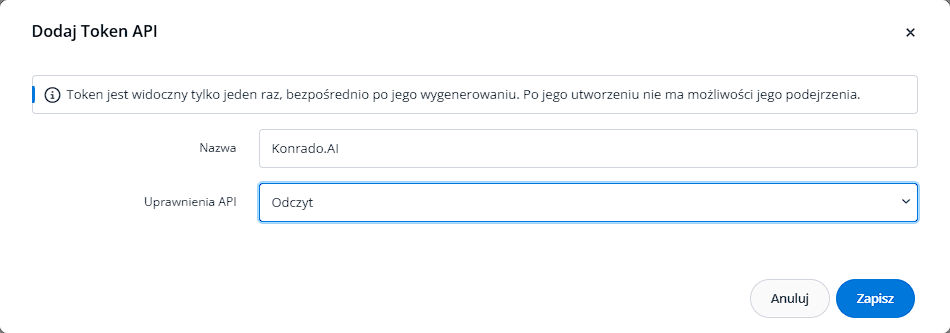
- Enter a Name (Nazwa) such as
Konrado.AI. - Set API permissions (Uprawnienia API) to Read (Odczyt). To limit the token further, choose Selected methods (Wybrane metody) and tick the methods listed in Give Access to Only These Methods.
- Click Save (Zapisz).
- Base.com confirms that the token was created. Click the copy icon next to the masked token and store the value in a password manager.
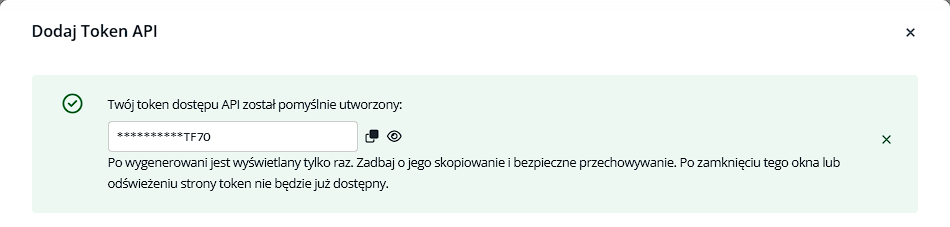
Base.com shows the token only once, right after it is generated. After you close the dialog or reload the page, the token cannot be displayed again. If you lose it, delete the token in Base.com and create a new one. Do not paste the token into tickets, screenshots, or documentation.
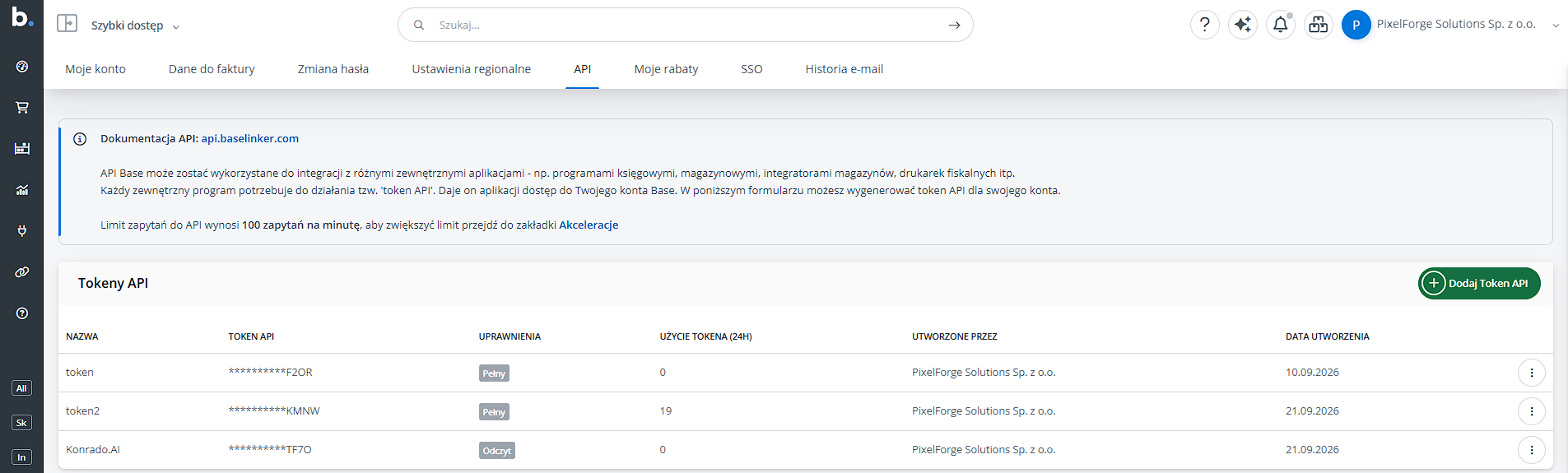
The new token appears in the API tokens (Tokeny API) table with Read (Odczyt) permissions. The API call logs (Logi wywołań API) section below it shows each method Konrado.AI calls, so you can audit the integration's activity.
Connect Base.com
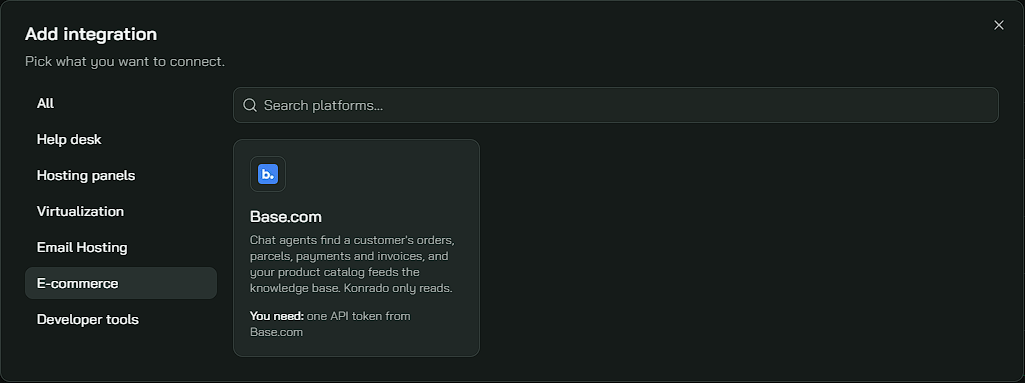
In Konrado.AI, open Integrations, click Add integration, choose the E-commerce category, and select Base.com.
Enter the connection details:
| Field | What to enter |
|---|---|
| Integration Name | A descriptive name such as Base.com or Main store |
| API Token | The dedicated read-only token generated in Base.com |
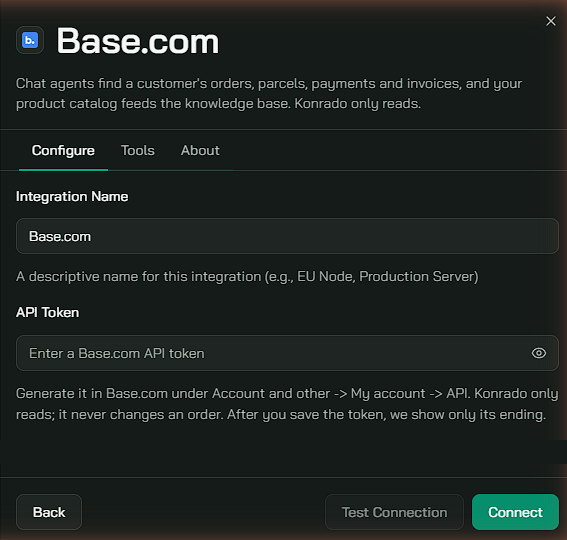
Click Test Connection. A successful test shows Connected successfully!. Click Connect to save the integration.
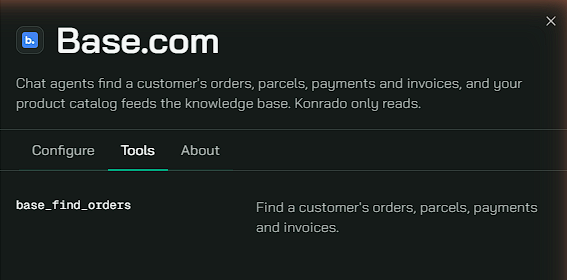
The Tools tab lists the one tool the website chat agent gets, base_find_orders. The About tab summarizes what agents get: Account lookups and Product catalog.
Verify the Connection
The Integrations table should show Base.com with the E-commerce type, a Connected status, and the agents that use it.

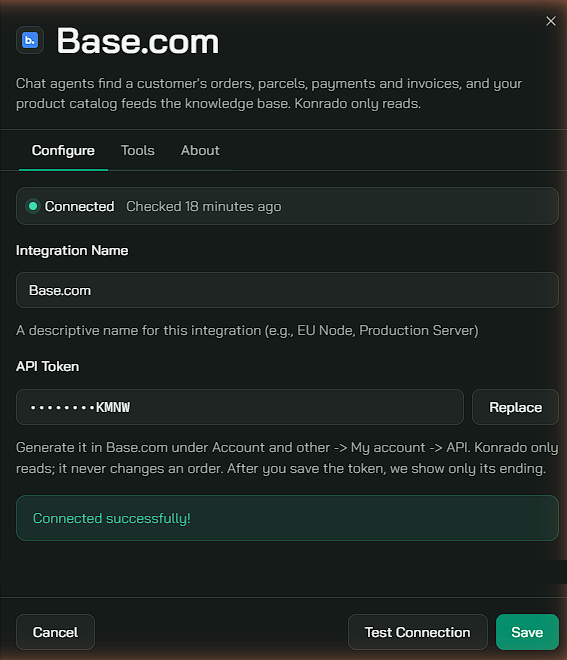
To check the connection later, open the row menu (...), choose Manage, and click Test Connection. The token field shows only the last characters of the stored token. Click Replace only when rotating the token; otherwise leave it as it is and click Save.
Add the Product Catalog
- Open Knowledge Base and click Sync platform.
- In the Platform step, select Base.com under Your platforms and click Continue.
- In the Data step, choose the Product catalog, then review the Settings step and confirm.
If the catalog was already added, the Data step shows Everything is added; manage the existing source from the Sources list instead. If Base.com is listed under Available to connect with a Connect button, the integration is not connected yet.
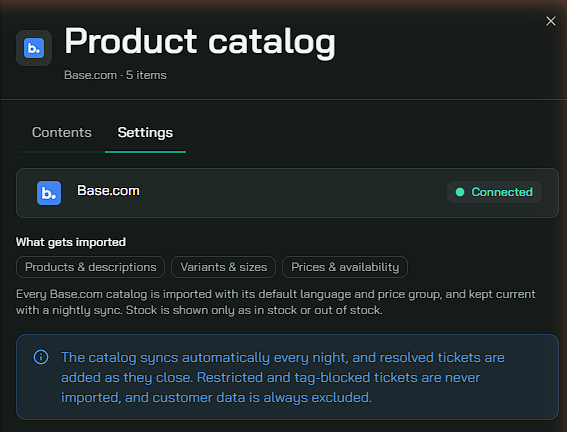
After the first sync, the source appears as Product catalog · Base.com with the number of imported products. Open it to browse the products on the Contents tab.
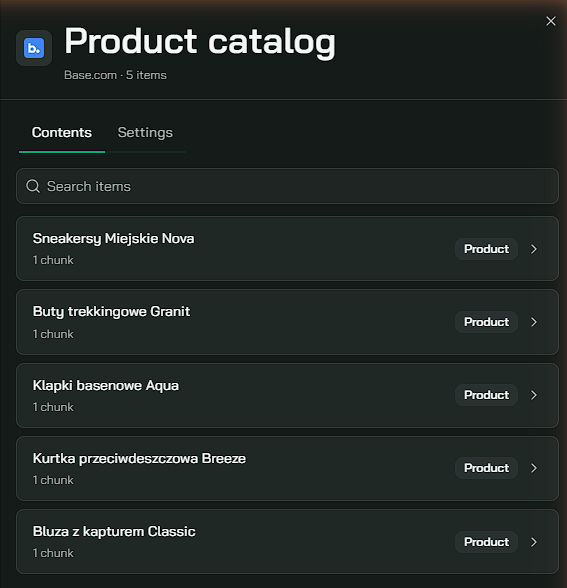
The Settings tab shows the connection status, what gets imported, and the catalog options:
| Setting | What it does |
|---|---|
| Catalogs to import | Which Base.com catalogs are imported. All of them by default; a catalog created later in Base.com is imported only after you add it here |
| Shop address | Optional, WooCommerce shops only. Each product document gets a link to its page in your shop. Changing it re-imports the whole catalog once |
| Shop | Shown when several shops are connected to your Base.com account, so products link to the right one |
Troubleshooting
| Issue | What to check |
|---|---|
| The integration turns to Not working and says to check that the API token still exists | The token was deleted, or the Base.com account it belongs to is suspended or expired. Create a new token, open the row menu (...) and choose Manage or Reconnect, then Replace the token |
| Base.com rejected the API token | Confirm that the token was copied completely and still exists under My account > API in Base.com |
| API rate limit exceeded | Base.com allows 100 requests per minute per account; reduce other API integrations or wait a moment and test again |
| Unable to reach the Base.com API or the request timed out | Retry later; if it persists, check the Base.com service status |
| A method is refused | If you created a Selected methods (Wybrane metody) token, confirm that all 14 methods listed in Give Access to Only These Methods are ticked |
| Base.com shows Invalid API method (Nieprawidłowa metoda API) when you save the token | A name in Methods (Metody) is not a Base.com method. Remove base_find_orders (a Konrado.AI tool name) and tick the methods listed in Give Access to Only These Methods |
| The catalog settings cannot load your catalogs and shops | The token is rejected or Base.com is unreachable; test the connection in Integrations, then open the settings again |
| The chosen catalogs no longer exist in Base.com | A deleted or re-created catalog is not imported and the stored copy stays unchanged; choose the catalogs again in the source settings |
| The chat cannot find an order | Ask the shopper for the exact order number and the e-mail or phone used on that order; after 3 failed attempts the chat hands off to a human |
| An invoice or parcel is missing in the answer | Check the order in Base.com; the agent reports a block as unavailable when Base.com cannot return it |
| The catalog was not imported | An inventory with more than 10,000 products is not imported, and the stored copy stays unchanged |
| Prices or stock are out of date | The catalog syncs every night; changes made in Base.com appear after the next sync |
Remove
- In Konrado.AI Integrations, open the Base.com row menu (...) and choose Delete.
- Remove the Base.com Product catalog source from the Knowledge Base if you no longer want agents to use it.
- In Base.com, delete the dedicated token under My account > API.