

Your agent
What one agent is, what its Overview shows, its settings, and how to add another.
An agent is one Konrado assistant with its own channels, instructions and knowledge. It answers on Live chat on your website, on your Helpdesk, or on both. The sidebar section AGENTS lists every agent you have. Open one and its pages take over the sidebar.
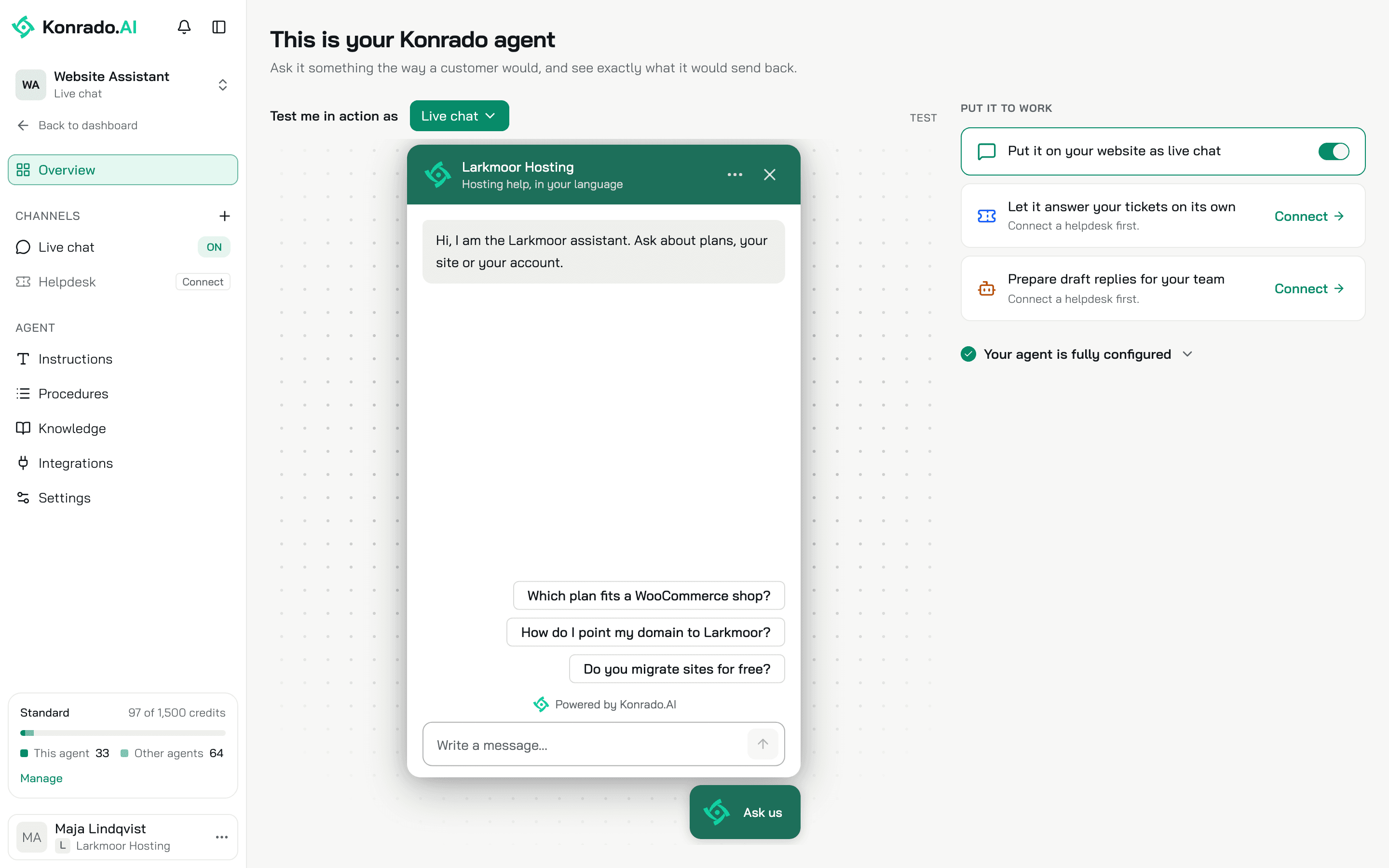
Overview
An agent opens on its Overview. Three things sit on it: the test chat, the Put it to work rail and the Context line.
Test chat
Pick Test me in action as Live chat and ask something the way a customer would. Konrado answers with the agent's saved settings, so what you see is what a visitor gets. Each test conversation carries a Test chip and lands in the Inbox marked as a test.
The test is real. If the agent collects a lead or opens a ticket during the test, that lead or ticket is sent for real.
An agent with no live chat shows No chat to test here yet.
Put it to work
One row per job the agent can do. A row is a switch, or a link to the page that holds the switch.
| Row | What it does |
|---|---|
| Put it on your website as live chat | Add gives the agent a live chat. Install opens the snippet page while the code is not on your site yet. Once Konrado sees the code on your site, the row is the chat's on and off switch |
| Let it answer your tickets on its own | Shows the auto-reply mode: Off. Every ticket waits for your team., Shadow mode. It decides on every ticket but sends nothing. or Live. It sends replies when it is confident. Open goes to Auto replies |
| Prepare draft replies for your team | The Copilot switch. Konrado drafts a reply inside your help desk for every new ticket |
With no help desk connected, the two ticket rows read Connect a helpdesk first. Connect opens the channel list, or the connect form of the help desk the website scan found.
Context
Context scores what the agent has to answer from, out of 100%. Three rows add up to it.
| Row | Weight | Counts as done when |
|---|---|---|
| Write its instructions | +20% | The agent's Instructions are not empty |
| Fill the knowledge base | +40% | The Knowledge Base has a source Konrado has finished reading |
| Connect your integrations | +40% | A help desk, a panel or another integration is connected |
Knowledge and integrations belong to the organization, so every agent shares them. Only the instructions belong to one agent. At 100% the card folds to Your agent is fully configured. While Konrado is still reading your website, the knowledge row says so and the card refreshes on its own.
Settings
Open AgentsSettings. The header shows the agent's name, a Live or Paused badge and the channels it is on. A chat agent also shows its chat ID. Click the ID to copy it. Support asks for it when you report a problem with the chat.
Name
Agent name, up to 255 characters. Your console shows it, and so does the chat header unless the chat has its own brand name in Branding & Style. Click Save.
Status
Answering is the agent's switch. Switched off it reads Not answering, and the header badge reads Paused. A disabled agent answers nobody, on any of its channels. Its history stays.
| Where | What happens while the agent is off |
|---|---|
| Live chat | The chat no longer loads on your website. A visitor who has it open gets no answer to their next message |
| Copilot | No drafts: none in the background, and none when your team opens a ticket or asks for a new one. The browser extension shows This AI agent is turned off, so it writes no drafts. where the draft would be |
| Auto replies | Nothing is sent. A reply already queued is cancelled when it is due. The Auto-reply history lists it as Skipped, with the reason Not sent: the agent was disabled before this reply went out |
The agent's Overview, the live chat's Status page and the help desk's Copilot and Auto replies pages show a warning that the agent is not answering, with the button Open agent settings. The banners on the three channel pages read Nothing here runs while the agent is disabled. On the Overview, Let it answer your tickets on its own reads Off. Every ticket waits for your team., and the sidebar marks the agent's channels OFF.
The test chat on the Overview and the preview link from Install still answer, so you can try a fix before you switch the agent back on.
Each channel keeps a switch of its own: the live chat's on the Put it to work rail, the help desk's on Auto replies and Copilot. Switch the channel off when you want one channel quiet and the others working. While the agent is off, the channel switches keep their setting. Switch Answering back on and every channel works as it is set.
Delete
Only an agent created for a live chat has Delete this agent. Deleting takes three steps, and the page tells you which one is next:
- Switch Answering off. An agent that is still answering cannot be deleted.
- Remove every channel it runs on.
- Click Delete agent and type the agent's name to confirm.
The agent, its instructions, its procedures and its settings are removed for good.
Add a second agent
Click + next to AGENTS in the sidebar. In the New agent dialog enter an Agent name and click Create agent. The agent gets a live chat at once and opens on its Overview. Your plan does not limit how many agents you create; it limits credits.
An agent that answers tickets is not created here. When you connect a help desk, Konrado creates one for it, named Ticket Agent until you rename it.
What Konrado cannot do
| Not possible | What to do instead |
|---|---|
| Test the help desk on the Overview | The test chat is for Live chat. For tickets, turn on Shadow mode on Auto replies and read what Konrado would have sent |
| Delete an agent that has talked to customers | A channel with conversation history cannot be removed. Switch Answering off instead |
| Delete the agent that came with a help desk | It has no delete button. It lives as long as the connection |
Related
Last updated on