

Team
The three roles, and how to invite someone, change a role, remove a person and switch organization.
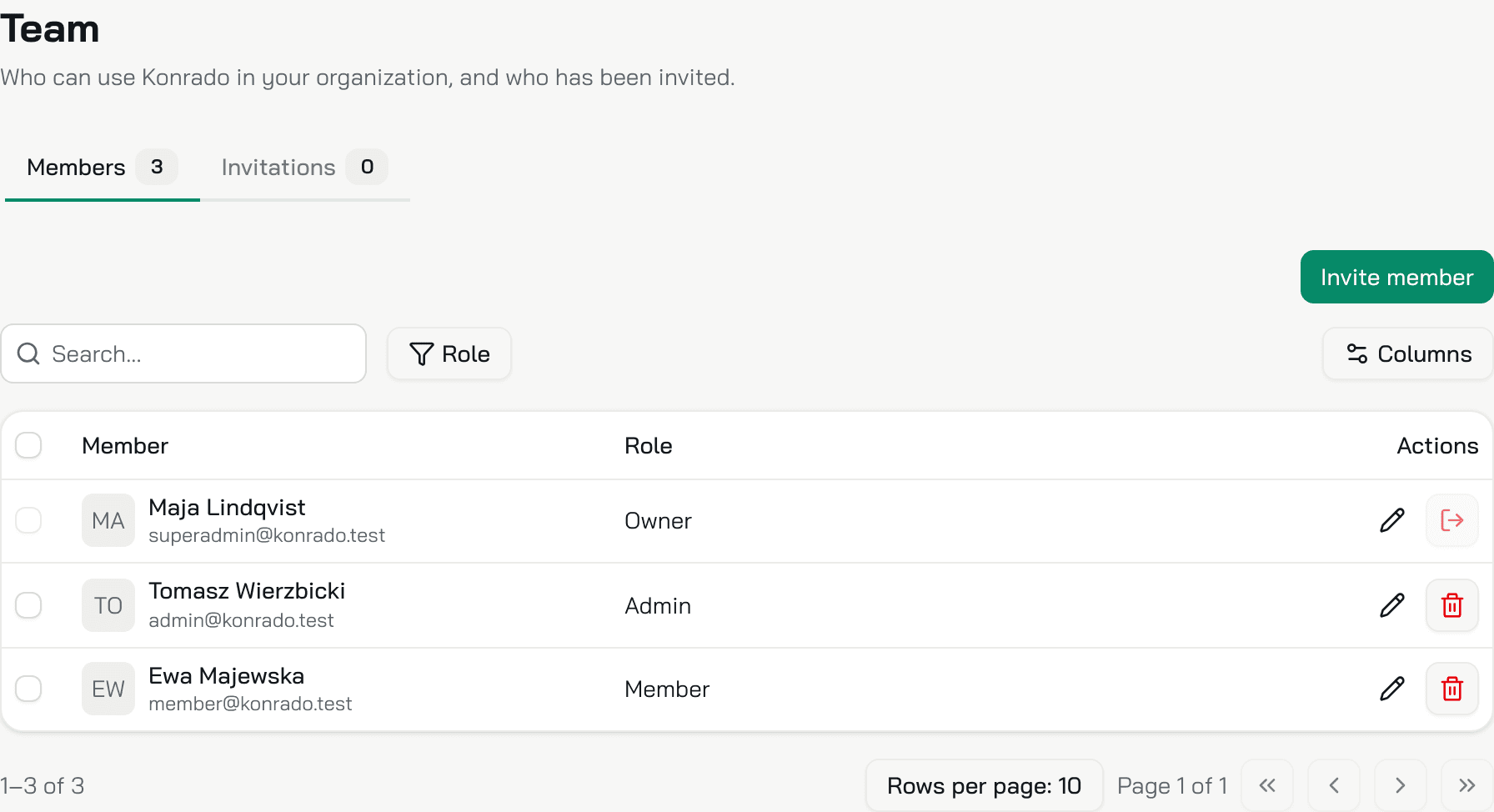
Team lists the people in your organization and the invitations you sent. Every person has one role: owner, admin or member. Open Workspace SettingsTeam. Only owners and admins see it.
Roles
| Role | What they see | What they change |
|---|---|---|
| Owner | The whole console | Everything. Only an owner deletes the organization, makes someone an owner, and changes or removes another owner |
| Admin | The whole console | Everything else: agents, channels, the Knowledge Base, integrations, the plan, the team and the settings |
| Member | Their own Account page, and the browser extension on your help desk's tickets | Their own account |
The person who creates the organization is its first owner. A member who opens the console lands on Account. Members work in your help desk: the browser extension shows them Konrado's draft on the ticket they answer. Set up the browser extension.
Every plan has unlimited members.
Members
The Members tab lists each person with their role. Search by name, or filter with Role. Each row has its buttons on the right:
- The pencil changes the role.
- The bin removes the person.
- On your own row, the arrow lets you leave the organization.
To remove several people at once, tick their rows and click Remove selected members.
Invite someone
- On the Members tab, click Invite member.
- Type their email address and pick a Role: Owner, Admin or Member. Member is the default.
- Click Invite member.
Konrado emails them a link, Accept invitation, that works for seven days. They accept with an account on that same email address, and nobody else can. Only an owner can invite an owner. Inviting an address again replaces its pending invitation.
Invitations
The Invitations tab lists every invitation with its Email, Invited at, Role and Status: Pending, Accepted, Rejected or Canceled. Filter with Role and Status.
A pending invitation has two buttons. The paper plane sends the email again and gives the invitation seven more days. The cross withdraws it. To withdraw several, tick them and click Cancel selected invitations.
Change a role
Click the pencil on a person's row, pick the role and click Save changes. An admin picks Admin or Member. An owner can also pick Owner. Only an owner changes another owner's role, and the only owner keeps the role until there is a second one.
A person changed to member loses the console: from their next page they see only Account. Every AI app they connected through MCP Connection is disconnected.
Remove someone
Click the bin on their row and confirm with Remove member. They lose access at once, and every AI app they connected through MCP Connection is disconnected. Their Konrado account stays, so you can invite them again later. Only an owner removes an owner, and the only owner cannot be removed.
Switch organization
One account can belong to several organizations, each with its own agents, team and plan. Click your name at the bottom of the menu. Under Organization, open the organization's name and pick another one. Create organization at the bottom of that list starts the setup of a new organization, with you as its owner.
What Konrado cannot do
| Not possible | What to do instead |
|---|---|
| Show a member the console | Make them an admin |
| Limit an admin to some agents or pages | Admins see the whole console. Give the member role to someone who only needs the drafts |
| Give someone two roles | Pick the one they need. An owner can do everything an admin can |
| Invite several addresses at once | Invite them one at a time |
| Accept an invitation with another email address | Invite the address they sign in with |
Related
Last updated on