

Browser extension
Your team reads Konrado's draft beside the reply box in your help desk.
At the end of this page every person on your team sees Konrado's draft inside your help desk, on the ticket they are answering, with one click to insert it.
Before you start
- Chrome, Edge, Brave or Opera, or Firefox 115 or newer.
- A Konrado account in the organization, any role. A member's account works in the extension and on their own profile page, nowhere else.
- Your help desk connected in Konrado. The extension shows only on the ticket pages of the address that is connected.
- The extension knows the ticket pages of WHMCS, SupportPal and LiveAgent.
Steps
Install it
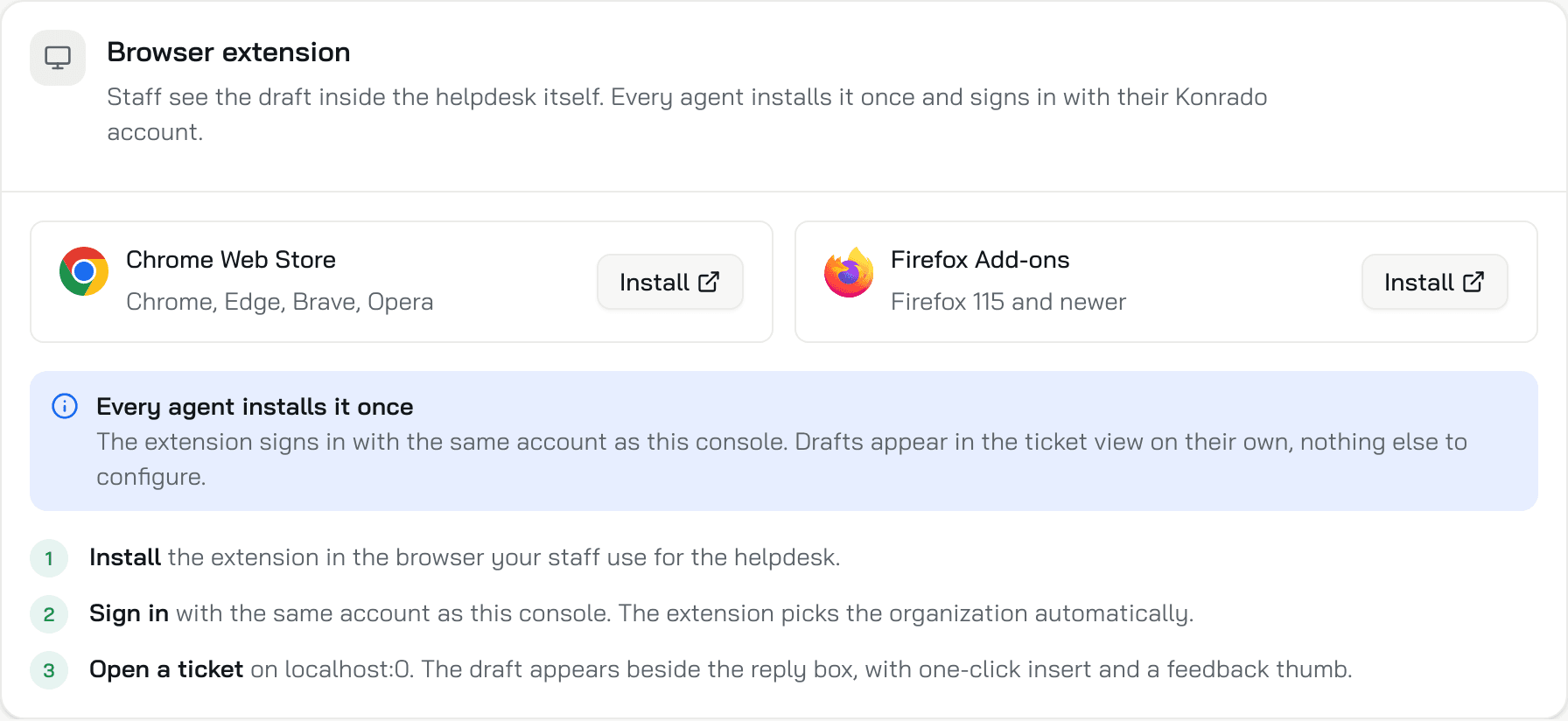
Open HelpdeskCopilot and click Install under Browser extension: Chrome Web Store for Chrome, Edge, Brave and Opera, Firefox Add-ons for Firefox. Or open the store directly: Install from the Chrome Web Store or Install from Firefox Add-ons. Confirm the browser's prompt.
Sign in
Open a ticket in your help desk. A tab with the Konrado logo sits on the right edge of the page. Click it: the panel opens, names your help desk's workspace and asks for your Konrado account, the same sign-in as the console. Click Continue to sign in. A sign-in window opens; sign in as you do in the console. The window closes on its own and the extension picks your organization.
Read and insert the draft
The Overview tab shows AI Reply with a Confidence badge. If the ticket arrived while Copilot was on, the draft is ready. Otherwise the panel writes one now and says Crafting reply. Either way it costs 2 credits.
With Auto-insert reply on, the default, the draft lands in the empty reply field as soon as it is ready. Otherwise click Insert, or press Cmd+Enter on a Mac and Ctrl+Enter elsewhere. The arrow next to Insert inserts as Markdown, HTML or Plain text instead, and makes that your new default.
Not right yet? Improve takes an instruction in your words, or one of Shorten, Elaborate and a Tone: Professional, Friendly, Formal, Casual, Apologetic or Persuasive. The thumbs under the reply send feedback. Service Information below shows the client, their services and unpaid invoices and, with a server integration, SSO to server.
Set your preferences
Click your avatar in the panel's top-right corner, then Settings.
| Setting | Default | What it does |
|---|---|---|
| Overlay mode | Off | On, the panel floats over the page instead of narrowing it |
| Auto-insert reply | On | Puts the draft into the reply field when the field is empty |
| Default reply format | Markdown | The format Insert uses. HTML for a rich text editor, Plain text for one with no formatting |
Click Save changes. The settings are yours alone, stored by the browser.
The avatar menu also holds Profile, Feedback, the theme switch, Language and Logout.
Check it works
Open a new ticket: the reply field already holds the draft.
What members can do
A member signs in to the extension and works with drafts on tickets. The console sends a member to their own profile page: the agent's pages, the Inbox and Workspace Settings need an owner or an admin. Roles are set under Workspace SettingsTeam.
If something is wrong
| What you see | What to do |
|---|---|
| No Konrado button on the ticket page | The page is not a ticket page the extension knows, or your help desk's address differs from the one connected in Konrado. Check the connection under Workspace SettingsIntegrations, then clear the cache: the extension remembers its answer for 24 hours. |
| The sign-in window says the organization has no help desk registered | Connect your help desk first, then sign in again. |
| Access restricted | Konrado or your help desk refused this ticket for your account. Ask an admin to check your access in the help desk and under Team. |
| AI is off for this department or AI is off for this ticket | The ticket is outside the ticket scope, or carries a blocked tag. An admin changes that on the connection. |
| Reply generation failed with a line about credits | This period's credits are used up. See plans and credits. |
| Widget update available | Restart the browser. |
Clear the cache
Click the extension's icon in the browser toolbar. Under Extension Settings, click Clear next to Clear Cache. This removes everything the extension stored: it signs you out and resets your settings. Sign in again afterwards.
Related
Last updated on