

Auto replies
Let Konrado send the reply itself, after you watched it decide in Shadow mode.
At the end of this page Konrado answers routine tickets on its own, and you know which tickets it never touches.
Auto replies has three modes: Off, Shadow and Live. In Shadow, Konrado decides on every new ticket and sends nothing, so you see what Live would do before a customer does. Shadow costs nothing extra. Konrado decides on the draft Copilot already wrote, and that draft costs 2 credits with or without Shadow.
Before you start
- A connected help desk with Copilot on. Auto replies run on top of its background drafts: with Prepare drafts in the background off, there is nothing to send. Set up Copilot.
- A person from your help desk to send as. Live refuses to start without an Assigned agent under Reply settings.
- A week of tickets. Shadow needs traffic before it can show you anything.
Steps
Start in shadow mode
Open HelpdeskAuto replies. On the Status tab, choose Shadow. It saves at once and the banner says Shadow mode: nothing is sent. From now on Konrado writes a reply for every new ticket in scope, scores it, and records what Live would have done. Nothing reaches a customer.

Read the report for a week
Stay on Status. After a few days the banner says how many messages would have been answered on their own in the last 7 days. Below it, the Automation report shows the same period in detail: how many tickets came in, how many messages Konrado saw, how many it Would have answered, and why the rest waited for a person.
Switch to Auto-reply history to see each decision. A row says Would have sent or For a person, with the confidence. Click it to read Konrado's reasoning and the reply it would have sent. Read the Would have sent rows as if the customer had received them. A wrong one is a rule or an instruction to fix before Live.
Set the confidence bar and the exclusions
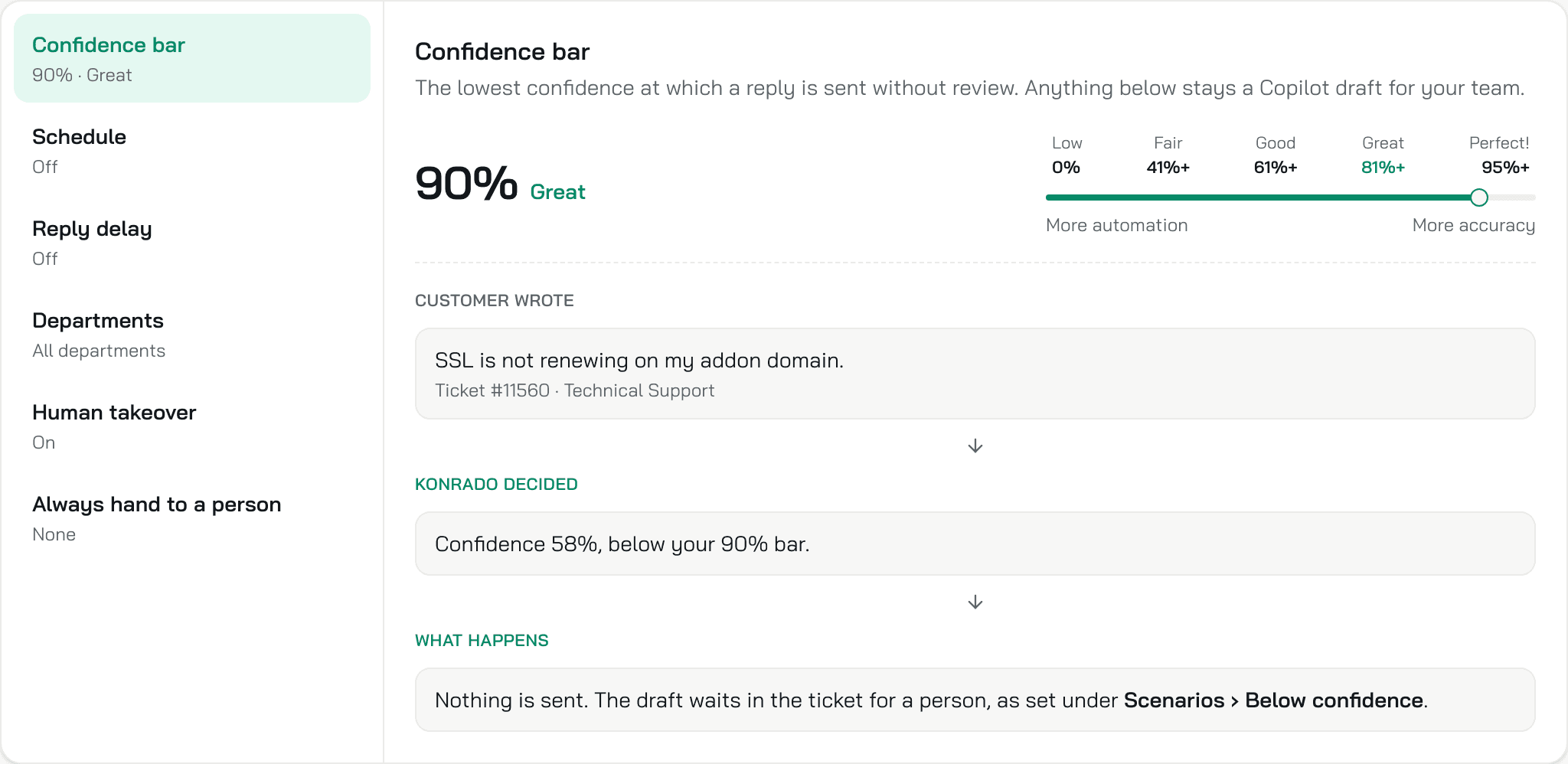
Open Rules. The Confidence bar starts at 90%. Lower it when the Would have sent rows are right and the For a person rows read well too. Raise it when a Would have sent row worried you. Under Always hand to a person, write the tickets Konrado must never answer on its own, one per line: refunds, cancellations, legal topics, VIP accounts. Save.
Choose the sender
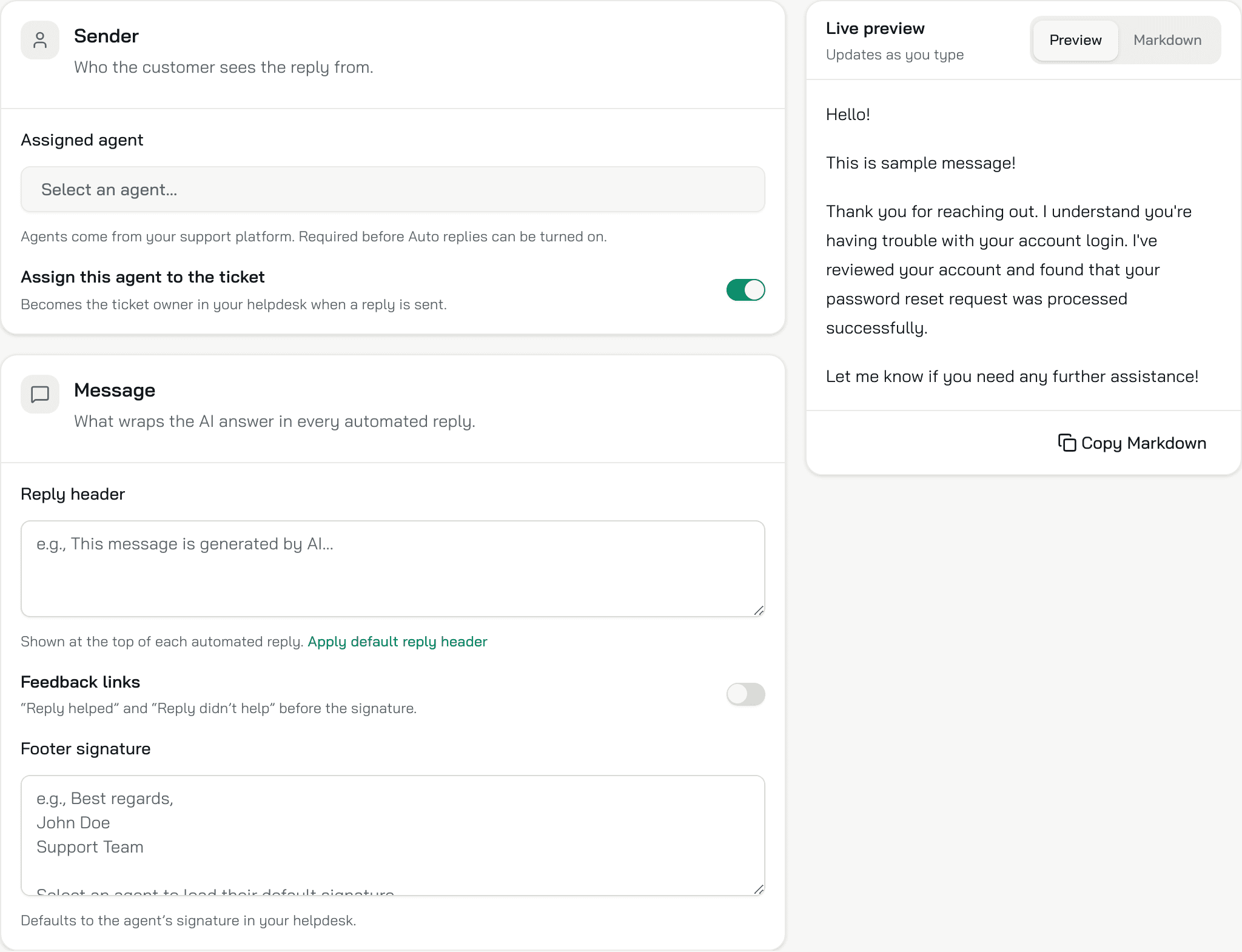
Open Reply settings. Pick the Assigned agent: the person in your help desk the customer sees the reply from. Decide what wraps the answer: a Reply header, Feedback links, a Footer signature. Save.
Go live
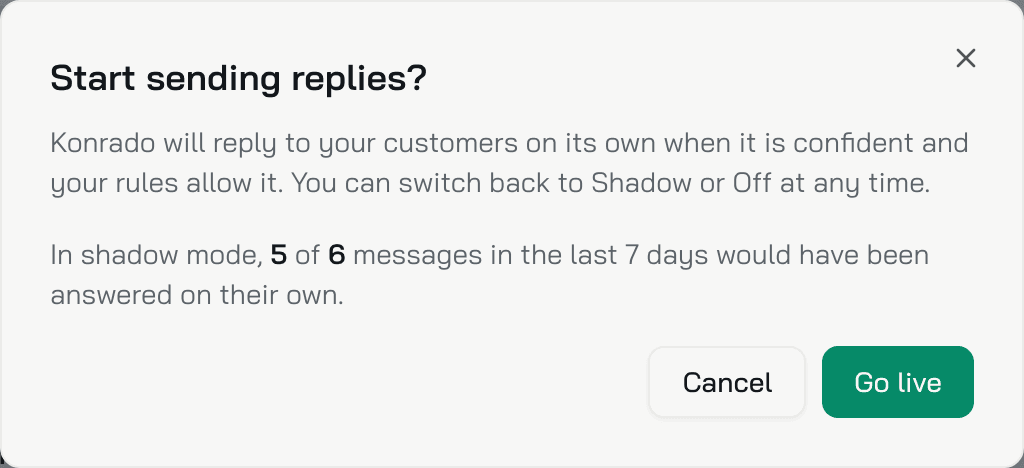
Back on Status, choose Live. Konrado asks Start sending replies? and shows the shadow record: how many of the last 7 days' messages would have been answered on their own. Click Go live. From now on a reply above the bar goes out from the assigned agent, and everything else stays a draft. Shadow and Off are one click away at any time.
Check it works
The Status banner says Auto replies are live and, after the first ticket, how many messages were answered on their own in the last 7 days. The Auto-reply history shows Sent rows handled by Konrado. On the agent's Overview, the row Let it answer your tickets on its own reads Live. It sends replies when it is confident.
Rules
Each rule has a row on the left with its current value, and its controls on the right. Saving writes them all at once.
Confidence bar
The lowest confidence at which a reply is sent without review. Anything below stays a Copilot draft for your team. From 0% to 100%, in the tiers Konrado uses everywhere: Low from 0%, Fair from 41%, Good from 61%, Great from 81%, Perfect! from 95%. The default is 90%. The example under the slider shows the rule at work: a ticket scored 58% waits for a person.
Schedule
Off by default: Konrado answers at all times. On, you pick a Timezone and the hours for each day, and outside them tickets wait for a person. Three presets: After hours (weekdays 18:00 to 08:00, weekends all day), Weekends only and 24/7. A window past midnight shows +1d. Right now tells you whether this moment is inside a window.
Reply delay
Off by default. On, every automated reply is held for the minutes you set, up to 120, so a person has a window to step in. A held reply shows as Queued in the Auto-reply history. A new message from the customer cancels it, and so does switching to Shadow or Off. Disabling the agent cancels it too: when the hold ends, the history lists it as Skipped, with the reason Not sent: the agent was disabled before this reply went out.
Departments
Limits automation to some departments of the ticket scope. Empty means all of them. Copilot keeps drafting for the others.
Human takeover
On by default: once a person replies to a ticket, Konrado stops answering that ticket on its own. It does not step back in after a person has taken over.
Always hand to a person
Free text, one rule per line, up to 5,000 characters: ticket types, keywords or situations that go to a person every time. Konrado checks every ticket against these rules before it scores the draft, so a match wins whatever the confidence. A matched ticket shows Excluded by your rules in the history.
Reply settings
Assigned agent
Who the customer sees the reply from, chosen from the people in your help desk. Required before Live can start. Assign this agent to the ticket, on by default, makes that person the ticket owner in your help desk when a reply is sent.
Reply header
Shown at the top of every automated reply, up to 500 characters. Apply default reply header inserts the standard line that says the reply comes from Konrado. Empty means no header.
Feedback links
Off by default. On, two links go before the signature: Reply helped and Reply didn't
help. Feedback style picks whose links: Konrado's own, your Support Platform's, or
your own template with the placeholders {{ticketId}} and {{eventUuid}}. Editing the template
switches the style to Custom (Apply automatically on changes).
Footer signature
Up to 1,000 characters. Empty, it takes the assigned agent's signature from your help desk. Revert to agent's signature brings it back after an edit.
The Live preview on the right shows the reply as the customer gets it: header, answer, feedback links, signature.
Scenarios
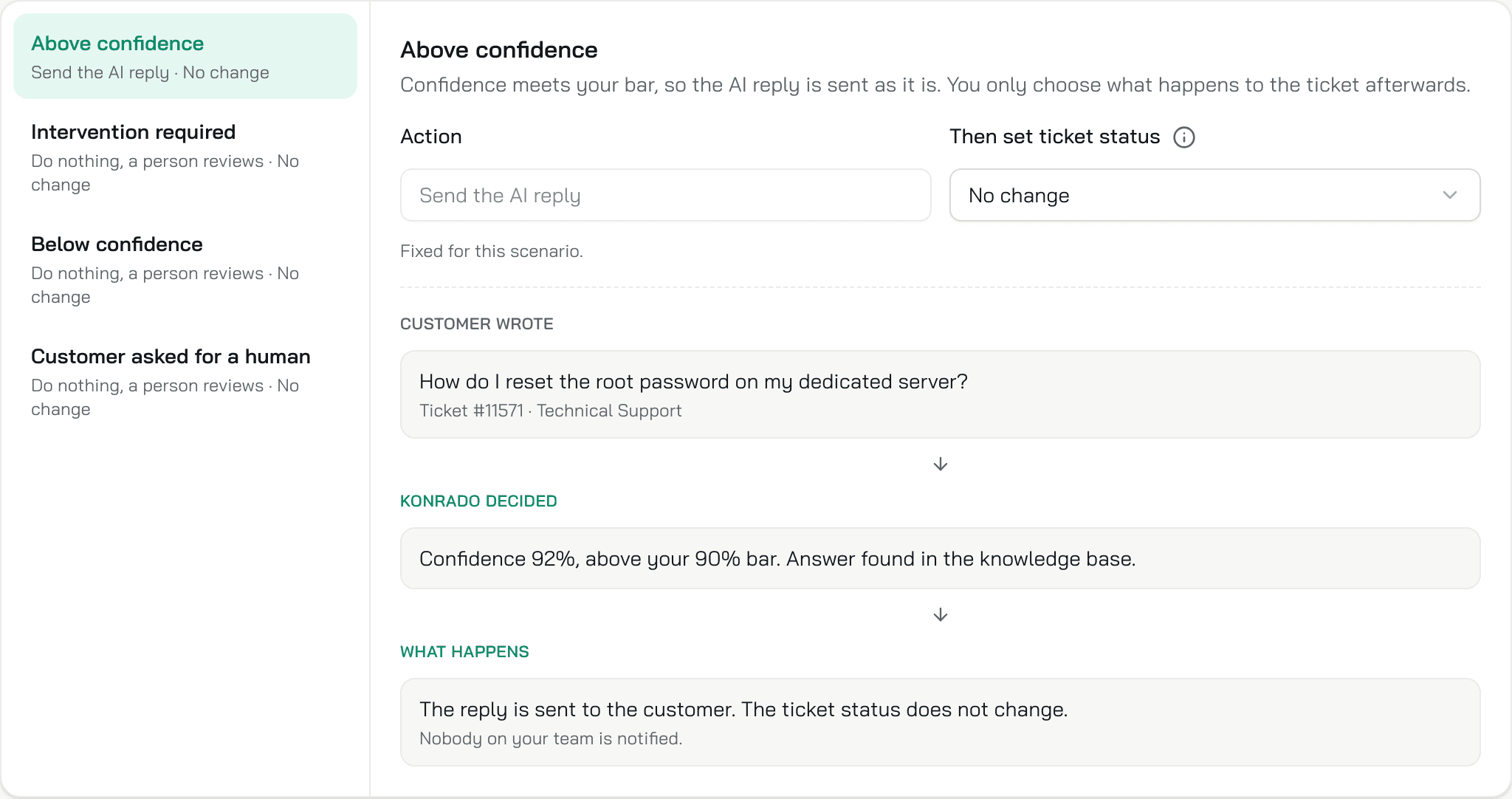
Four scenarios, one per outcome of a decision. For each you choose the Action and, when something is sent, Then set ticket status: one of your help desk's statuses, or No change.
| Scenario | When | Action |
|---|---|---|
| Above confidence | The score meets your bar | Fixed: Send the AI reply. You only pick the status afterwards |
| Intervention required | The reply needs a person to act, such as a refund or a plan change | Do nothing, a person reviews (the default) or Send a waiting message |
| Below confidence | The score is under your bar and nothing needs a person to act | The same two |
| Customer asked for a human | The customer asked for a real person instead of AI | The same two |
A waiting message is written per ticket, so every customer gets their own. It can carry its own Reply Header and Reply Footer, or Use the one from Reply settings. In every scenario but the first, the draft stays for your team.
How Konrado decides
For every new ticket in scope, in this order. Each step can stop the reply; a ticket that passes them all is scored.
- Your credits. At 100% of your credits, Konrado writes no draft and sends nothing until they reset.
- The mode. Off means nothing runs.
- Human takeover. A person already replied, so the ticket is theirs.
- Escalated from chat. A ticket the live chat opened for a visitor belongs to your team. Its draft waits for them.
- The Schedule. Outside a window the ticket waits.
- Departments. A department you left out is skipped.
- The customer asked for a human: the Customer asked for a human scenario.
- A person has to act, such as a refund: the Intervention required scenario.
- Your Always hand to a person rules and the agent's Guardrails. A match goes to a person. A reply that would break a guardrail is never sent and shows Guardrail broken.
- The score. At or above the Confidence bar the reply is sent, or in Shadow recorded as Would have sent. Below it, the Below confidence scenario.
A ticket that needs server access with no server integration connected also waits for a person.
Automation report
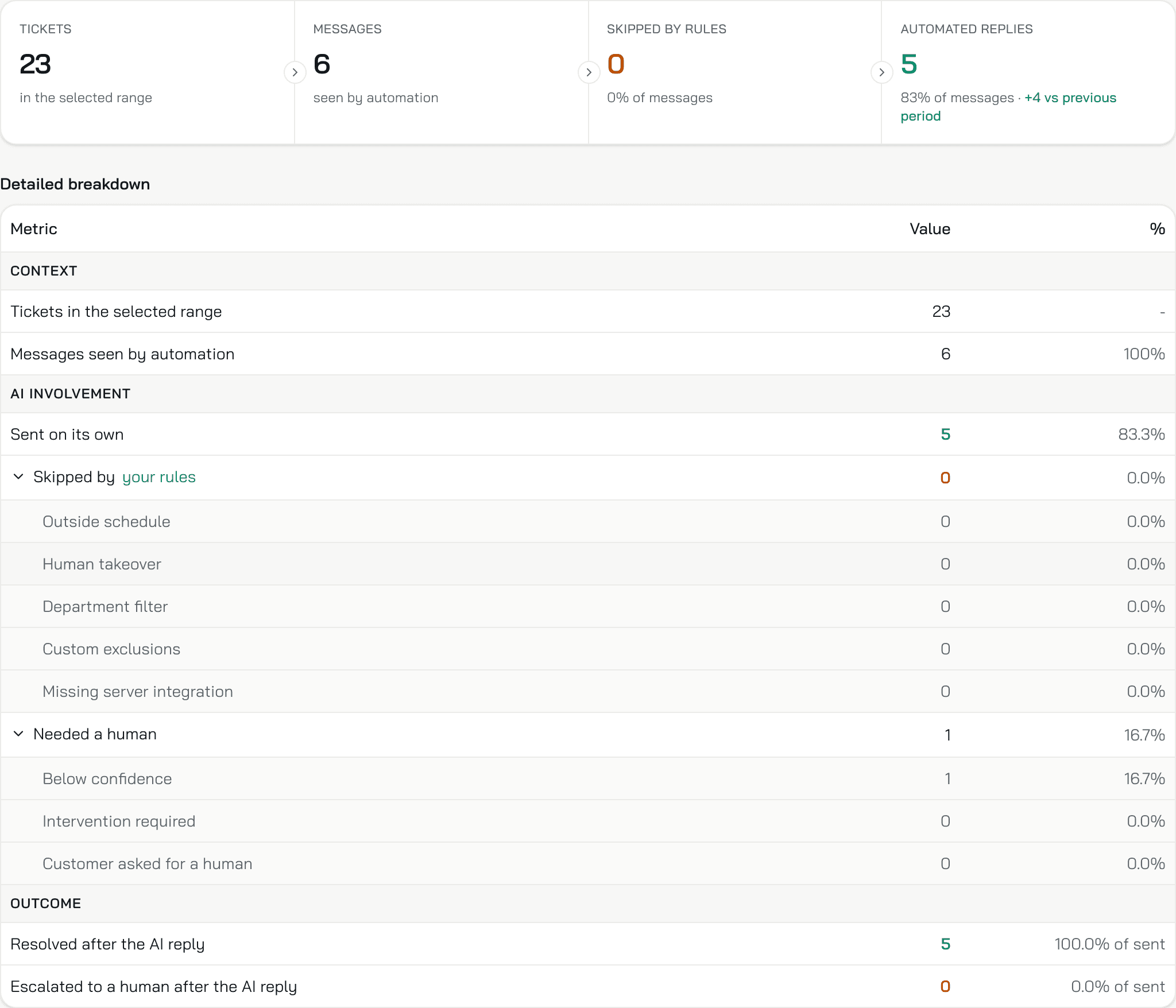
The default view on Status. The period is Last 7 days unless you pick another range. Four tiles: Tickets in the range, Messages seen by automation, Skipped by rules, and Automated replies (in Shadow, Would have answered) with the change against the previous period of the same length. Detailed breakdown splits the messages: Sent on its own (in Shadow, Would have sent on its own), Skipped by your rules (Outside schedule, Human takeover, Department filter, Custom exclusions, Missing server integration) and Needed a human (Below confidence, Intervention required, Customer asked for a human). In Live, the Outcome rows add Resolved after the AI reply and Escalated to a human after the AI reply.
Auto-reply history
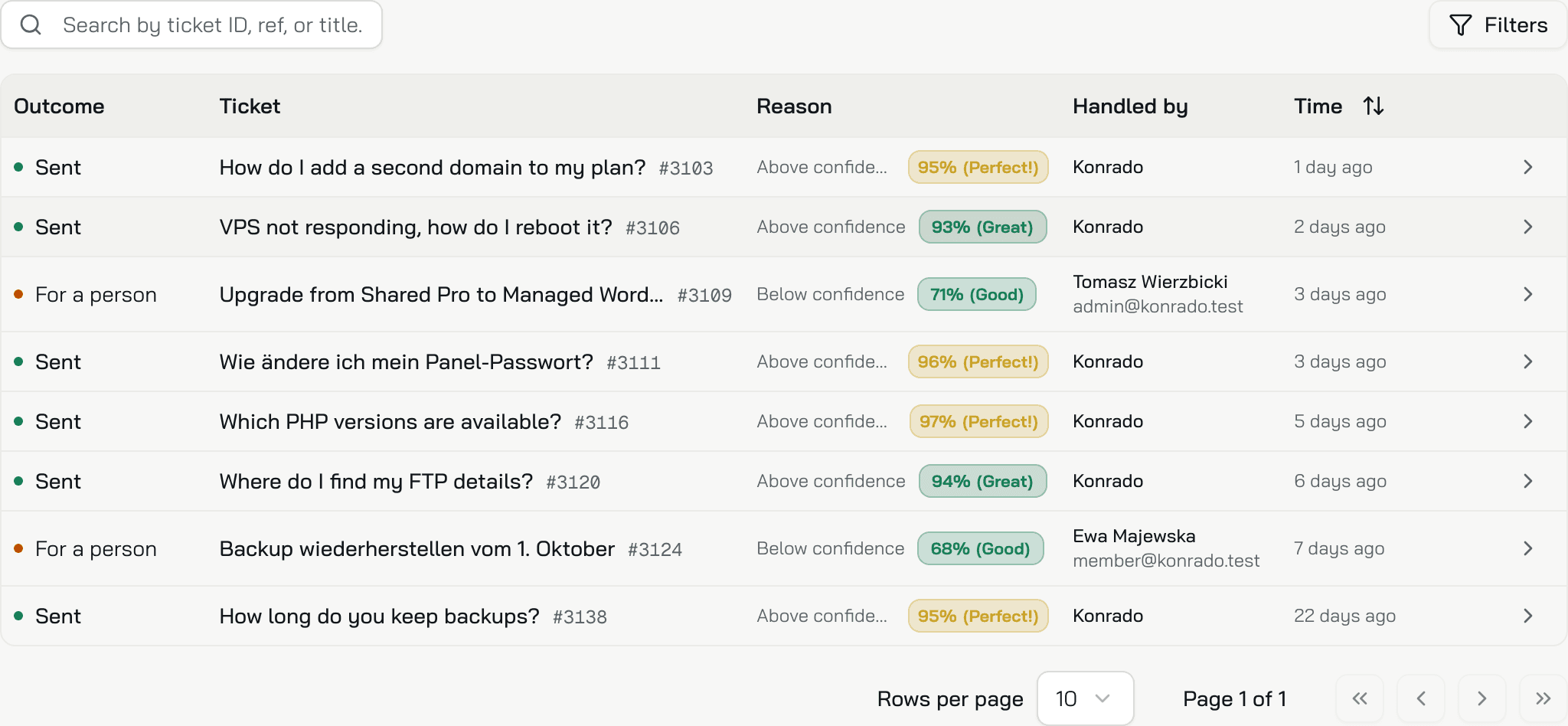
Every decision, newest first, with Filters by Status and Scenario and a search by ticket ID, ref or title. The columns: Outcome (Sent, Queued, Would have sent, For a person, Skipped, Error), Ticket, Reason (the scenario and the confidence), Handled by (Konrado, or the person who answered) and Time. Click a row for the analysis: Konrado's reasoning, the confidence breakdown, the conversation, and for an excluded ticket the rule that matched.
What Konrado cannot do
| Not possible | Why |
|---|---|
| Send a reply with no Assigned agent | Every reply goes out from a person in your help desk |
| Reply after a person took the ticket | Human takeover is on by default. Switch it off and Konrado keeps answering |
| Send a reply that breaks a guardrail | Whatever the confidence, the history shows Guardrail broken and a person gets the ticket |
| Answer a ticket Copilot did not draft | Auto replies decide on Copilot's background draft. With Prepare drafts in the background off, or the ticket's department outside Limit to departments, there is nothing to send |
If something is wrong
| What you see | What to do |
|---|---|
| Live does not turn on and a message names Assigned Agent | Pick one under Reply settings. |
| The banner says none has come in yet | No new ticket in scope since you switched. Check the ticket scope on the connection and wait for the next ticket. |
| Every row says For a person | The bar is above what the replies score. Read the confidence on the rows, then lower the bar, or improve the instructions and try again in Shadow. Write the instructions. |
| Rows say Outside schedule | The Schedule is on and the tickets arrive outside its windows. Widen the windows or switch it off. |
| A reply went out that should not have | Add the case under Always hand to a person, or switch to Shadow while you fix the instructions. |
Related
Last updated on