

Install the chat on your website
Put the Konrado chat on your site, choose where it may load, and test it before you switch it on.
At the end of this page the chat is on your website, loads only on the domains you allow, and you have seen it work before any visitor does.
Before you start
- An agent with a Live chat channel. An agent without one shows Add next to Live chat in its sidebar.
- A way to put a script tag on every page: your site's template, your Node.js or PHP backend, your WHMCS installation, or WordPress with the Konrado plugin.
Steps
Choose your platform
Open AgentsLive chatInstall. The Snippet tab starts with Choose your platform: HTML, Node.js, PHP, WHMCS or WordPress. The page then shows what to copy and where it goes, in that platform's words. The chat on the right is the live preview.
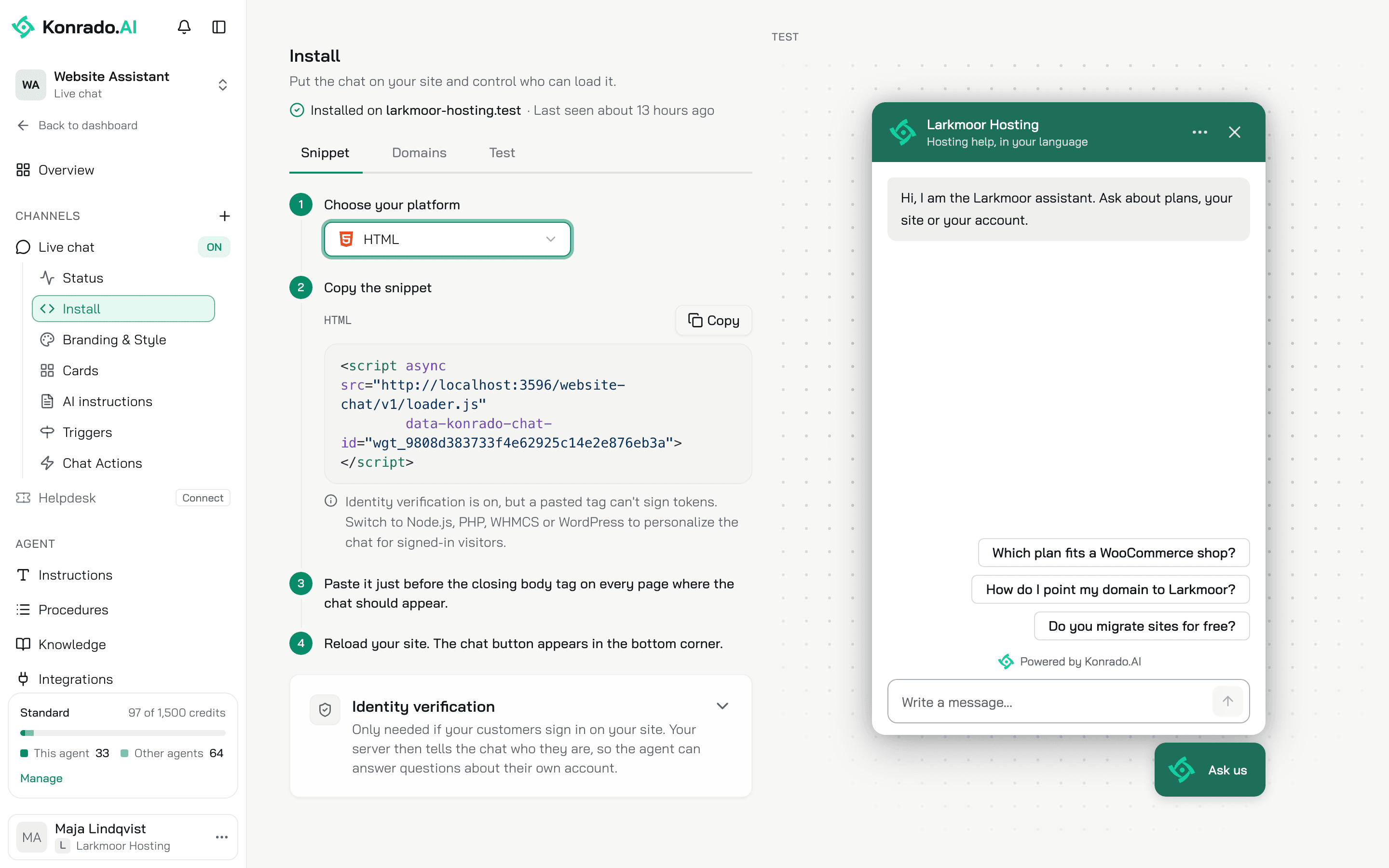
HTML is the one tag every site can paste. Node.js, PHP and WHMCS add server code that tells the chat which signed-in customer is writing. WordPress installs a plugin, with no code. If your customers do not sign in and your site is not WordPress, pick HTML.
Copy the snippet and put it on every page
Click Copy and place the code. Copy it from the console, not from here: the chat ID in it is yours.
One tag, just before </body> on every page where the chat should appear:
<script async src="https://app.konrado.ai/website-chat/v1/loader.js"
        data-konrado-chat-id="wgt_9808d383733f4e62925c14e2e876eb3a"></script>
data-konrado-chat-id is the chat's ID. It starts with wgt_, and the agent's Settings
page shows the same ID. An older snippet with data-konrado-widget-id, or one that loads
/konrado-chat/v1/loader.js, keeps working. You do not need to paste it again.
The snippet has two parts: a server function that signs a token for the signed-in user, and the
tag for your page template. Add the server part to your backend, put your secret key in the
AI_AGENT_IDENTITY_SECRET environment variable, and render the tag in your template:
<script async src="https://app.konrado.ai/website-chat/v1/loader.js"
        data-konrado-chat-id="wgt_9808d383733f4e62925c14e2e876eb3a"
        data-konrado-user-token="{{ token }}"></script>
A signed-out visitor renders the same tag with an empty token and gets the chat anonymously. The server part is on Identity verification. Without a secret key, skip it and use the HTML tag.
One block, pasted into your page template just before </body>. It signs a token when a user
is signed in and prints the tag. The console's Copy fills your secret key into the
KONRADO_IDENTITY_SECRET line, so keep the copied file on your server. The whole block is on
Identity verification.
Step 2 reads Copy this file. Save it as includes/hooks/konrado_chat.php in your WHMCS
folder. WHMCS loads it on its own and prints the tag in the client area, with a signed token
for a logged-in client. The console's Copy fills in your secret key. The file is on
Identity verification.
Nothing to paste. Click Download plugin (.zip), then in WordPress go to PluginsAdd New PluginUpload Plugin, choose the file, click Install Now and Activate. Open SettingsKonrado AI, paste the Chat ID from step 3 and save. Set up the WordPress plugin has the full guide, logged-in customers included.
Choose where the chat may load
Open the Domains tab. Allowed domains holds one switch, Only allow embedding the agent on specific domains, and the Domains box under it, one domain per line.
| Switch | Where the chat loads |
|---|---|
| Off | On any site that carries your snippet |
| On, with domains listed | Only on those. example.com is that exact host, so add www.example.com too if you use it. *.example.com covers every subdomain and not example.com itself |
| On, with no domains | Nowhere |
Up to 20 lines. A line with a path or https:// is refused: Use a domain like example.com
or *.example.com.
Click Save.
Test before launch
Open the Test tab. Preview on your site holds your organization's main domain. Change
it to the page that carries the snippet if that is another site. Visit opens the page with
?kc_preview= and your chat ID added. On that page the chat shows for you while it stays
paused for everyone else. Copy copies the link.
Anyone with the link sees the preview, so keep it private. With the domain list on, the domain must be listed.
Switch it on
Open Status and turn on the switch at the top, so it reads Enabled. The button appears for every visitor on the next page load.
Check it works
Reload your site. The chat button sits in the bottom corner. Send "hello" and Konrado answers. Back in the console, reload the Install page: it shows Installed on with your domain and Last seen, which refreshes at most once an hour. A paused chat counts too, so you can check the install before you switch on.
Next, you can open the chat from your own link or button, hide the chat button, or make the chat wait for cookie consent.
If something is wrong
| What you see | What to do |
|---|---|
| No button | The tag is not on that page: search the page source for loader.js. Or the chat is paused: turn it on in Status, or open the page through the Test tab's link. Or the agent is switched off: turn Answering back on in its Settings. |
| No button on one domain, but the chat works on another | The domain is missing in Domains. example.com does not cover www.example.com. |
| No button, and the browser console reports a blocked script or frame | Your site's Content Security Policy must allow scripts and frames from app.konrado.ai. |
| No Installed on line | The chat has not loaded on an allowed domain yet. Test chats in the console do not count. |
| The chat shows, but a signed-in customer is treated as a guest | See Identity verification. |
Last updated on