

WordPress
Add the Konrado.AI live chat to a WordPress site with the Konrado AI plugin, and optionally recognize logged-in customers

Use the Konrado AI plugin to put your agent's live chat on a WordPress site. You install the plugin, paste one ID, and save. You do not edit your theme or paste any code.
The Konrado AI plugin is not listed in the WordPress.org plugin directory, so you cannot find it by searching in Add New Plugin. Download it from the Konrado.AI dashboard, or directly as main.zip. The source code is public at github.com/konradoai/wordpress-plugin.
How the Plugin Works
The plugin adds one script tag to the footer of every page on your site:
<script async src="https://app.konrado.ai/website-chat/v1/loader.js" data-konrado-widget-id="wgt_…"></script>That script loads the chat for your Live chat channel. Everything visitors see in the chat is managed in the Konrado.AI dashboard, not in WordPress: the colors, greeting, languages, and position. Changes you make there appear on the next page load, with no change in WordPress.
The plugin has three settings under Settings > Konrado AI:
| Setting | Required | What it does |
|---|---|---|
| Widget ID | Yes | Connects the site to your Live chat channel. Starts with wgt_ |
| Recognize customers who are logged in to WordPress | No | Tells the agent who a logged-in visitor is. Off by default |
| Signing secret | With the checkbox | Appears once the checkbox is ticked. Proves to Konrado.AI that the customer details come from your site |
What It Can Do
| Capability | Details |
|---|---|
| Show the chat on every page | One script in the footer of every page, for every visitor |
| Keep the chat in sync with your dashboard | The look, greeting, languages, and position come from Konrado.AI on each page load |
| Recognize logged-in customers | With the checkbox and signing secret, the agent gets the verified name and e-mail of a visitor who is logged in to WordPress, so it does not have to ask for them |
| Stay anonymous for everyone else | Visitors who are not logged in always chat anonymously, and the chat still works if the secret is missing or wrong |
| Clean up after itself | Deleting the plugin from the Plugins screen also removes its settings |
What It Cannot Do
| Not supported | Why this matters |
|---|---|
| Change how the chat looks or behaves from WordPress | Appearance, greeting, languages, and position are set in the Konrado.AI dashboard |
| Turn the chat on or off from WordPress | Use Live chat > Status in Konrado.AI; deactivating the plugin removes the chat from the site entirely |
| Show the chat on only some pages | The plugin loads the chat on every page of the site that uses the theme's footer |
| Give the agent access to a customer's orders, invoices, services, or tickets on its own | The plugin sends the WordPress user as wp:<user ID>, which matches no help-desk client; see Security Model |
| Install from the WordPress.org directory or update automatically | Download the ZIP from the Konrado.AI dashboard and upload it; see Update the Plugin |
Prerequisites
- WordPress 5.7 or later and PHP 7.4 or later. The plugin is tested up to WordPress 7.1.
- A WordPress account that can install plugins (usually an Administrator).
- A Konrado.AI agent with a Live chat channel.
- A theme that calls
wp_footer(). Almost every theme does.
Download the Plugin
- In Konrado.AI, open your agent and go to Live chat > Install.
- On the Snippet tab, under Choose your platform, select WordPress.
- Click Download plugin (.zip).
- Keep this page open. Step 3 shows your Widget ID with a copy button, which you need after the installation.
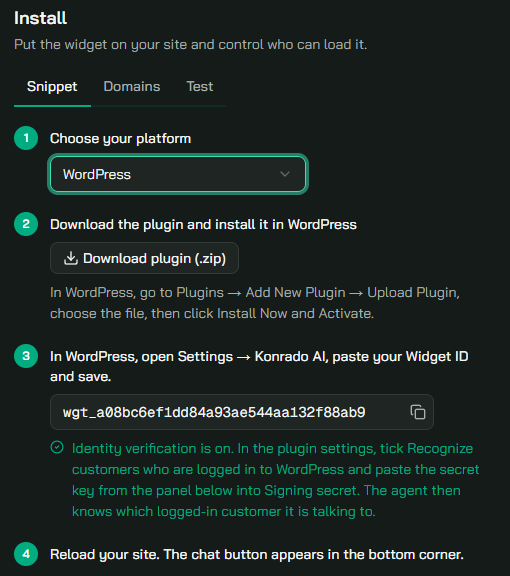
The button downloads wordpress-plugin-main.zip, the current version of the plugin from its GitHub repository.
Install the Plugin in WordPress
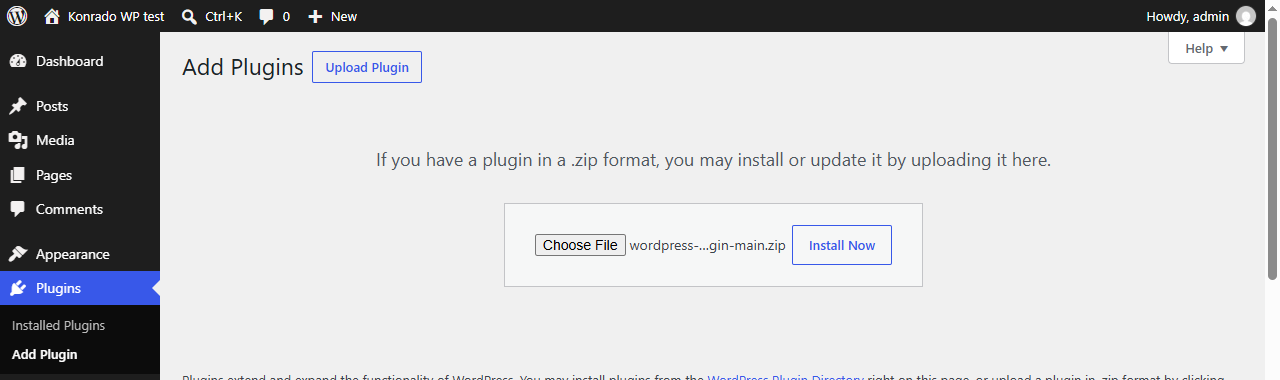
- In WordPress, go to Plugins > Add New Plugin. In WordPress 7, the menu item is called Add Plugin.
- Click Upload Plugin at the top of the page.
- Click Choose File, select the ZIP you downloaded, and click Install Now.
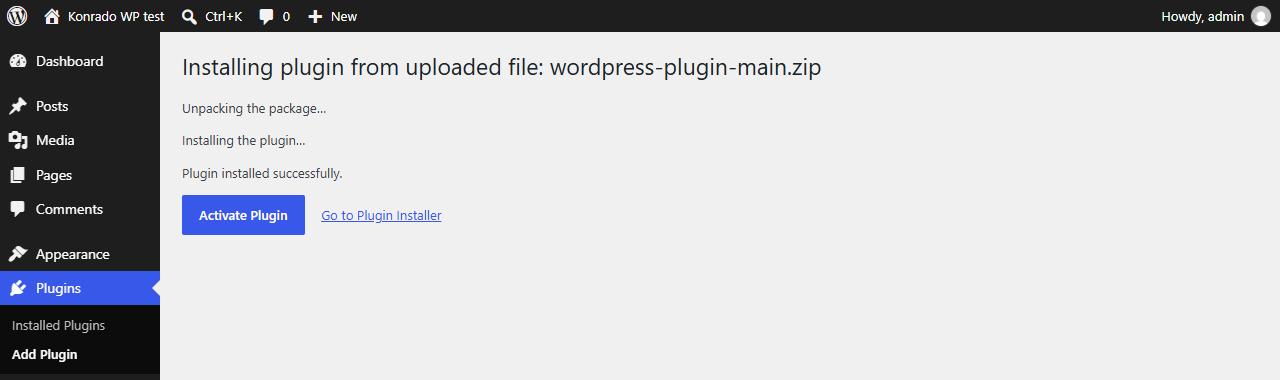
- WordPress shows Plugin installed successfully. Click Activate Plugin.
After activation, Konrado AI appears in the plugin list with a Settings link. Until you add a Widget ID, the Plugins screen shows a reminder: Konrado AI is active, but the chat will not appear until you add your Widget ID. The Add it now link opens the plugin settings.
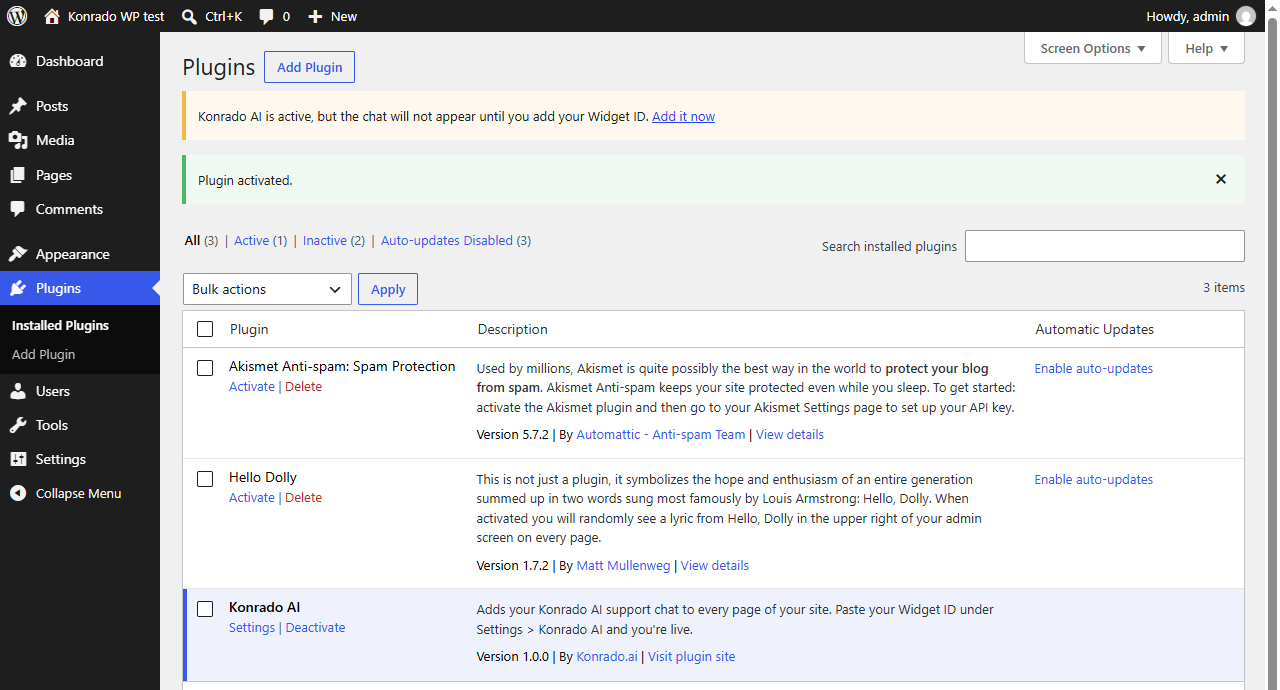
The plugin folder is called wordpress-plugin-main because that is the folder name inside the ZIP. This is expected, and you do not need to rename it.
Add Your Widget ID
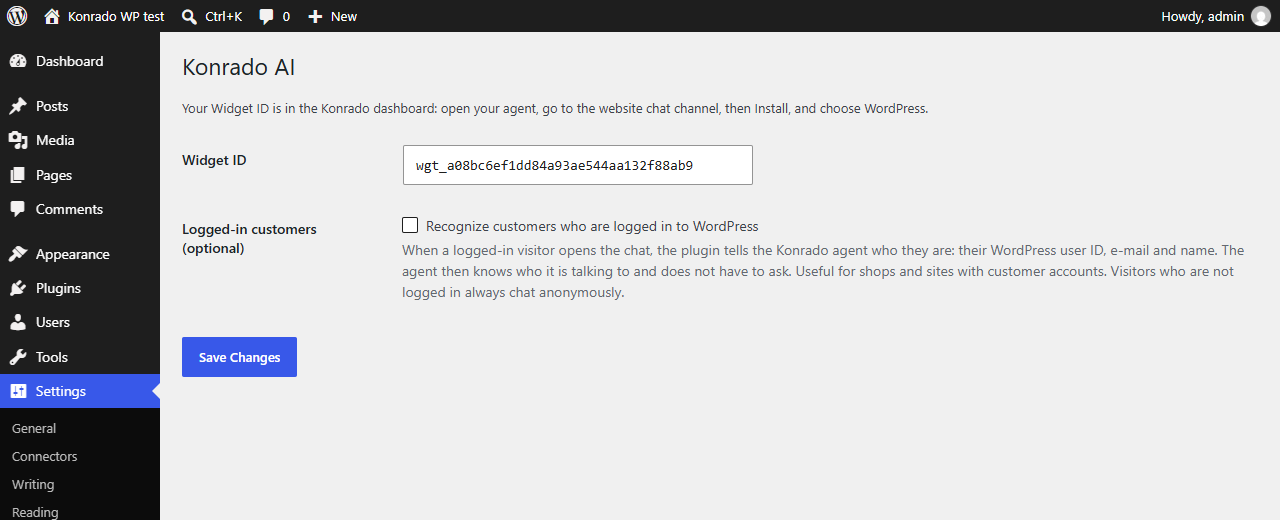
- In WordPress, go to Settings > Konrado AI, or click Settings under Konrado AI on the Plugins screen.
- Paste the Widget ID you copied from the Konrado.AI Install page into Widget ID. It looks like
wgt_followed by 32 characters. - Leave Recognize customers who are logged in to WordPress unticked for now.
- Click Save Changes.
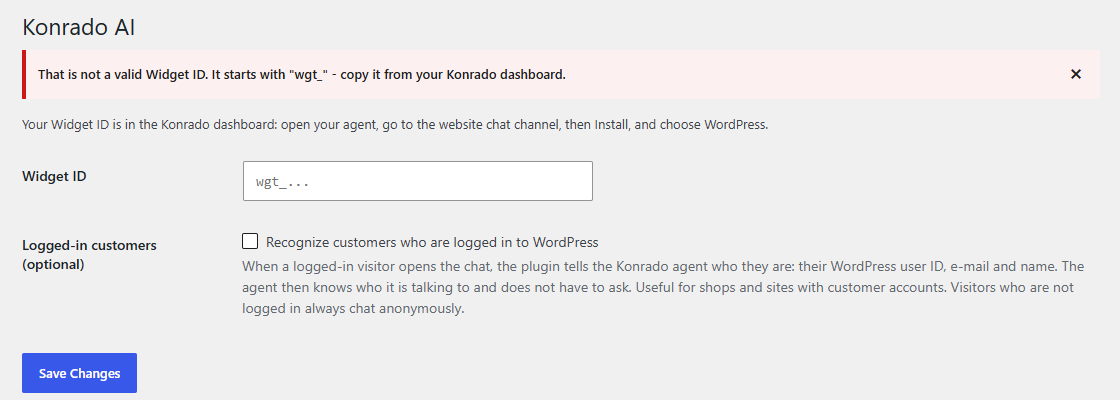
If the value is not a valid Widget ID, WordPress shows That is not a valid Widget ID. It starts with "wgt_" - copy it from your Konrado dashboard. The previous value is kept. Copy the ID again with the copy button on the Konrado.AI Install page.
Check the Chat on Your Site
Open any page of your site in a new browser window and reload it. The chat button appears in the bottom corner. Open it and send a test message.
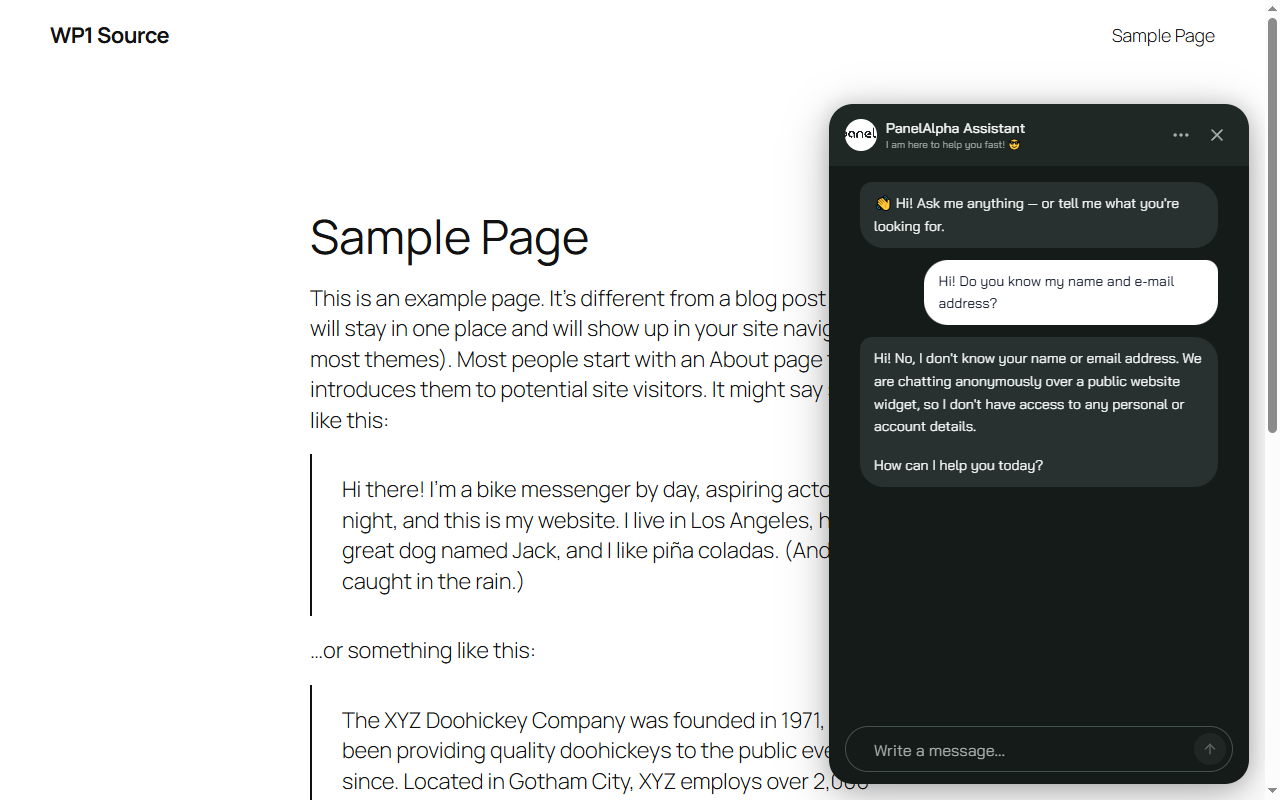
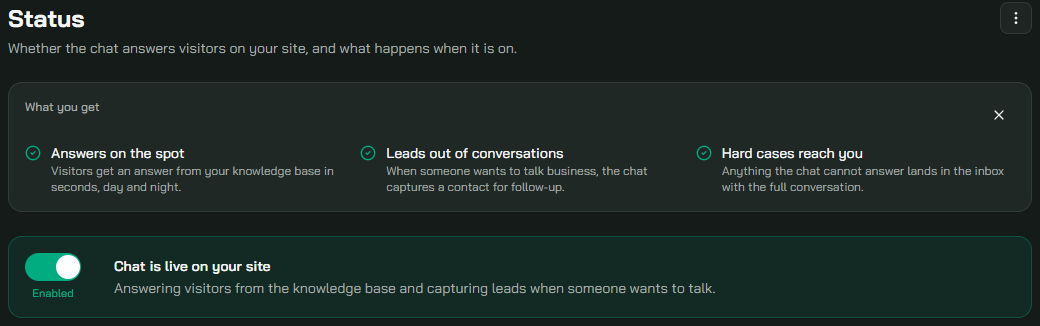
If the chat button does not appear, check that the chat is turned on in Konrado.AI under Live chat > Status. The switch must show Enabled.
Recognize Logged-In Customers
This step is optional. Use it when your visitors have accounts on your WordPress site, for example WooCommerce customers or members. When a logged-in customer opens the chat, the agent knows their name and e-mail address and does not have to ask for them.
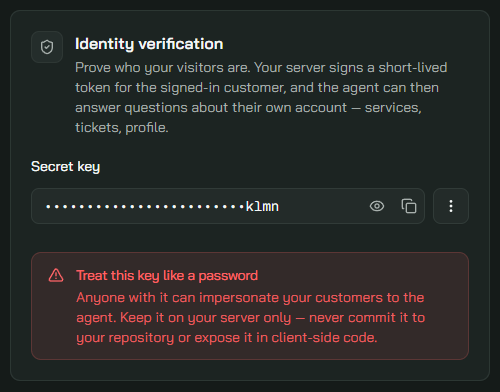
- In Konrado.AI, open Live chat > Install and scroll to Identity verification.
- If there is no key yet, click Generate. Then click the copy button next to the masked Secret key. You do not need to reveal the key to copy it.
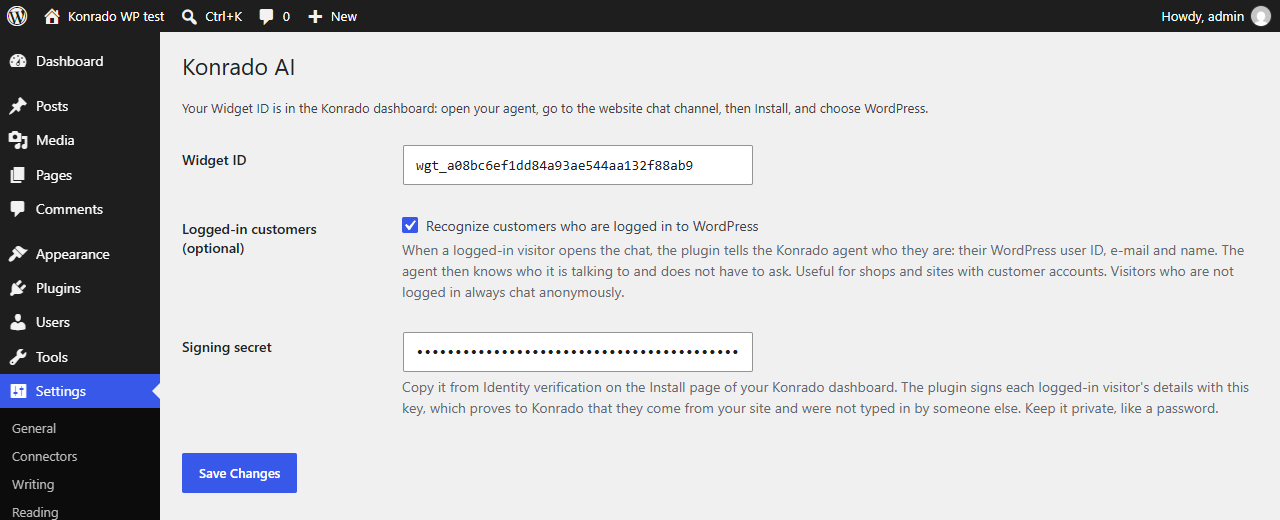
- In WordPress, go to Settings > Konrado AI and tick Recognize customers who are logged in to WordPress. The Signing secret field appears below it.
- Paste the key into Signing secret and click Save Changes.
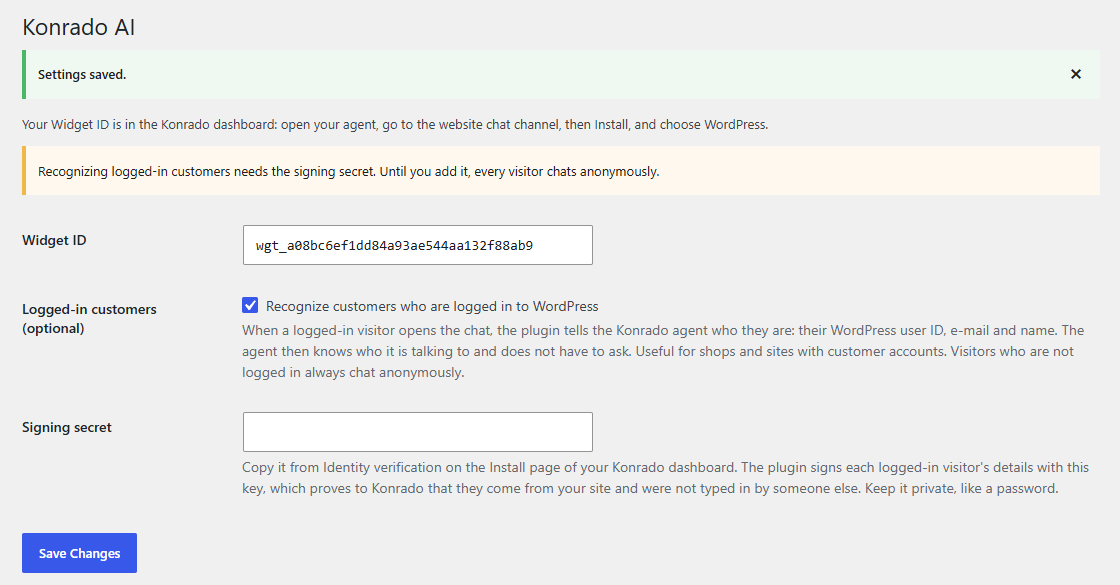
If the checkbox is ticked but the signing secret is empty, the settings page shows Recognizing logged-in customers needs the signing secret. Until you add it, every visitor chats anonymously. Nothing is signed until you add the key.
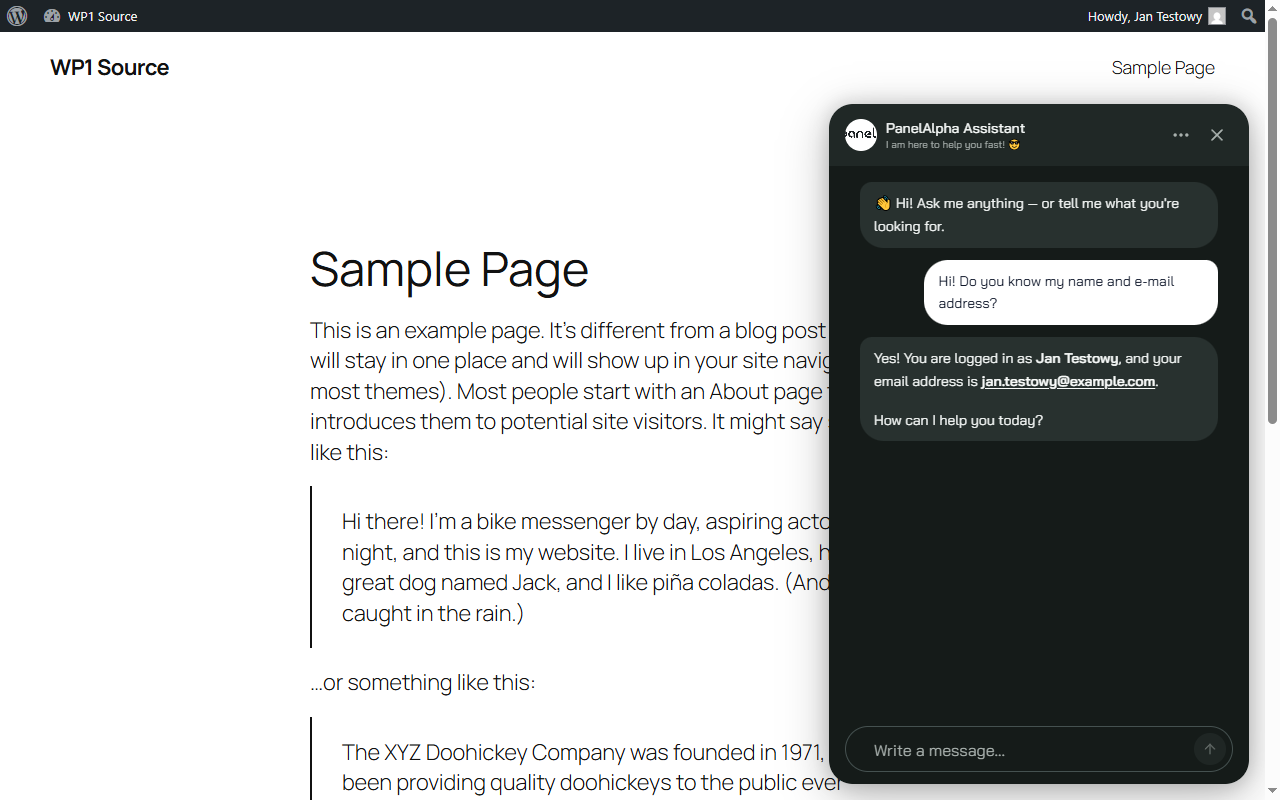
To test it, log in to your site as a customer, open a page, and ask the chat for your name and e-mail. The agent answers with the details from the customer's WordPress account.
| Visitor | What the agent knows |
|---|---|
| Logged in, correct key | Their verified name and e-mail |
| Not logged in | Nothing; the chat is anonymous |
| Logged in, wrong or missing key | Nothing; the chat falls back to anonymous without an error |
If you use a page cache, make sure pages for logged-in users are not cached. The customer's details are signed into the page each time it is rendered, and a signature is valid for five minutes and can be used once. Most caching plugins already skip logged-in users by default. Anonymous visitors are not affected.
Security Model
Treat the signing secret like a password. Anyone who has it can pose as any of your customers to the agent. Keep it only in the plugin settings and do not paste it into tickets, screenshots, or documentation. If the key leaks, rotate it under Identity verification in Konrado.AI and paste the new key into WordPress.
The Widget ID is public. It appears in the source of every page, and it only identifies which Live chat channel to load. To limit which sites can load your chat, turn on Only allow embedding the agent on specific domains on the Domains tab of the Install page and add your site's domain.
When recognition is on, the plugin identifies a customer like this:
- The signature is created on your server while WordPress renders the page. The secret is never sent to the browser.
- The plugin reads the logged-in WordPress user and signs a short-lived token (HS256) with the signing secret. The token goes into the chat script tag as
data-konrado-user-token. - Konrado.AI checks the signature with the same key. Only a valid, unexpired, unused token identifies the visitor. Anything else is treated as an anonymous visitor.
- Visitors who are not logged in get the plain script tag without a token.
The token contains these fields:
| Field | Value |
|---|---|
sub | The customer ID, wp:<WordPress user ID> by default |
email | The WordPress user's e-mail address, shown to the agent |
name | The WordPress user's display name, shown to the agent |
iat, exp | Issue time and expiry, five minutes later |
jti | A random value, so each token can be used only once |
Customer ID and Your Help Desk
Konrado.AI treats sub as the customer's client ID in your organization's help desk, such as WHMCS. For a matching client, the agent can read that client's own invoices, services, and tickets.
A WordPress user ID is a different number: WordPress user 5 is not necessarily help-desk client 5. The plugin therefore sends it with a wp: prefix, which never matches a help-desk client. By default, the agent knows only the customer's name and e-mail, not their account.
If your WordPress users are also help-desk clients, and you store each user's client ID, a developer can pass the real client ID with the konrado_ai_customer_id filter. For example, in a small custom plugin or your child theme's functions.php:
add_filter('konrado_ai_customer_id', function ($id, $user) {
    return get_user_meta($user->ID, 'whmcs_client_id', true) ?: '';
}, 10, 2);
Returning an empty string sends no identity for that user, so they chat anonymously. Return a client ID only when it is certain to belong to that WordPress user.
Update the Plugin
The plugin does not update itself through WordPress. To install a newer version:
- Download the ZIP again from Live chat > Install > WordPress in Konrado.AI.
- In WordPress, upload it under Plugins > Add New Plugin > Upload Plugin.
- WordPress detects that the plugin is already installed and offers to replace the current version with the uploaded one. Confirm the replacement.
Your Widget ID, checkbox, and signing secret are kept.
Troubleshooting
| Issue | What to check |
|---|---|
| The chat button does not appear | Confirm that the Widget ID is saved under Settings > Konrado AI; the Plugins screen warns when it is missing |
| The chat button still does not appear | In Konrado.AI, check that Live chat > Status shows Enabled |
| The chat works on one site but not on yours | If Only allow embedding the agent on specific domains is on under Install > Domains, add your site's domain to the list |
| The script tag is missing from the page source | Your theme must call wp_footer(); switch to a default theme briefly to confirm, then ask the theme author |
| That is not a valid Widget ID | Copy the ID again with the copy button on the Install page; it is wgt_ followed by 32 characters |
| The chat does not recognize a logged-in customer | Confirm that Recognize customers who are logged in to WordPress is ticked and that Signing secret is filled in |
| Recognition stopped working | The key was probably rotated in Konrado.AI; copy the current key from Identity verification and paste it into Signing secret |
| Recognition works only after clearing the cache | Exclude logged-in users from your page cache; a cached page carries an expired or already used token |
| The agent knows the name and e-mail but not the customer's account | This is the default; see Customer ID and Your Help Desk |
| WordPress asks for FTP details when you upload the plugin | WordPress cannot write to its own plugins folder, which is a hosting setting. Unzip the plugin into wp-content/plugins/ with your hosting file manager or FTP, then activate it under Plugins |
Remove
- In WordPress, go to Plugins, click Deactivate under Konrado AI, then click Delete. Deleting the plugin also removes its three settings: the Widget ID, the checkbox, and the signing secret.
- If you used logged-in customer recognition, rotate or delete the secret key under Identity verification in Konrado.AI.
- To stop the chat everywhere it is installed, turn it off under Live chat > Status in Konrado.AI.