

Cards
Pricing and product cards the chat shows instead of a wall of text.
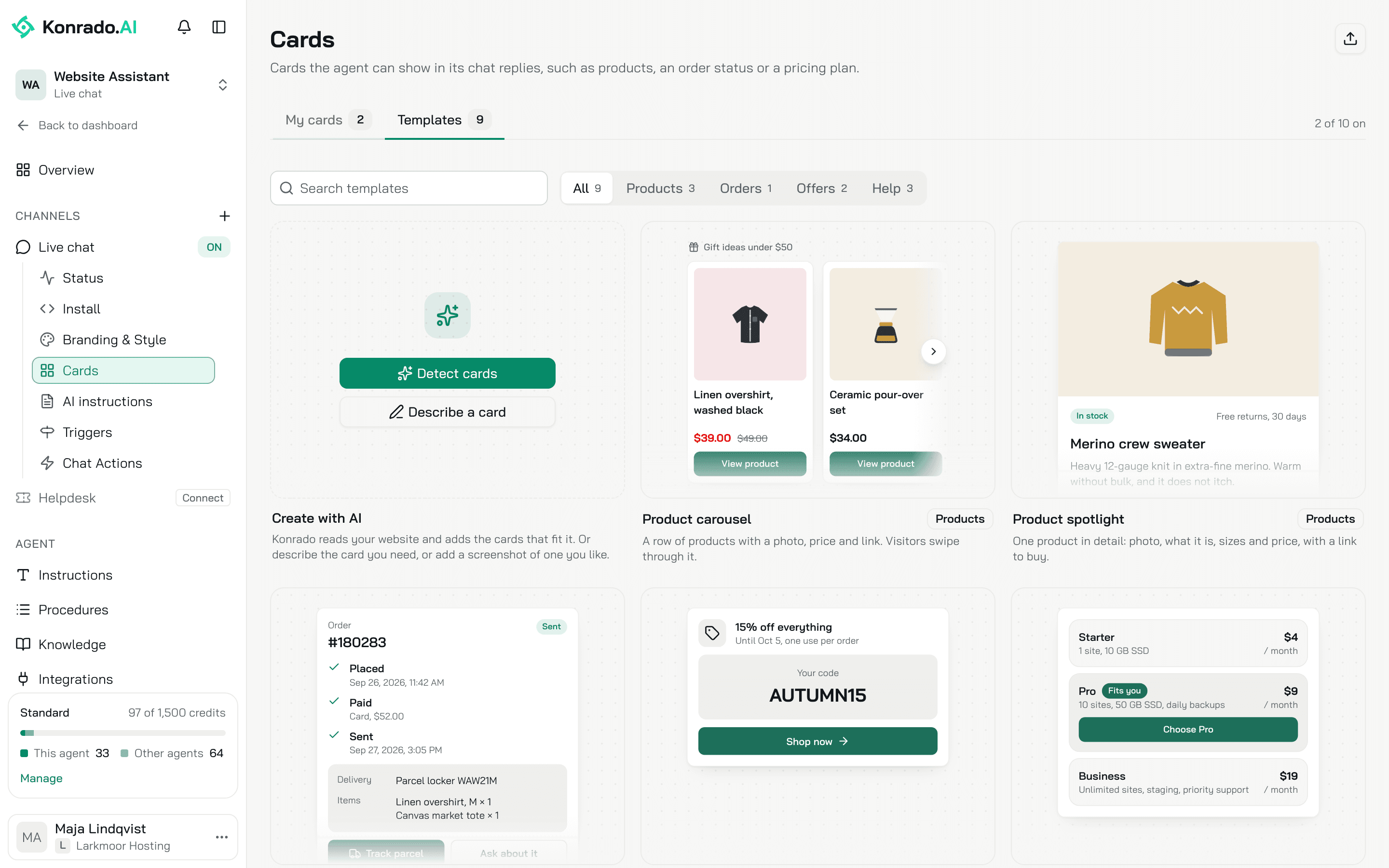
A card is a small panel Konrado draws under its reply: plans side by side, a product with its photo and price, an order with its steps. The visitor taps a button on it to open a link or to send a message. Open AgentsLive chatCards.
When a card beats a text reply
A card has to beat a short text reply. It does when the data has a shape: prices next to each other, a product with a photo, an order with its status. It does not when the answer is a sentence and a link, or a list the chat can write as text. So Detect cards adds only two kinds, pricing plans and product cards. The help, guide and opening hours templates are there for you to add by hand when they fit your site.
My cards
My cards lists your cards with a preview, an On or Off switch and Added with the date. Up to 10 cards can be on at once, and the counter top right shows how many are on, such as 2 of 10 on. A card that fails a check cannot be switched on, and the tile says why, such as Code has an error, The schema has an error or "When to show it" is empty.
Add a card
Four ways, all on the Templates tab.
Detect cards
Create with AIDetect cards reads the main pages of your website, up to 30, and adds up to 2 cards that fit: your pricing plans, your products, or both, from what your website shows. A pricing card needs a page with at least 2 different prices. A product card needs a shop with priced product pages. The cards are on right away, as your own cards, and you can turn off or delete any of them. It runs in the background, so you can leave the page. Konrado runs it once for you during setup.
Start from a template
Nine templates, each with a preview, a category and a line on what it shows. Hover one and click Set up.
| Template | Shows |
|---|---|
| Product carousel | A row of products with a photo, price and link. Visitors swipe through it |
| Product spotlight | One product in detail: photo, what it is, sizes and price, with a link to buy |
| Order tracking | Where an order is: the shop's status, the steps done so far, delivery and the parcel link. Needs an order lookup from your shop integration, such as Base.com |
| Discount code | A code the visitor can use at checkout, what it gives and until when |
| Pricing plans | Plans side by side, with the one that fits the visitor marked. Needs your plans, prices and limits in the Knowledge Base |
| Room offer | A room or package with the dates, what is included and the total price |
| Step-by-step guide | Numbered steps for a task, with a link to the full article |
| Help articles | Links to the help articles that answer the question, with a one-line summary each |
| Opening hours | Your address and opening hours, with the day the visitor asked about marked, and a link to directions |
The dialog shows How it looks in your chat in light and dark, The agent fills in (the fields the agent writes, button labels included, so every text on the card comes in the visitor's language), Your agent needs (where the data has to come from) and When to show it, which you can change. Use template opens your own copy in the editor. Nothing is saved until you save the card, and later changes to the template never touch your copy.
Describe a card
Create with AIDescribe a card opens the editor on Describe. Say what the card shows and when the agent should use it, in any language, or add a screenshot of a card you like. Konrado builds the layout, the schema and the sample data, names the card and writes When to show it from your first message. You change anything afterwards, there or in Code. An organization has 100 builder messages a day.
Import a .widget file
The upload button top right of the Templates tab, Import a .widget file, opens
Import a card from ChatKit Studio. A .widget file is a card made in ChatKit Studio,
OpenAI's free online card editor, with no account needed. Pick a card in Gallery, describe
the one you want, or click Start blank. For a gallery card, click Open in widget
editor. Then click Download at the top right and drop the file in the dialog. It opens in
the editor with its layout, schema and sample data. ChatKit Studio can do more than the chat
can draw: a button action or a colour the chat does not know is removed, and the editor marks
each line to change. An imported card has no When to show it yet.
The editor
Two steps, 1 Build and 2 When to show it, with the Live preview of the Sample data beside both, in Light and Dark.
Build
Describe is the builder above. Code has three tabs, each with a green or red dot:
- Layout: the card in ChatKit JSX. A button opens a link in a new tab or sends a message as the visitor, nothing else.
- Schema: the fields the agent fills in, as JSON.
- Sample data: values for the preview, as JSON. They must fit the schema.
Every link and image starts with http:// or https://. Never put a visitor's own address,
phone number or email on a card: a card is stored with the conversation. Your business address
is fine.
When to show it
When should the agent show this card? takes up to 2,000 characters in any language: when to show it, what to ask first, how many items to show. For example: "When a visitor looks for a gift. Ask for the budget first. Show up to 4 products."
Ready to turn on lists the four checks a card passes before it can be on: the layout is
valid, the sample data fits the schema, When to show it is written, every link and image
starts with http:// or https://. Save draft works at any time. Save and turn on
needs all four.
A saved card has the On switch and Delete in its header. After Delete the agent stops showing the card. Conversations that showed it keep it.
How Konrado uses a card
Every card that is on is one more thing the agent can do, described by the card's name and When to show it. The agent shows the card when that description fits and it has the data, from a tool or from the visitor. Its rule is to copy names, prices and links exactly and to leave out an item it has no data for. If the data does not fit the schema, the visitor gets a text reply instead. Each card shows at most once per reply, and one reply can carry several cards. After a card the agent keeps its text to a sentence or two.
The visitor sees the card under the reply. In the Inbox the conversation shows Showed card with the card's name, and the card as the visitor saw it.
A card costs nothing on top of the reply, which costs 1 credit. Detect cards and the builder cost no credits.
Limits
| What | Limit |
|---|---|
| Name | 80 characters |
| Layout | 20,000 characters |
| Sample data | 50,000 characters |
What Konrado cannot do
| Not possible | What to do instead |
|---|---|
| Check the values on a card | Konrado copies what its tools and the visitor give it. Put the plans in the Knowledge Base, or connect the shop the order card needs |
| Draw everything ChatKit Studio can | Button actions, themes and custom colours are removed on import. Change the lines the editor marks |
| Change a card a visitor already saw | That card stays as it was. Replies after your change use the new card |
Related
Last updated on