

Connect Calendly
Let your live chat show your open Calendly times and book the one the visitor picks, without leaving the conversation.

With Calendly connected, your live chat books meetings. When a visitor asks for a call or a demo, Konrado shows the open times of your Calendly meeting types in the visitor's own time zone. The visitor picks a time, confirms their name and e-mail, and the meeting lands in your Calendly. Konrado calls the Calendly API with one personal access token. Nothing is installed in Calendly.
How it works
The connection is the switch. Once Calendly is connected, your live chat can offer meetings, with no setting under Chat Actions. The Tools tab of the connection decides which agents offer them. Ticket replies never use Calendly.
- Konrado offers the meeting types on your public Calendly page. To keep one out of the chat, hide it in Calendly.
- Konrado reads your meeting types when you connect and each time you save the connection. After you add or change a meeting type in Calendly, open Manage on the connection and click Save.
- With several meeting types, Konrado asks the visitor which one they want, unless they already said.
Your organization has one Calendly connection.
What the visitor sees
- The visitor asks for a call, for example "Could I talk to someone about the enterprise plan?".
- Konrado answers in one sentence and shows a Pick a time card: a strip of days, with the open times of the chosen day in the visitor's time zone.
- The visitor picks a time, enters their Name and Email, and clicks Confirm booking. For a signed-in customer, the name and e-mail are already filled in.
- The card changes to Booked, and Calendly e-mails the invitation.
The card covers four weeks from today, and the visitor pages through them. When the visitor names a day or a week, such as "next Friday", the card opens on that day. After the booking, Konrado knows the meeting time and answers follow-up questions in the visitor's time zone.
Booked in the chat or on Calendly's page
| Situation | How the booking finishes |
|---|---|
| A paid Calendly plan, and a meeting type with no required booking questions, held at a place you set, such as a video link or an address | In the chat, through the Calendly API |
| The Calendly Free plan, or the plan's API booking limit is used up | The card says Finish on Calendly. Open Calendly opens your Calendly page for that time, with the name and e-mail filled in, and the visitor confirms there |
| A meeting type with required booking questions, or where the invitee gives the place or a phone number | Calendly's page, as above |
What Konrado cannot do
| Not possible | Why |
|---|---|
| Move, cancel or change a meeting | The visitor uses the links in Calendly's invitation e-mail |
| Book for the visitor | Konrado only shows the card. The visitor picks the time and confirms it |
| Book a time the chat did not show | Only a time from a card in the same conversation can be booked, as that card's meeting type |
| Offer a hidden meeting type | Konrado offers only the meeting types on your public Calendly page |
| Use Calendly in ticket replies | Calendly serves only the live chat |
Create a Calendly personal access token for Konrado alone, with only the five scopes below. Never share your Calendly password. After you save the token, Konrado shows only its ending.
| Scope | Konrado uses it for |
|---|---|
users:read | Reading the token's owner when the connection is tested |
event_types:read | Listing your meeting types and reading their open times |
availability:read | Reading availability for the open times |
scheduled_events:read | Nothing on its own. Calendly ticks it with scheduled_events:write |
scheduled_events:write | Booking the meeting the visitor confirmed |
- Confirming the same card again returns the same booking, not a second meeting.
- The name and e-mail the visitor types go to Calendly for the booking. When the conversation is loaded again later, the card does not show them.
- Calendly revokes personal access tokens when the account's login e-mail or password changes.
A token created by a Calendly organization admin reaches the Calendly data of everyone in that organization. Create the token as the user whose meetings the chat books.
- "Could I book a call with your team about the enterprise plan?"
- "Can I get a demo next week?"
- "Is there a free slot on Friday afternoon?"
- "I would like to talk to someone before I buy."
- "What time is my call again?"
Before you start
- An owner or admin account in Konrado, and your live chat on your website: install the chat.
- A Calendly account with at least one active meeting type on its public page.
- A paid Calendly plan, if visitors should finish the booking in the chat. On the Free plan they finish on your Calendly page.
- The e-mail inbox of the Calendly account. Calendly sends a code when you create a token.
Create a Calendly personal access token
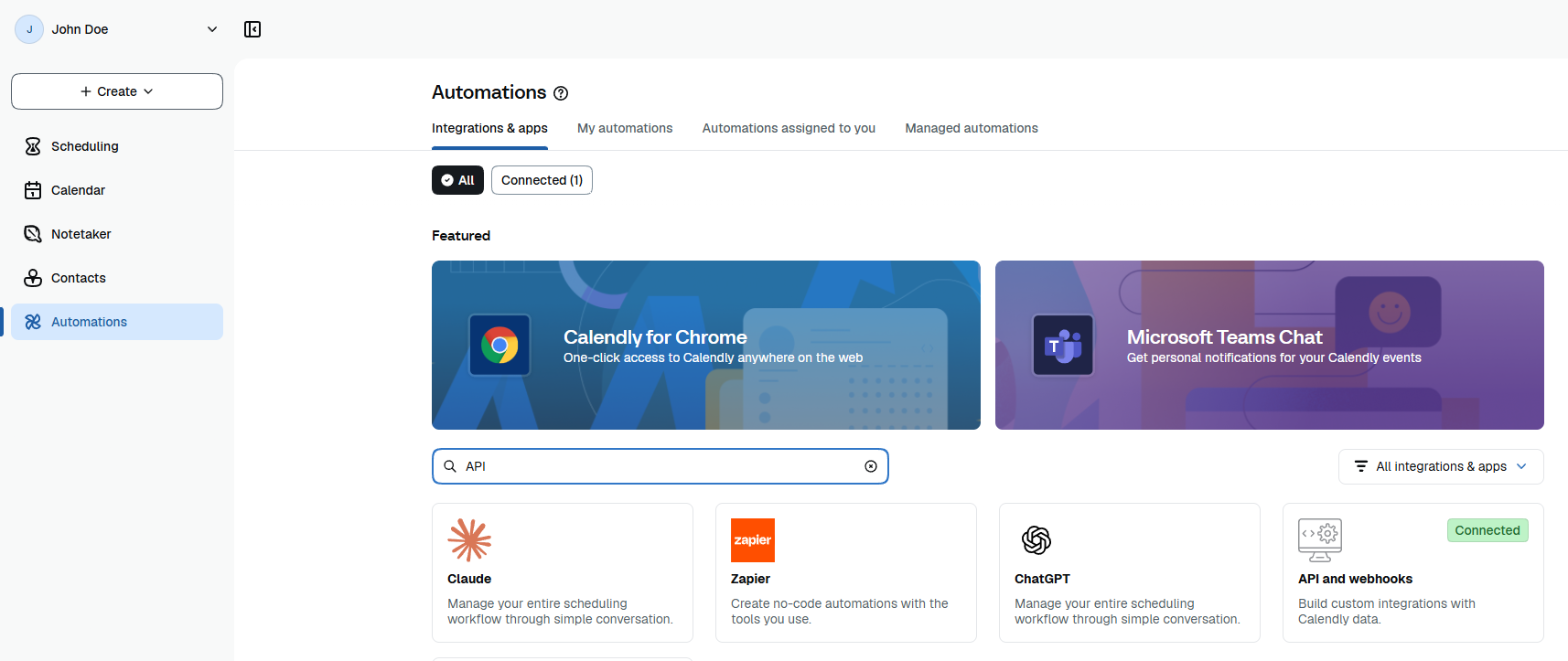
Open API and webhooks
Sign in to Calendly. Open Automations in the left menu, stay on the Integrations & apps
tab, search for API and open API and webhooks.
Name the token
Under Your personal access tokens, click Create a token and enter a Name, such as
Konrado.
Pick the scopes
Under Scopes, tick these five:
availability:read
event_types:read
scheduled_events:read
scheduled_events:write
users:read
The first four are in the Scheduling group. Ticking scheduled_events:write also ticks
scheduled_events:read. users:read is in the User management group.
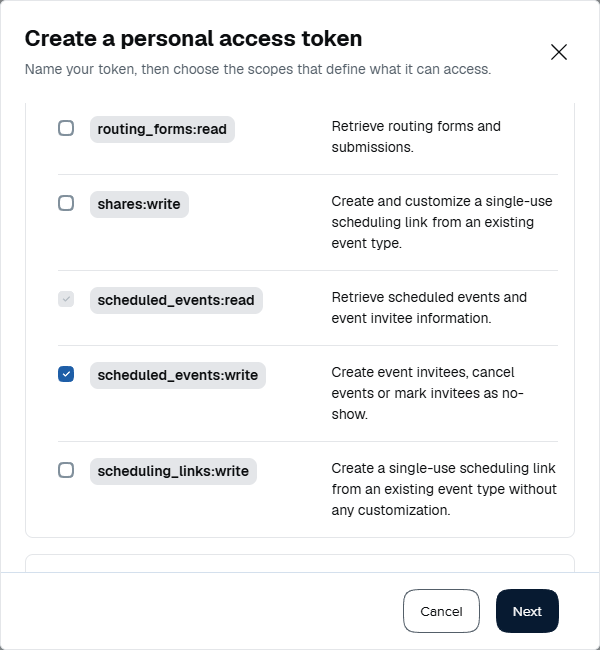
A new token has no access until you pick its scopes. A token without all five fails the connection test or the booking.
Verify and copy
Click Next and enter the 6-digit code Calendly e-mails you in Enter code to verify. Calendly shows the token. Click Copy token and keep it in a password manager.
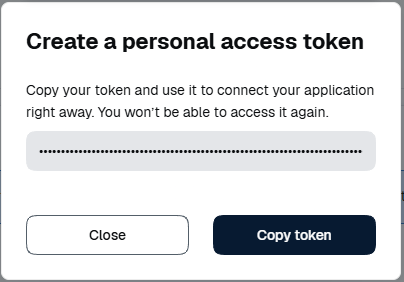
Calendly shows the token only once. If you lose it, revoke it and create a new one. The token list shows its name, the creation date and Last accessed. View scopes shows its scopes.
Connect Calendly
Fill in the form
Open Workspace SettingsIntegrations, click Add integration, choose
Scheduling, then Calendly. Enter an Integration Name, such as Sales calls, and paste
the token into Personal access token.
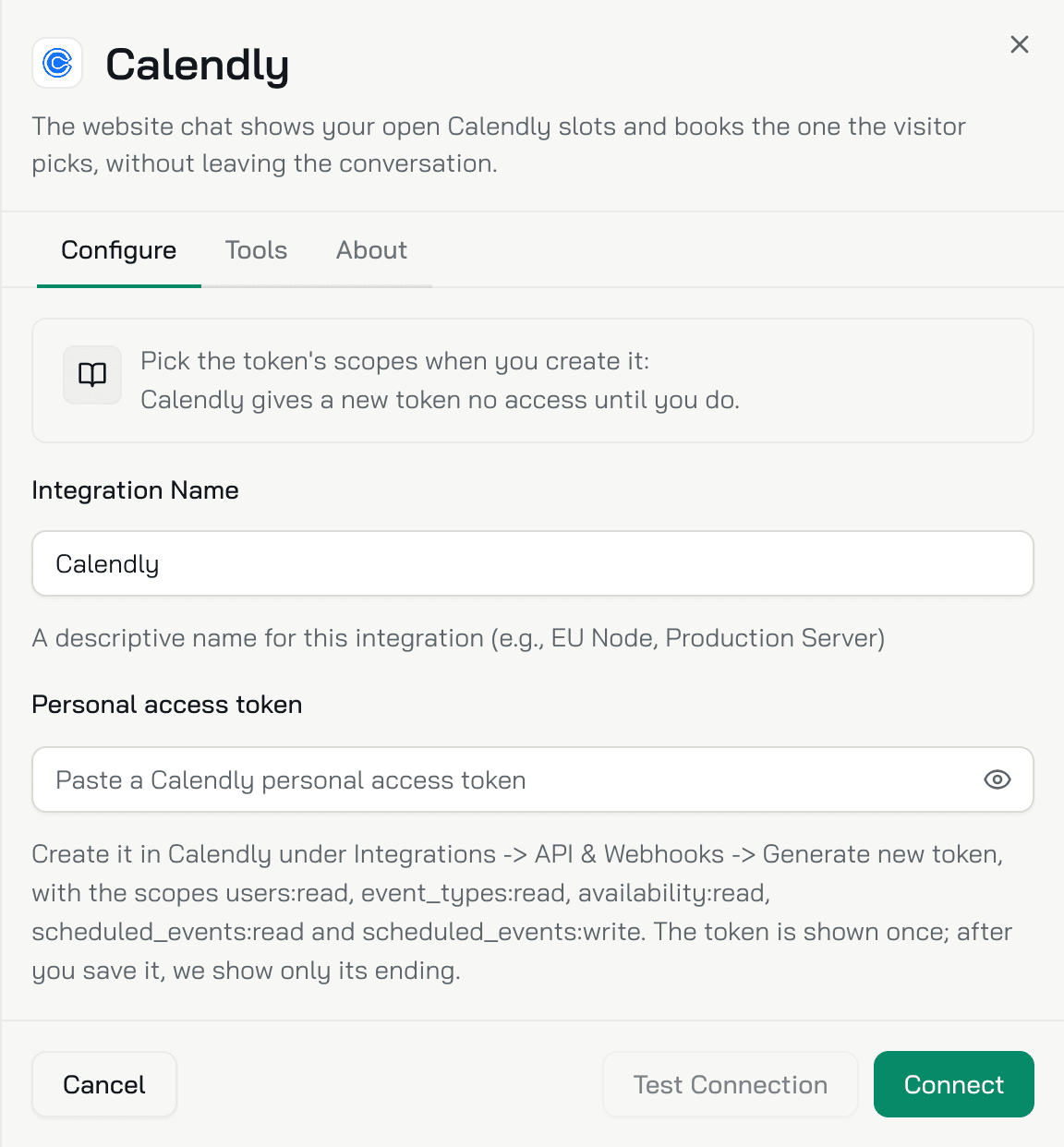
Test and connect
Click Test Connection. A good test shows Connected successfully!. Click Connect.
Choose which agents offer meetings
The Tools tab lists one tool, Meeting times (calendly_get_slots), open to every agent.
To let only some agents offer meetings, click it and choose Chosen agents.
Check it works
- Open the test chat on the agent's Overview, or the chat on your website.
- Ask for a meeting, for example "Could I book a call with your team?".
- Pick a time in the card, enter a name and an e-mail you can check, and click Confirm booking.
- The card shows Booked, and the meeting appears in your Calendly calendar.

The test chat uses the real agent, so a test booking is a real meeting in Calendly. Cancel it there afterwards.
To test the connection later, open the Calendly row menu (...), click Manage, then Test Connection. The token field shows only the token's ending. Click Replace only to change the token.
If something is wrong
| What you see | What to do |
|---|---|
| Calendly refused the token | Check that you copied the whole token, that it still exists under Automations › API and webhooks, and that it has all five scopes. Calendly also revokes tokens when the account's login e-mail or password changes |
| Calendly turns Not working | The token was revoked or lost a scope. Create a new token, open the row menu (...), click Manage or Reconnect, and Replace the token |
| A meeting type you just created is missing | Konrado reads your meeting types when you save the connection. Open Manage and click Save |
| Konrado never offers a meeting | Check that the account has a public meeting type, and that the agent may use Meeting times in the Tools tab |
| The card says That time was just taken. Pick another. | Someone booked that time first. The visitor picks another |
| The visitor sees Finish on Calendly | Expected on the Calendly Free plan, when the plan's API booking limit is used up, and for a meeting type with required questions or a place the invitee gives |
| Konrado says there are no open times | Check the meeting type's availability in Calendly. The visitor can ask for another week |
Remove the integration
- Open Workspace SettingsIntegrations, open the Calendly row menu (...) and click Disconnect or Delete.
- In Calendly, open Automations › API and webhooks and Revoke the token.
Last updated on