

SolusVM 2
Let Konrado check the VPS behind each ticket, through the SolusVM 2 API or the Konrado plugin.

With SolusVM 2 connected, Konrado checks the VPS behind a ticket: its status, plan, disks, snapshots, backups and recent tasks. It only reads. Nothing in your panel changes.
You connect in one of two ways. With the API, Konrado reads the SolusVM 2 panel with an API token and nothing is installed. With the Konrado plugin, you run one command as root on your SolusVM 2 server. The API is the current way. The plugin is the legacy way: it keeps working where it is installed, and a new server should use the API. Pick a tab below: every section follows your choice.
What Konrado reads
Konrado finds the VPS from the customer's service in your billing system and reads only the VMs that service owns.
| Data | How it helps |
|---|---|
| VPS | Power status, plan, CPU, RAM and disk limits, IP addresses, operating system and the compute resource it runs on |
| Disks | How many disks the VPS has and how large each one is |
| Backups | The VPS backups: what exists, when each was taken and its size |
| Snapshots | The VPS snapshots, with the same dates and sizes |
| Tasks | Recent tasks such as reboots, reinstalls, backups and migrations, with status and timing |
Lists stop at 50 disks and 100 backups, snapshots or tasks. The task list gives the panel's own total and says when it stops.
| Data | How it helps |
|---|---|
| VPS and specs | VM ID, status, plan, compute resource, IP addresses and resources |
| Backups | The backups of the VPS in the ticket |
| Snapshots | The snapshots of the VPS, before you escalate a restore or a rollback |
| Disks | Disk settings and sizes |
| Task history | Recent tasks, such as a failed provisioning, backup or other operation |
What Konrado cannot do
| Not possible | Why |
|---|---|
| Start, stop, reboot, reset or rescue a VPS | Konrado reads. Power actions stay with your team |
| Create, delete, restore, download or schedule a backup or snapshot | Recovery stays with your team |
| Rebuild, reinstall, resize, migrate or change CPU, RAM, disk or IPs | Changes stay in your provisioning |
| Read a VPS outside the ticket's service | Konrado refuses any other VM ID before it calls the panel |
| List the whole panel or act on many VMs at once | Konrado works on the VPS in the ticket |
| Manage users, roles, plans, locations, compute resources or IP blocks | Konrado uses fixed lookups, not panel administration |
| Find the VPS without a VM ID on the service | Every lookup needs the VM ID your billing system stores |
Konrado calls SolusVM 2 over HTTPS with one API token you can remove at any time. Never type an administrator password into Konrado. After you save the token, the console shows only its last characters.
- Only
https://addresses work. The TLS certificate must be valid: Konrado reports a certificate problem and never skips the check. - The address must lead to a public IP. Konrado refuses private, loopback and other internal ranges.
- Konrado limits the size of each answer and removes secrets from it first.
- The lookups are tied to the VMs of the ticket's service. Konrado cannot address the panel directly.
A token has the rights of the user it belongs to. Generate it for a user whose role only reads, unless your panel policy needs otherwise.
The install command carries a key that links the server to your organization, so treat it like a password. Konrado then calls the plugin on port 8000, the default. Open that port to Konrado's IP addresses and to no one else.
- "The customer says their VPS is offline. What status, IPs and plan does it have?"
- "The customer asks for a restore. Which backups exist for this VPS?"
- "Before we escalate a rollback, does this VM have snapshots?"
- "The VPS seems out of storage. Which disks does it have?"
- "The customer says the resources are wrong. Do CPU, RAM and disk match the plan?"
- "A reboot or reinstall failed. What does the task history say?"
Before you start
- SolusVM 2 at a public HTTPS address with a valid certificate. Konrado reads its
/api/v1API, on port 443 unless you enter another. Konrado was tested end to end on SolusVM 2 version 2.0.0-39984. SolusVM 1 has no such API and does not work. - An account that can create API tokens in the SolusVM 2 admin area.
- If the panel sits behind a firewall or WAF, allow Konrado's IP addresses to reach it.
- Your billing system connected, with each VPS service on this panel and carrying its SolusVM VM
ID. Without a VM to look at, the connection works but adds nothing to replies. The WHMCS modules
solusvm2vpsandsolusvm2vpscloudcount.
- Root SSH access to your SolusVM 2 server, with
curl,unzipand systemd. - A SolusVM 2 API token, made as in the API tab. The installer asks for it.
- Outbound internet access. The installer downloads the plugin and reports to
app.konrado.ai. - Port 8000 open to Konrado's IP addresses (see the list).
- Your billing system connected, with each VPS service carrying its SolusVM VM ID.
Connect
Create an API token
Sign in to the SolusVM 2 admin area as the account Konrado should use. Open Access › API Tokens and click Generate API Token.
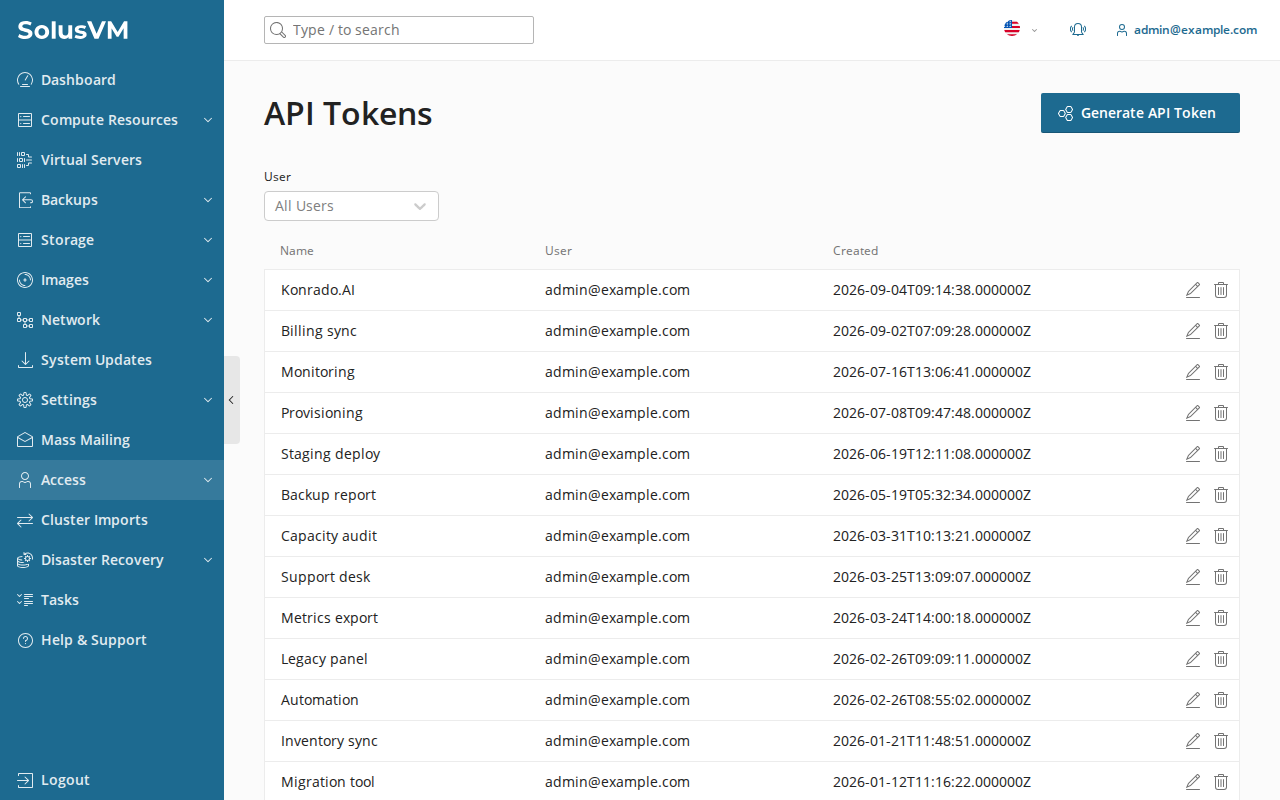
Enter a name such as Konrado, check the user the token belongs to, and click
Generate.
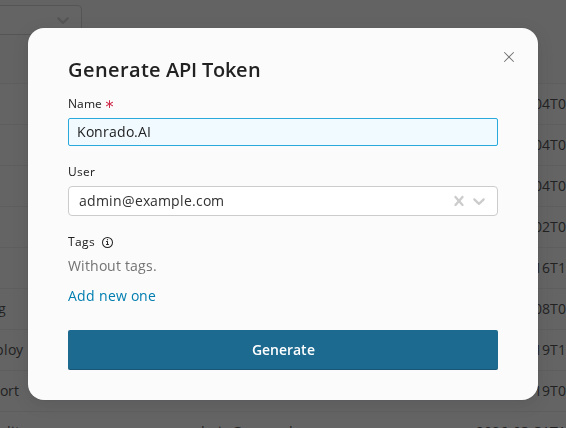
Copy the token
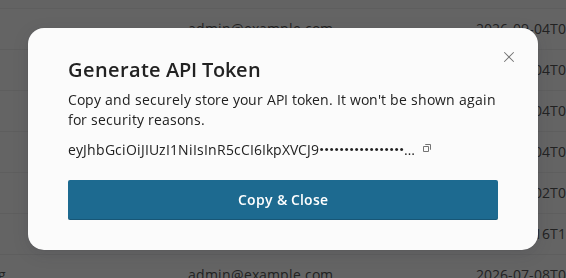
SolusVM 2 shows the token once. Click Copy & Close and keep it in your password manager. If you lose it, remove the token and generate a new one.
Connect in Konrado
Open Workspace SettingsIntegrations, click Add integration and choose SolusVM 2. API Token is already picked under How should Konrado reach this server?
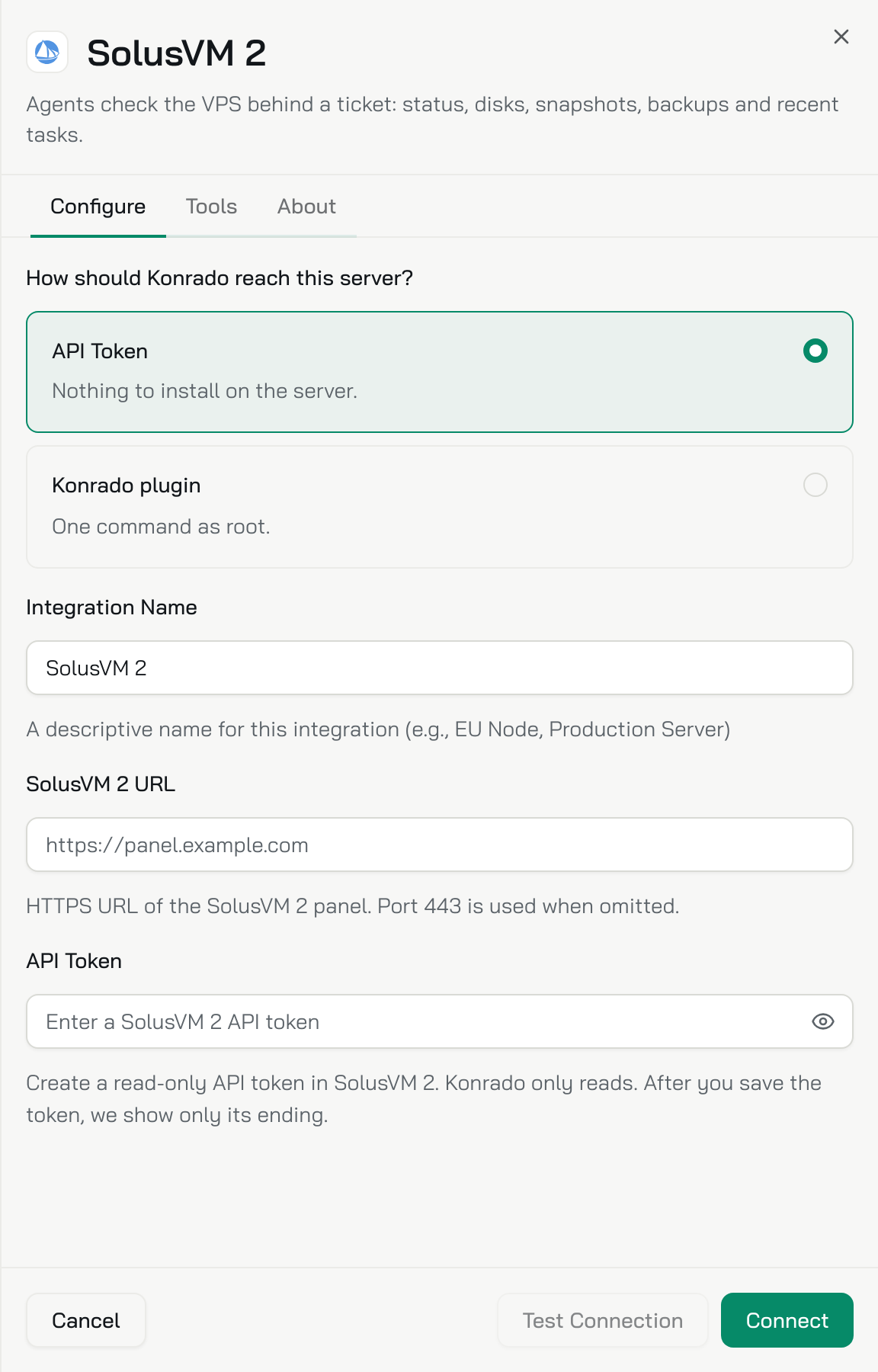
| Field | What to enter |
|---|---|
| Integration Name | A name for your team, such as SolusVM EU |
| SolusVM 2 URL | The panel address, such as https://panel.example.com, without /admin. Port 443 is used when you leave it out |
| API Token | The token from SolusVM 2 |
Click Test Connection. A green box confirms that the token can read the panel. SolusVM 2 does not report a version here, so none shows. Click Connect.
The plugin is the legacy way to connect. Servers already connected with it keep working. For a new server, pick the API tab.
Choose the plugin. Open Workspace SettingsIntegrations, click Add integration and choose SolusVM 2. Under How should Konrado reach this server? pick Konrado plugin. The sheet shows three steps and the install command.
Run the command as root. Log in to your SolusVM 2 server over SSH as root. Click the copy button next to the command and paste it into the session. The sheet hides your key on screen, but the copied command contains it, so treat it like a password. The key works for 24 hours, on as many servers as you like.
bash <(curl -s https://repo.konrado.ai/init.sh) --api-key=YOUR_KEY --callback-url=https://app.konrado.ai/api/integrations/servers/install --platform=solusAnswer the installer. It asks for a few settings, each with a default: press Enter to keep it. Two answers matter. To update the plugin from the console later, answer Yes to Do you want to be able to upgrade this plugin through the Konrado panel? The server address it suggests, such as http://203.0.113.10:8000/mcp, is where Konrado connects to the plugin.
It also asks for SOLUSVM2_URL, the address of your panel (it suggests http:// with the
server's own IP), and SOLUSVM2_API_TOKEN, the API token you made. The token has no default:
paste it to go on.
Wait for the connection. The sheet reads Listening for your server… and checks every 5 seconds. When the plugin reports back it shows Connected successfully and the server's address. Click Done. You can close the sheet earlier: the server joins the list once it connects. Running the command again is safe.
Check it works
The panel is on the Integrations page as Connected. Its Type reads SolusVM 2 · API, with no version under it: that is normal. Konrado tests the connection again every hour. Open the row and the Tools tab lists the five lookups.
To change the token later, open the row, click Replace next to API Token, paste the new one and click Save.
The server is on the Integrations page as Connected. Its Type reads SolusVM 2 · Plugin, with the plugin version under it. The row is named solus Server: click it to rename it. Running the install command again sets the name back. Konrado tests the connection again every hour.
If something is wrong
Open the row on the Integrations page. A connection that stopped working says Not working, what to check, and the exact error under Technical details.
| What you see | What to do |
|---|---|
| SolusVM URL must use HTTPS. | Enter the full https:// address. Plain HTTP does not work |
| SolusVM URL cannot contain credentials, query parameters, or a fragment. | Enter only the address, such as https://panel.example.com |
| Blocked: target resolves to a private/internal address | Use a public hostname. Konrado refuses private and internal addresses |
| SolusVM TLS verification failed. | Install a valid certificate for the panel hostname, with the full chain |
| SolusVM rejected the configured API token. | Check that you copied all of the token and that it still exists under Access › API Tokens |
| This SolusVM token cannot read that resource. | Check the role of the user the token belongs to |
| The SolusVM API request timed out. | Check that the panel answers over HTTPS and that your firewall or WAF lets in Konrado's IP addresses (see the list) |
| Connected, but replies never mention the VPS | Check that the service in your billing system sits on this panel and carries the SolusVM VM ID |
| What you see | What to do |
|---|---|
| The command stops at once | Run it as root on your SolusVM 2 server |
| Listening for your server… never changes | Check that the installer finished without errors and that the server reaches app.konrado.ai over HTTPS. After 2 minutes the sheet shows Taking longer than expected? with the same checks |
| Connected, but no VPS data | Check SOLUSVM2_URL and SOLUSVM2_API_TOKEN in /opt/KonradoAi/.env, then run systemctl restart konrado-server konrado-root |
| Replies never mention the VPS | Check that the service in your billing system carries the SolusVM VM ID |
The install step shows Connection error. It names the server address and the reason. Check both plugin services, read their recent logs and restart them:
systemctl status   konrado-server.service konrado-root.service
journalctl         -u konrado-server.service -u konrado-root.service --since "15 minutes ago" --no-pager
systemctl restart  konrado-server.service konrado-root.service
systemctl enable   konrado-server.service konrado-root.service
ss -ltnp | grep ':8000'
The last line shows whether the plugin listens on port 8000. Konrado must reach that port: allow Konrado's IP addresses in your firewall. Then run the install command again.
Remove the integration
Open Workspace SettingsIntegrations, open the row menu (three dots) and choose Delete. Then remove the token in SolusVM 2 under Access › API Tokens.
To stop for now and keep the settings, choose Disconnect instead.
Uninstall the plugin from the server, then open Workspace SettingsIntegrations, open the row menu (three dots) and choose Delete. Remove the SolusVM 2 token too, if nothing else uses it.
To stop for now and keep the settings, choose Disconnect instead.
Last updated on