

Proxmox
Let Konrado check the VM or container behind each ticket, through the Proxmox VE API or the Konrado plugin.

With Proxmox connected, Konrado checks the VM or container behind a ticket: its status, its resources, recent usage, snapshots and backups. It only reads. Nothing on your cluster changes.
You connect in one of two ways. With the API, Konrado reads Proxmox VE with a read-only API token and nothing is installed. With the Konrado plugin, you run one command as root on the node. The API is the current way. The plugin is the legacy way: it keeps working where it is installed, and a new node should use the API. Pick a tab below: every section follows your choice.
What Konrado reads
Konrado finds the guest from the customer's service in your billing system and reads only the guests that service owns. Both QEMU virtual machines and LXC containers work.
| Data | How it helps |
|---|---|
| Status and settings | Running state, uptime, CPU and memory now, the guest's full configuration, its disks or mount points |
| Backups | The guest's backups on the node's backup storages: archive name, date, size and storage |
| Snapshots | Each snapshot's name, description and date |
| Metrics | CPU, memory, disk and network samples from the last hour |
| Firewall | Whether the guest's firewall is on, its options and its rules |
| Replication | Replication jobs for the guest: schedule, target node and last sync |
A service with several guests is covered whole: Konrado can read any of them, and only those. Lists stop at 100 backups, snapshots or samples, and say when they stop. Konrado hides every setting whose name holds a password, secret, token or credential.
| Data | How it helps |
|---|---|
| Guest identity | Node, VM or container ID, type, and whether the guest exists |
| Status and settings | Runtime status, configuration, CPU, RAM, disk, network and device settings |
| Metrics | CPU, memory, disk I/O and network history |
| Storage and recovery | Disk settings, snapshots and backups of the guest |
| Network and operations | Firewall rules and options, replication and other signals about the guest |
What Konrado cannot do
| Not possible | Why |
|---|---|
| Start, stop, shut down, reboot, reset or migrate a guest | Konrado reads. Every call it makes only reads |
| Create, delete, restore or download a backup or snapshot | Recovery stays with your team |
| Change CPU, RAM, disk, network or firewall settings | Changes stay in Proxmox or your provisioning |
| Read a guest outside the ticket's service | Konrado refuses any other VM ID before it calls Proxmox |
| List the whole cluster or act on many guests at once | Konrado works on the guest in the ticket |
| Manage users, roles, tokens, pools, storage or nodes | Konrado uses fixed lookups, not the admin panel |
| Read the node's own health, tasks or system log | The lookups cover the guest, not the host |
Konrado calls Proxmox VE over HTTPS with one API token. Give it a read-only role such as
PVEAuditor and never type a root password into Konrado. After you save the secret, the console
shows only its last characters.
- Only
https://addresses work. The TLS certificate must be valid: there is no option to skip the check. - Before every request, Konrado checks that the address leads to a public IP. It refuses private, loopback and other internal ranges.
- Konrado follows no redirects and limits the size of each answer.
- The lookups are tied to the guests of the ticket's service. Konrado cannot address the cluster directly.
The install command carries a key that links the node to your organization, so treat it like a password. Konrado then calls the plugin on port 8000, the default. Open that port to Konrado's IP addresses and to no one else.
- "The customer says their VPS is down. What are the guest's status, uptime and resources?"
- "The server is slow. What do the last hour's CPU and memory samples show?"
- "The customer wants a restore. Which backups exist, and when was the last one?"
- "Before we escalate a rollback, does this guest have snapshots?"
- "A port is unreachable. Is the guest's firewall on, and which rules does it have?"
- "Is this VPS replicated to a second node?"
- "The disk is full. Which disks or mount points does the guest have?"
Before you start
- Proxmox VE at a public HTTPS address with a valid certificate, on port 8006 unless you enter another. The default self-signed certificate is not enough. Konrado was tested end to end on Proxmox VE 9.2.5. Proxmox Backup Server and Proxmox Mail Gateway are not supported.
- A Proxmox account that can create API tokens and set permissions.
- If the API sits behind a firewall or WAF, allow Konrado's IP addresses to reach port 8006.
- Your billing system connected, with each VPS service matched to its guest. See below.
What the billing system must provide
Konrado links a ticket to this connection in two steps. Both must work.
- The host. The hostname in the Proxmox API URL matches the server the service sits on in your billing system, by hostname or IP address.
- The guest. The service is a Proxmox module service and carries at least one VM with a
numeric ID. The WHMCS modules
proxmoxvps,proxmoxvevpsandproxmoxvevpscloudall count.
The node and type stored with a VM are hints. If a guest moved to another node, Konrado finds it by its ID across the cluster. A service with no VM gets no Proxmox lookups at all.
- Root SSH access to the Proxmox node, with
curl,unzipand systemd. - Outbound internet access. The installer downloads the plugin and reports to
app.konrado.ai. - Port 8000 open to Konrado's IP addresses (see the list).
- Your billing system connected, with each VPS service on this node and carrying its VM ID.
Connect
Create an API token
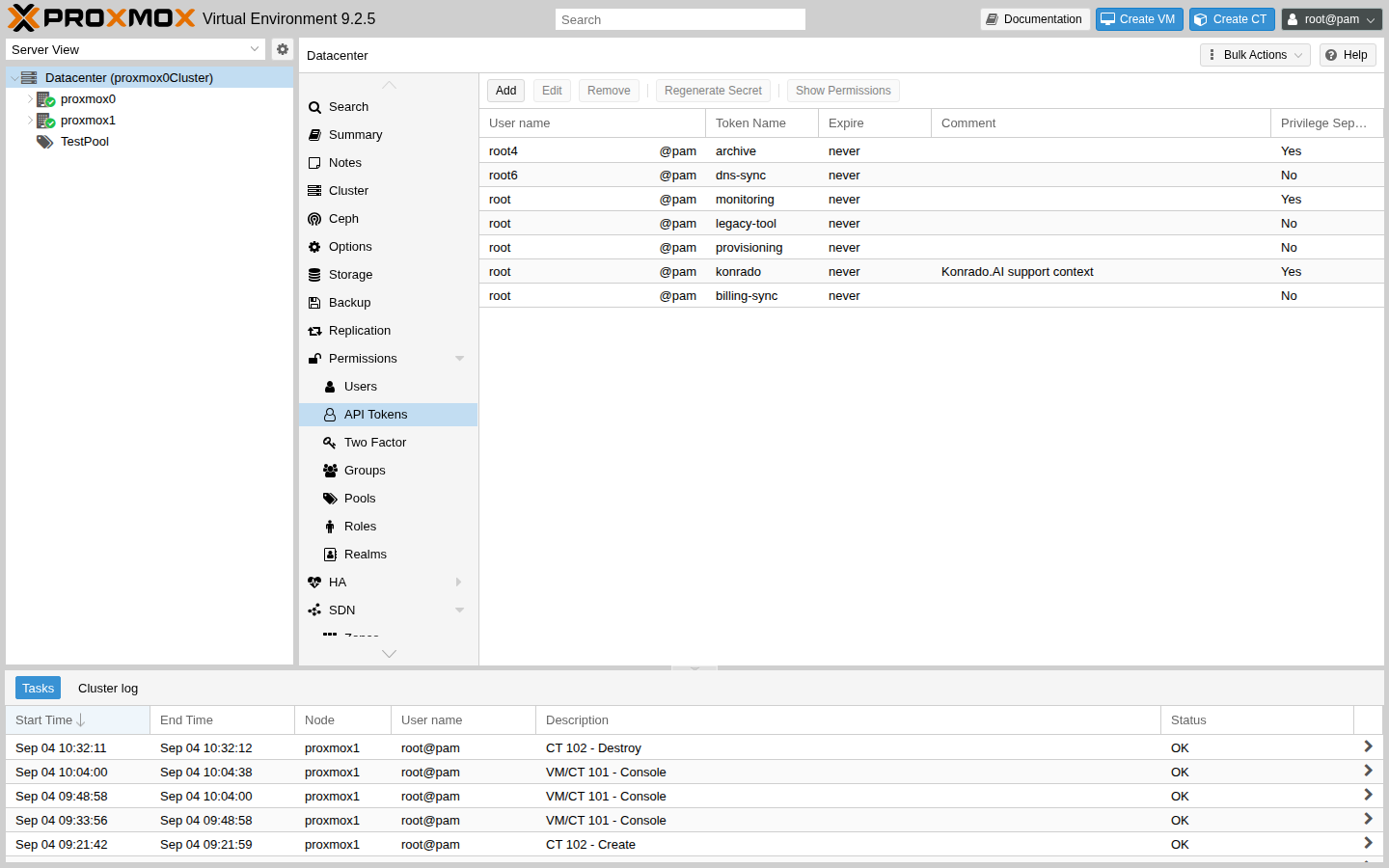
Sign in to the Proxmox VE web interface. Select Datacenter, then open Permissions › API Tokens.
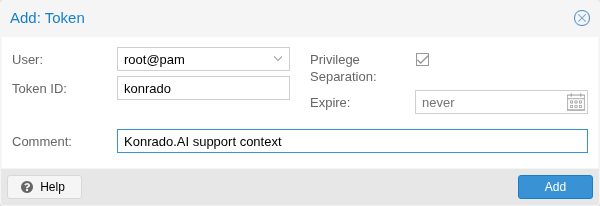
Click Add. Choose the user the token belongs to, enter a Token ID such as konrado, and
leave Privilege Separation on, so the token gets only the permissions you grant it.
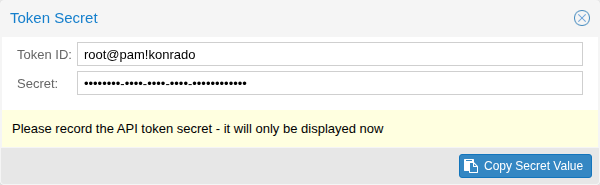
Copy the secret
Click Add. Proxmox shows the secret once. Copy it into your password manager. If you lose it, use Regenerate Secret on the token, or remove it and create a new one.
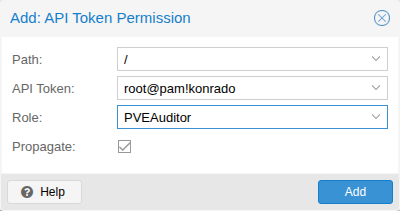
Grant read-only access
A token with Privilege Separation has no permissions yet. Open Datacenter ›
Permissions, click Add › API Token Permission. Set Path to /, pick the token,
choose the role PVEAuditor and leave Propagate on. Click Add.
PVEAuditor only reads, and covers every call Konrado makes. On / with Propagate, it keeps
working when guests move between nodes. To narrow it, grant PVEAuditor on the pools or guests
Konrado should see instead. Backups also need Datastore.Audit on the storages that hold them,
which PVEAuditor includes where it applies.
Connect in Konrado
Open Workspace SettingsIntegrations, click Add integration and choose Proxmox. API Token Secret is already picked under How should Konrado reach this server?
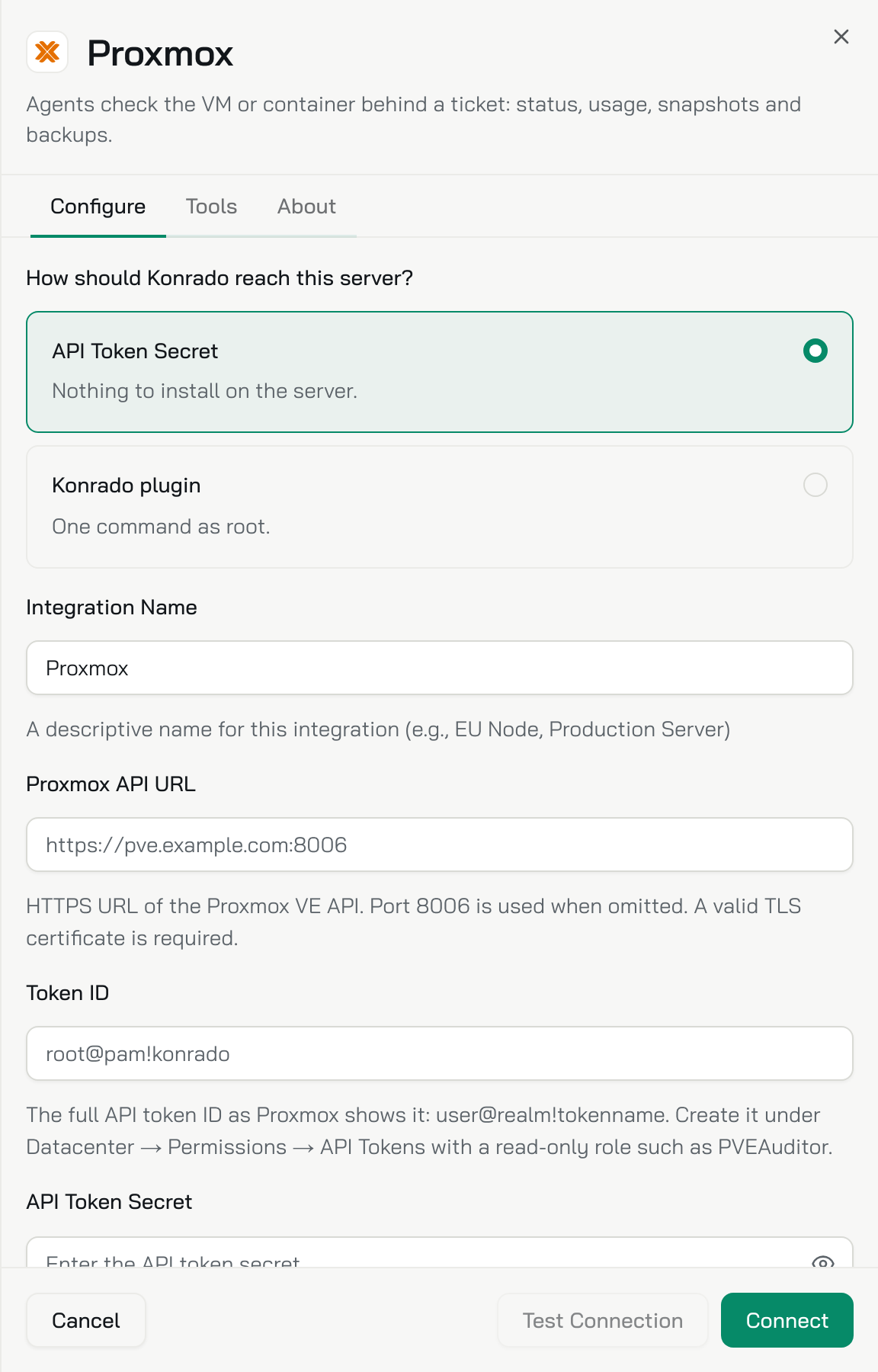
| Field | What to enter |
|---|---|
| Integration Name | A name for your team, such as Proxmox EU |
| Proxmox API URL | The address only, such as https://pve.example.com:8006, without /api2/json. Port 8006 is used when you leave it out |
| Token ID | The full ID as Proxmox shows it: user@realm!tokenname, such as root@pam!konrado |
| API Token Secret | The secret Proxmox showed once |
Click Test Connection. A green box confirms the token and shows the Proxmox VE version. Click Connect.
The plugin is the legacy way to connect. Nodes already connected with it keep working. For a new node, pick the API tab.
Choose the plugin. Open Workspace SettingsIntegrations, click Add integration and choose Proxmox. Under How should Konrado reach this server? pick Konrado plugin. The sheet shows three steps and the install command.
Run the command as root. Log in to your Proxmox server over SSH as root. Click the copy button next to the command and paste it into the session. The sheet hides your key on screen, but the copied command contains it, so treat it like a password. The key works for 24 hours, on as many servers as you like.
bash <(curl -s https://repo.konrado.ai/init.sh) --api-key=YOUR_KEY --callback-url=https://app.konrado.ai/api/integrations/servers/install --platform=proxmoxAnswer the installer. It asks for a few settings, each with a default: press Enter to keep it. Two answers matter. To update the plugin from the console later, answer Yes to Do you want to be able to upgrade this plugin through the Konrado panel? The server address it suggests, such as http://203.0.113.10:8000/mcp, is where Konrado connects to the plugin.
Wait for the connection. The sheet reads Listening for your server… and checks every 5 seconds. When the plugin reports back it shows Connected successfully and the server's address. Click Done. You can close the sheet earlier: the server joins the list once it connects. Running the command again is safe.
Check it works
The cluster is on the Integrations page as Connected. Its Type reads Proxmox · API, with the Proxmox VE version under it. The version comes from the node that answered. Konrado tests the connection again every hour. Open the row and the Tools tab lists the six lookups.
To change the secret later, open the row, click Replace next to API Token Secret, paste the new one and click Save.
The server is on the Integrations page as Connected. Its Type reads Proxmox · Plugin, with the plugin version under it. The row is named proxmox Server: click it to rename it. Running the install command again sets the name back. Konrado tests the connection again every hour.
If something is wrong
Open the row on the Integrations page. A connection that stopped working says Not working, what to check, and the exact error under Technical details.
| What you see | What to do |
|---|---|
| Proxmox API URL must use HTTPS. | Enter the full https:// address. Plain HTTP does not work |
| Proxmox API URL cannot contain credentials, query parameters, or a fragment. | Enter only the address and port, such as https://pve.example.com:8006 |
| Proxmox Token ID must look like user@realm!tokenname. | Copy the full ID with the realm and the !, such as root@pam!konrado |
| Proxmox TLS verification failed. | Install a valid certificate for the hostname, with the full chain. The default self-signed one is refused |
| Proxmox rejected the configured API token. | Check that you copied the ID and secret in full and that the token still exists under Permissions › API Tokens |
| This Proxmox token cannot read that capability. | Grant the token PVEAuditor on a path that covers the guest and its storages |
| The Proxmox API request timed out. | Check that the node answers on port 8006 and that your firewall or WAF lets in Konrado's IP addresses (see the list) |
| The Proxmox API is temporarily unavailable. | The node answered with an error or a rate limit. Try again and check the node |
| The address points to a private network | Use a public hostname. Konrado refuses private and internal addresses |
| Connected, but replies never mention the VM | Check that the service sits on a server matching the API URL and carries a numeric VM ID |
| Backups are missing | Konrado lists the storages it checked. A token that cannot list storages makes it try only local, backup and pbs |
| Metrics are empty | A guest that just started or moved has few samples in its first hour |
| What you see | What to do |
|---|---|
| The command stops at once | Run it as root on the Proxmox node itself |
| Listening for your server… never changes | Check that the installer finished without errors and that the node reaches app.konrado.ai over HTTPS. After 2 minutes the sheet shows Taking longer than expected? with the same checks |
| VM data is missing | Check that you installed on a Proxmox node and picked Proxmox in the console |
| Replies never mention the VM | Check that the service carries the VM ID and sits on this node in your billing system |
The install step shows Connection error. It names the server address and the reason. Check both plugin services, read their recent logs and restart them:
systemctl status   konrado-server.service konrado-root.service
journalctl         -u konrado-server.service -u konrado-root.service --since "15 minutes ago" --no-pager
systemctl restart  konrado-server.service konrado-root.service
systemctl enable   konrado-server.service konrado-root.service
ss -ltnp | grep ':8000'
The last line shows whether the plugin listens on port 8000. Konrado must reach that port: allow Konrado's IP addresses in your firewall. Then run the install command again.
Remove the integration
Open Workspace SettingsIntegrations, open the row menu (three dots) and choose Delete. Then, in Proxmox, remove the token under Datacenter › Permissions › API Tokens and its entry under Datacenter › Permissions.
To stop for now and keep the settings, choose Disconnect instead.
Uninstall the plugin from the node, then open Workspace SettingsIntegrations, open the row menu (three dots) and choose Delete.
To stop for now and keep the settings, choose Disconnect instead.
Last updated on