

Plesk
Let Konrado check the subscription behind each ticket, through the Plesk API or the Konrado plugin.

With Plesk connected, Konrado checks the subscription behind a ticket: the customer, the plan, the domains, DNS, SSL, mail and databases. It only reads. Nothing on your server changes.
You connect a server in one of two ways. With the API, Konrado reads Plesk with a secret key and nothing is installed. With the Konrado plugin, you run one command as root and Konrado also reads web logs, mailbox folders and the mail queue on the server. The API is the current way. The plugin is the legacy way: it keeps working where it is installed, and a new server should use the API. Pick a tab below: every section follows your choice.
What Konrado reads
Konrado finds the subscription, site, subdomain or alias the ticket is about, and reads only that.
| Data | How it helps |
|---|---|
| Account | The subscription's owner, the reseller above it, its status, service plan, limits and usage |
| Website | Document root, IP address, PHP handler and version, SSL redirect, the certificate in use and DNS records |
| Each address, whether the mailbox is on, its quota and usage, aliases, forwarding and autoresponder | |
| Files | The system user, the document root path and FTP accounts. A listing of the domain's home folder with an administrator key |
| Databases | Each database, its engine, its server and its users |
| Backups | Plesk backups with an administrator key, and JetBackup 5 backups where it is installed |
| Server | Plesk version, hostname, services and pending updates. Only with an administrator key |
An administrator key reads every subscription and the server. A reseller's or customer's key reads only what that account owns.
| Data | How it helps |
|---|---|
| Domain overview | The owner and subscription, the status and what the subscription holds |
| Website | HTTP errors, SSL, the PHP version and settings, and recent web and PHP log lines |
| Mailboxes, their folders, message counts and size, the mail queue, and MX and SPF checks | |
| Usage | Disk, traffic and quota, and how close the domain is to its plan limits |
| Access | FTP and SFTP users and the document root |
| Files | The document root tree and readable config files |
| DNS, databases and cron | The domain's DNS records, databases and scheduled tasks |
| Backups | The restore options for the domain |
| Server | The Plesk license and server health |
What Konrado cannot do
| Not possible | Why |
|---|---|
| Create, suspend, upgrade or delete a subscription, customer or plan | Konrado reads. Changes stay in Plesk or your billing system |
| Change DNS, mail, SSL, PHP, files, databases, FTP users, tasks or limits | Konrado can read them, not change them |
| Restore a backup or clear the mail queue | Backup and mail data are for diagnosis only |
| Show passwords, keys or the contents of mail | Secrets and private messages never go into a reply |
| See past the server | A problem at the registrar, a CDN or another mail host needs its own check |
Run plesk bin, shell or SQL commands | Konrado uses fixed lookups, not a terminal |
| Tell whether one message arrived, over the API | The Plesk API shows mail settings only. The Konrado plugin can look inside the mailbox folders |
Konrado calls Plesk over HTTPS with one secret key you can revoke at any time. Never type the administrator password into Konrado. After you save the key, the console shows only its last characters.
- Only
https://addresses work, and the TLS certificate must be valid. - The address must lead to a public IP. Konrado refuses private, loopback and other internal ranges.
- Konrado removes secrets from each answer first. Passwords and private keys never reach it.
- Konrado uses seven fixed lookups. It cannot run anything else on the server.
The install command carries a key that links the server to your organization, so treat it like a password. Konrado then calls the plugin on port 8000, the default. Open that port to Konrado's IP addresses and to no one else.
- "Which subscription owns example.com? Is it a main domain, a subdomain or an alias?"
- "Mail is missing from a mailbox. Does the mailbox exist, and is it full?"
- "Outgoing mail bounces. Are there recent delivery failures or a stuck queue?"
- "SSL does not cover an alias. Which certificate does the domain use?"
- "The site shows a 500 error. Which PHP version and handler does it run?"
- "The customer asks about a restore. Which backups exist before we escalate?"
Before you start
- Plesk at a public HTTPS address with a valid certificate, on port 8443 unless you enter another. Konrado was tested end to end on Plesk Obsidian 18.0.71.
- Root SSH access to the Plesk server to create the secret key.
- If Plesk sits behind a firewall or WAF, allow Konrado's IP addresses to reach port 8443.
- Your help desk connected, with the customer's hosting service in your billing system. Konrado finds the subscription through that service, so its server needs the same hostname or IP as the Plesk address.
- Root SSH access to the Plesk server, with
curl,unzipand systemd. - Outbound internet access. The installer downloads the plugin and reports to
app.konrado.ai. - Port 8000 open to Konrado's IP addresses (see the list).
- Your help desk connected, with the customer's hosting service in your billing system. Konrado finds the subscription through that service, so its server needs the same hostname or IP as the server you install on.
Connect
Create a secret key
Log in to the Plesk server over SSH as root and run:
plesk bin secret_key --create -description "Konrado"The command prints the key once. Copy it into your password manager. Plesk keeps only a hash, so if you lose the key, delete it and create a new one. This key is an administrator key. If your setup allows it, also limit the key or the panel firewall to Konrado's IP addresses (see the list).
Connect in Konrado
Open Workspace SettingsIntegrations, click Add integration and choose Plesk. API Key is already picked under How should Konrado reach this server?
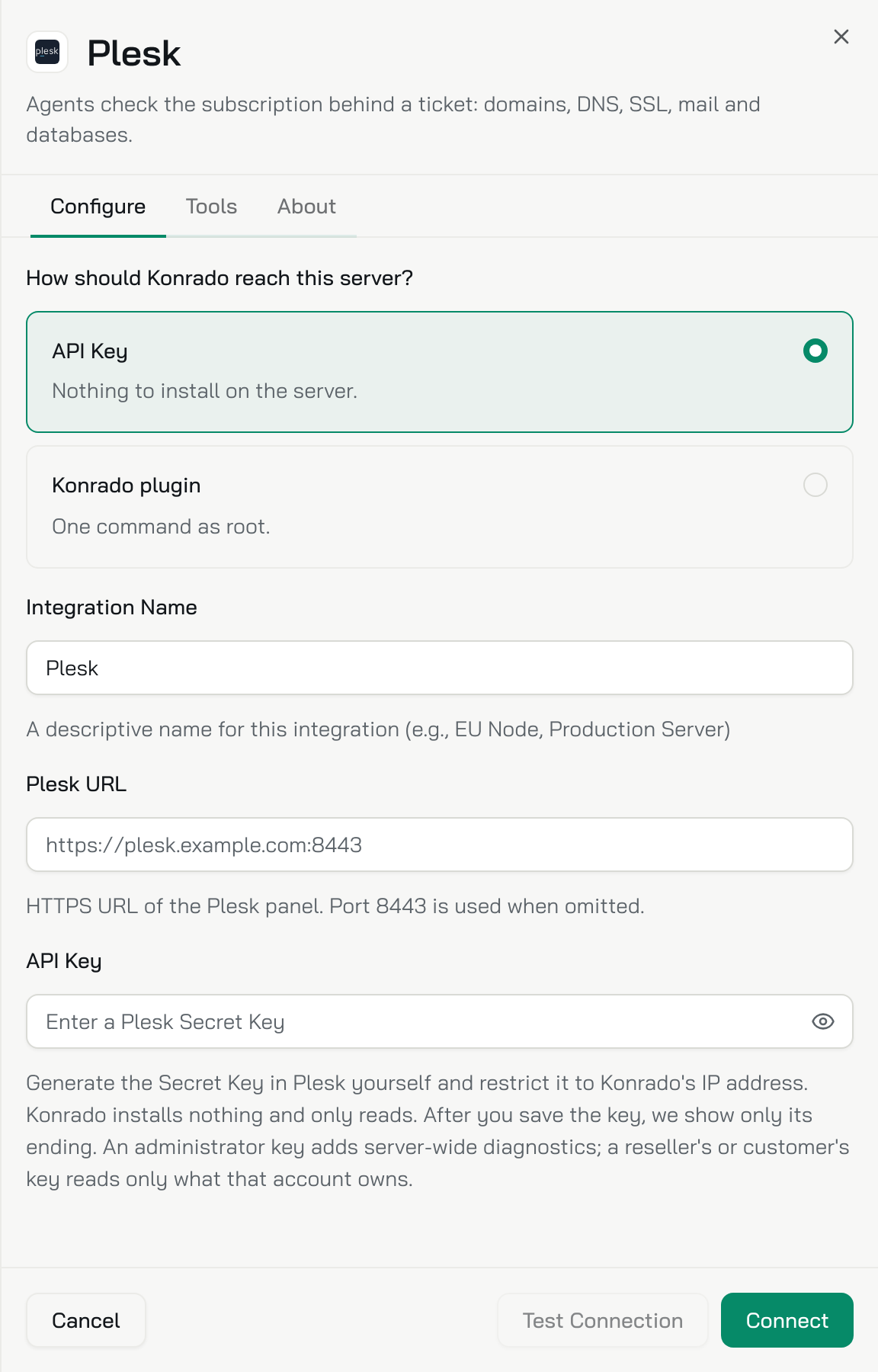
| Field | What to enter |
|---|---|
| Integration Name | A name for your team, such as Plesk EU |
| Plesk URL | The panel address, such as https://plesk.example.com:8443. Port 8443 is used when you leave it out |
| API Key | The secret key from the server |
Click Test Connection. A green box confirms the key. With an administrator key it also shows the Plesk version. Click Connect.
The plugin is the legacy way to connect. Servers already connected with it keep working. For a new server, pick the API tab, unless you need the web logs, mailbox folders or mail queue that only the plugin reads.
Choose the plugin. Open Workspace SettingsIntegrations, click Add integration and choose Plesk. Under How should Konrado reach this server? pick Konrado plugin. The sheet shows three steps and the install command.
Run the command as root. Log in to your Plesk server over SSH as root. Click the copy button next to the command and paste it into the session. The sheet hides your key on screen, but the copied command contains it, so treat it like a password. The key works for 24 hours, on as many servers as you like.
bash <(curl -s https://repo.konrado.ai/init.sh) --api-key=YOUR_KEY --callback-url=https://app.konrado.ai/api/integrations/servers/install --platform=pleskAnswer the installer. It asks for a few settings, each with a default: press Enter to keep it. Two answers matter. To update the plugin from the console later, answer Yes to Do you want to be able to upgrade this plugin through the Konrado panel? The server address it suggests, such as http://203.0.113.10:8000/mcp, is where Konrado connects to the plugin.
Wait for the connection. The sheet reads Listening for your server… and checks every 5 seconds. When the plugin reports back it shows Connected successfully and the server's address. Click Done. You can close the sheet earlier: the server joins the list once it connects. Running the command again is safe.
Check it works
The server is on the Integrations page as Connected. Its Type reads Plesk · API, with the Plesk version under it when the key is an administrator's. Konrado tests the connection again every hour. Open the row and the Tools tab lists the seven lookups.
To change the key later, open the row, click Replace next to API Key, paste the new one and click Save.
The server is on the Integrations page as Connected. Its Type reads Plesk · Plugin, with the plugin version under it. The row is named plesk Server: click it to rename it. Running the install command again sets the name back. Konrado tests the connection again every hour.
If something is wrong
Open the row on the Integrations page. A server that stopped working says Not working, what to check, and the exact error under Technical details.
| What you see | What to do |
|---|---|
| Plesk URL must use HTTPS. | Enter the full https:// address. Plain HTTP does not work |
| Plesk URL cannot contain credentials, query parameters, or a fragment. | Enter only the address and port, such as https://plesk.example.com:8443 |
| Plesk TLS verification failed. | Install a valid certificate for the Plesk hostname, with the full chain |
| Plesk rejected the configured API key. | Check that you copied all of the key and that it is not limited to another IP address |
| This Plesk API key cannot read that capability. | The key's account cannot see that part. Use an administrator key for files, Plesk backups and server status |
| The Plesk API request timed out. | Check that Plesk answers on port 8443 and that your firewall or WAF lets in Konrado's IP addresses (see the list) |
| The address points to a private network | Use a public hostname. Konrado refuses private and internal addresses |
| No version after Test Connection | The key is a reseller's or customer's. It connects, and reads only what that account owns |
| Konrado looks at the wrong subscription | Check that the ticket's service in your billing system sits on this server |
| What you see | What to do |
|---|---|
| The command stops at once | Run it as root on the Plesk server itself |
| Listening for your server… never changes | Check that the installer finished without errors and that the server reaches app.konrado.ai over HTTPS. After 2 minutes the sheet shows Taking longer than expected? with the same checks |
| Subscription data is missing | Check that this server runs Plesk and that you picked Plesk in the console |
| Konrado looks at the wrong subscription | Check that the ticket's service in your billing system sits on this server |
The install step shows Connection error. It names the server address and the reason. Check both plugin services, read their recent logs and restart them:
systemctl status   konrado-server.service konrado-root.service
journalctl         -u konrado-server.service -u konrado-root.service --since "15 minutes ago" --no-pager
systemctl restart  konrado-server.service konrado-root.service
systemctl enable   konrado-server.service konrado-root.service
ss -ltnp | grep ':8000'
The last line shows whether the plugin listens on port 8000. Konrado must reach that port: allow Konrado's IP addresses in your firewall. Then run the install command again.
Remove the integration
Open Workspace SettingsIntegrations, open the row menu (three dots) and choose Delete. Then delete the secret key in Plesk.
To stop for now and keep the settings, choose Disconnect instead.
Uninstall the plugin from the server, then open Workspace SettingsIntegrations, open the row menu (three dots) and choose Delete.
To stop for now and keep the settings, choose Disconnect instead.
Last updated on