

Enhance
Let Konrado check the websites behind each ticket, through the Enhance API.

With Enhance connected, Konrado checks the websites behind a ticket: disk space, DNS, email settings, site errors, backups, databases and FTP. It only reads. Nothing in your panel changes.
You connect with an Enhance access token. Nothing is installed on your servers.
What Konrado reads
Konrado finds the Enhance account of the client who opened the ticket and reads only that account's websites.
When a ticket comes from one of your resellers, Konrado can list that reseller's customers and their websites, and read the one the ticket is about.
| Data | What Konrado reads |
|---|---|
| Website and disk | Whether the website is active or suspended, its PHP version, disk space used and left, the plan's limits and usage, this month's bandwidth, and each domain with its SSL certificate |
| DNS | Whether each domain points at your server, also when its DNS is at Cloudflare or the registrar, and the DNS zone Enhance holds |
| The addresses, mailbox quota, aliases, forwarders, catch-all, autoresponder on or off, spam settings, the IMAP, POP and SMTP settings for a mail app, and for each domain whether DKIM and SPF are valid, with the DKIM public key | |
| Site errors | The newest lines of the website's PHP error log and the WordPress version. Read only. Passwords and keys in the log are hidden |
| Backups | Which backups exist, when each ran, its size, and whether the files, the databases and the emails were each backed up |
| Databases | Each database's name and size, its users and what each user may do |
| Files | FTP accounts and the folder each one opens in, and each domain's document root |
| Server status | Whether the servers that run the client's websites are online, their disk space and whether an update is waiting |
That makes eight lookups. They leave out server IP addresses and other internal details.
A plan in Enhance can hold several websites. Konrado reads the website the ticket names, or else the domain on the WHMCS service. When the client has several websites and neither names one, Konrado sees the list of domains and reads none of them until it knows which one.
What Konrado cannot do
| Not possible | Why |
|---|---|
| Change a website, mailbox, DNS record, database, backup or setting | Konrado reads. Changes stay in Enhance |
| Restore or download a backup, or read what is inside a database | Konrado's connection to Enhance has no request for that |
| Show passwords, private keys or login links | Konrado never asks Enhance for them, and removes any it finds in what Enhance returns |
| Read another client's websites | Konrado refuses a domain outside the ticket client's account before it calls Enhance |
| Read email delivery logs | They are files on the mail server, not in the Enhance API. A bounce message pasted into the ticket is still read |
| List folders or read files | Konrado sees where the files live, not what they hold |
| Read PHP errors older than the last 256 KB of the log | Enhance returns only the last 256 KB of a website's PHP error log |
Konrado calls Enhance over HTTPS with one access token you can delete at any time. After you save the token, the console shows only its last characters.
- Enhance has no read-only role for a token. Konrado can only send read requests to Enhance. It cannot make a change.
- Only
https://addresses work, and the TLS certificate must be valid. - The address must lead to a public IP. Konrado refuses private, loopback and other internal ranges.
- Konrado uses eight fixed lookups, and lists a reseller's customers. It cannot run anything else on the panel.
- "My website says the disk is full. How much space is left on my plan?"
- "I moved my domain and the site does not load. Does it point at your server?"
- "How do I set up my email on my phone?"
- "My emails go to spam. Is DKIM set up for my domain?"
- "My site shows a critical error. What does the PHP error log say?"
- "Do I have a backup from before yesterday?"
Before you start
- Enhance at a public HTTPS address with a valid certificate, on port 443 unless you enter another.
- Access to your master organization in the Enhance control panel, to create an access token.
- If the panel sits behind a firewall or WAF, allow Konrado's IP addresses to reach it.
- WHMCS connected to Konrado, with your Enhance hosting sold through the official Enhance WHMCS module. Konrado finds the client through that service, so the service's server needs the same hostname or IP as the Enhance URL. Nothing else to install: the Konrado addon already sends what Konrado needs.
The official module saves the client's email as the service's username. Konrado finds the client's Enhance account by that email, so orders with no domain work too.
Connect
Create an access token
In the Enhance control panel, create an access token in your master organization, with the Support role. It is the narrowest role that can read all eight lookups. Copy the whole token: its ID, an underscore and the secret. The secret alone does not work.
With the Support role, Konrado cannot look up a website by its domain alone. A token with the SuperAdmin or Sysadmin role can, and it works too.
When you create the token, also limit it to Konrado's IP addresses (see the list) and give it an expiry date, if your setup allows. When the token expires, Konrado stops reading Enhance until you paste a new one.
Find your organization ID
Konrado needs the ID of your master organization in Enhance. It is the same value the official Enhance WHMCS module asks for as the server Username. In WHMCS, open your Enhance server and copy its Username.
Connect in Konrado
Open Workspace SettingsIntegrations, click Add integration and choose Enhance.
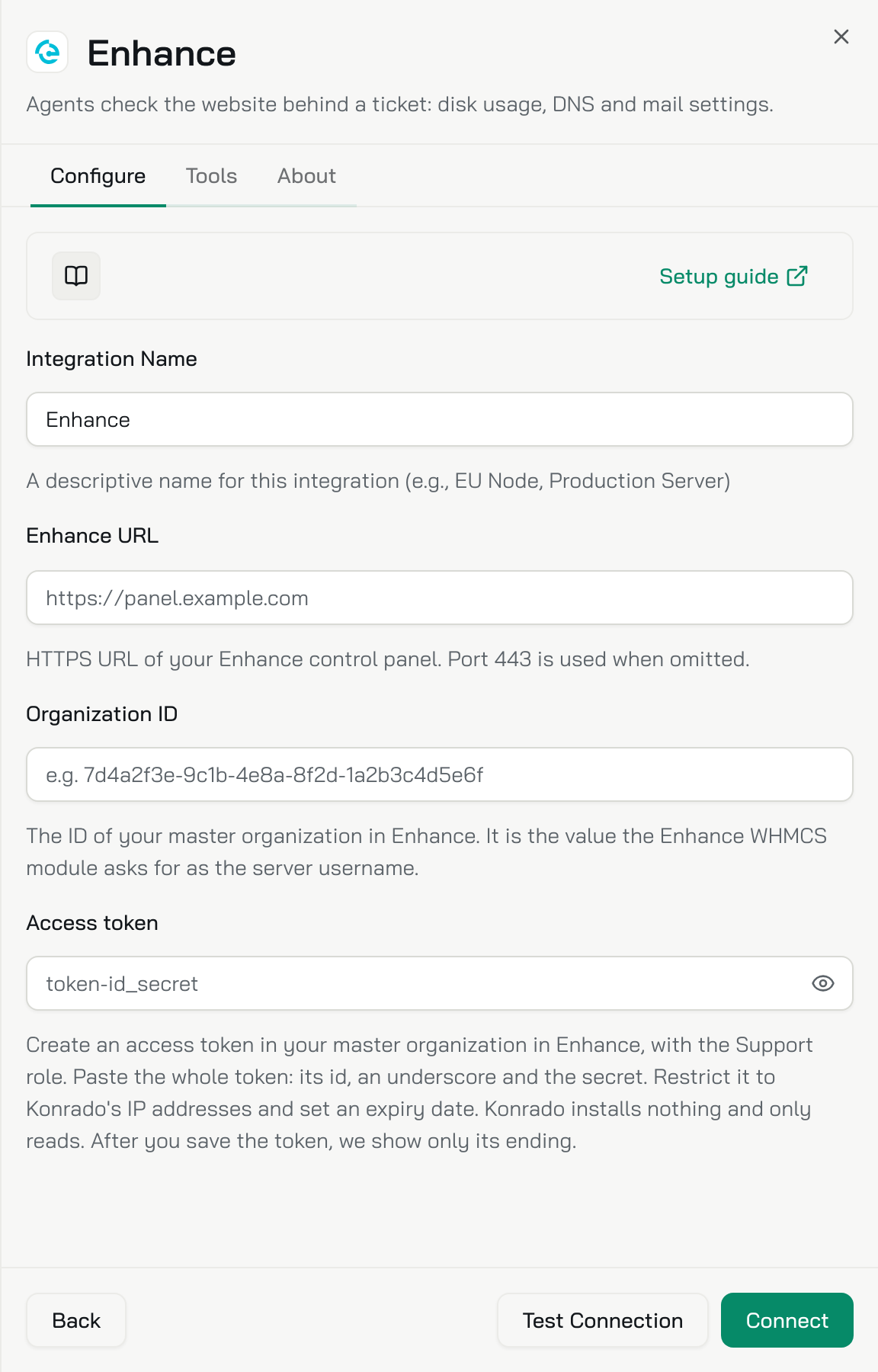
| Field | What to enter |
|---|---|
| Integration Name | A name for your team, such as Enhance UK |
| Enhance URL | The panel address, such as https://panel.example.com. Port 443 is used when you leave it out |
| Organization ID | The ID of your master organization |
| Access token | The token from Enhance |
Click Test Connection. Konrado checks three things:
- The address answers like an Enhance control panel.
- The organization ID exists on that panel.
- The token can read your customers.
A green box confirms the token and shows the Enhance version. When the token can do more than Konrado needs, a yellow box under it says that a token with the Support role is enough. Click Connect.
Check it works
The panel is on the Integrations page as Connected. Its Type reads Enhance, with the Enhance version under it. Konrado tests the connection again every hour. Open the row and the Tools tab lists the eight lookups.
Then open a ticket from a client whose hosting runs on this panel, and ask about their website. The draft can name the client's website, its disk space or its DNS status.
To change the token later, open the row, click Replace next to Access token, paste the new one and click Save.
If something is wrong
Open the row on the Integrations page. A connection that stopped working says Not working, what to check, and the exact error under Technical details.
| What you see | What to do |
|---|---|
| Enhance URL must use HTTPS. | Enter the full https:// address. Plain HTTP does not work |
| Enhance URL cannot contain credentials, query parameters, or a fragment. | Enter only the address, such as https://panel.example.com |
| This address does not answer like an Enhance control panel. | Enter the address of the control panel you sign in to |
| Enhance found no organization with this id. | Check the Enhance URL. Then copy the ID of your master organization again, as in Find your organization ID |
| Paste the whole Enhance access token: its id, an underscore and the secret. | Copy the token again, all of it. The secret alone does not work |
| This access token cannot read this organization's customers. | Enter the ID of your master organization, not a customer's. Then create the token there, with the Support role |
| Enhance refused this access token. | Paste the whole token: its ID, an underscore and the secret. Check that it has not expired and was not deleted |
| Enhance does not allow this access token from Konrado's IP address. | Add Konrado's IP addresses to the token's IP list (see the list) |
| Enhance TLS verification failed. | Install a valid certificate for the panel hostname, with the full chain |
| The Enhance API is temporarily unavailable. | Check that the panel is up, that the Enhance URL is right, and that your firewall or WAF lets in Konrado's IP addresses |
| The Enhance API request timed out. | Check that the panel answers over HTTPS and that your firewall or WAF lets in Konrado's IP addresses (see the list) |
| Blocked: target resolves to a private/internal address | Use a public hostname. Konrado refuses private and internal addresses |
| Connected, but replies never mention the client's website | Check that the WHMCS service sits on a server with the panel's hostname or IP, and that its username is the email of the client's account in Enhance. Konrado reads nothing when no Enhance account, or more than one, has that email |
Remove the integration
Open Workspace SettingsIntegrations, open the row menu (three dots) and choose Delete. Then delete the access token in Enhance.
To stop for now and keep the settings, choose Disconnect instead.
Last updated on