

cPanel API
Connect cPanel and WHM to Konrado.AI over HTTPS with a dedicated WHM API Token

Use cPanel API when Konrado.AI should read hosting context directly from WHM and you do not want to install the Konrado.AI server agent.
cPanel API and cPanel with the server agent are separate integrations. Adding cPanel API does not change or replace an existing cpanel agent installation.
Version Compatibility
| Compatibility level | cPanel & WHM version |
|---|---|
| Tested end to end by Konrado.AI | 11.134.0.52 |
| Supported | 110 or later, through the latest supported production release |
| Not supported | 108 and earlier, and development-only EDGE builds |
The minimum supported version is cPanel & WHM 110. cPanel documents the WHM API Token interface as valid from version 110 through the latest release, and version 110 remains in Extended Lifecycle Support through January 1, 2027. Konrado.AI uses WHM API 1 together with proxied UAPI calls, so the presence of API Token authentication alone on an older server is not enough to guarantee every support tool.
There is no fixed maximum version. Use a cPanel-supported LTS, STABLE, RELEASE, or CURRENT build and run Test Connection after panel upgrades. Older releases may accept the token and return some data, but Konrado.AI does not claim full compatibility with them.
See cPanel's WHM API Token version range and product version lifecycle.
What It Can Do
Konrado.AI detects whether the WHM API Token has root or reseller scope. Every lookup is bound to the cPanel account and domain matched from the ticket or billing context.
| Tool | Support context it can read |
|---|---|
| Account | Plan, limits, usage, ownership, and domains for the matched cPanel account |
| Website | Document root, main/addon/parked/subdomain relationships, DNS records, and safe SSL metadata |
| Mailboxes, forwarders, autoresponders, filters, and up to 24 hours of recent delivery events | |
| Databases | MySQL databases, database users, and server information visible to the matched account |
| Files | A bounded document-root listing, FTP accounts, and available cPanel backups |
| Server | cPanel version, hostname, load, disks, services, and installed components; available only with root-equivalent token scope |
A reseller token can inspect only accounts that the reseller is allowed to access. Root-equivalent scope can inspect all cPanel accounts and enables the server-level tool.
What It Cannot Do
| Not supported | Why this matters |
|---|---|
| Create, suspend, terminate, upgrade, or modify cPanel accounts | The integration provides context for support replies only |
| Change DNS, SSL, mailboxes, forwarders, databases, files, FTP accounts, backups, or services | Konrado.AI uses read operations and does not apply customer-impacting changes |
| Read mailbox message contents, passwords, private keys, or the stored API Token | Credentials and private message content are not support context |
| Access accounts outside the WHM user's reseller scope | WHM permissions remain authoritative |
| Provide server-agent-only plugin signals | CSF, CloudLinux/LVE, JetBackup, and Imunify context requires the cPanel server agent |
| Connect to a private or untrusted endpoint | The WHM hostname must resolve to a public IP address and use a trusted HTTPS certificate |
Security Model
Create a dedicated WHM API Token for Konrado.AI. Do not enter the WHM account password. The token is write-only in Konrado.AI responses: after it is saved, the dashboard and API do not return its value.
The connection enforces the following safeguards:
- Only
https://WHM URLs are accepted. - The hostname must resolve to public IP addresses; private, loopback, link-local, carrier-grade NAT, and multicast ranges are rejected.
- Standard TLS certificate verification applies.
- API responses are checked for WHM errors, bounded before they are passed to the AI, and stripped of sensitive values.
- The integration exposes predefined read-only tools and cannot run arbitrary WHM API functions.
If you restrict the token by source IP, allow the Konrado.AI static IP addresses. When removing the integration, revoke its WHM API Token as well.
Ticket Examples
- "Which cPanel account owns example.com, and is it over disk or bandwidth limits?"
- "Is this an addon domain, parked domain, subdomain, or alias, and what document root does it use?"
- "Do the DNS zone or installed SSL details explain why the customer's website is unavailable?"
- "Do recent cPanel delivery events show why mail for this domain is failing?"
- "Which databases, FTP accounts, backups, and files are visible for this website?"
- "Is the WHM server under load, disk, or service pressure?"
Prerequisites
- Access to Konrado.AI Integrations.
- A public WHM hostname with HTTPS and a certificate trusted by standard clients.
- Inbound access from the Konrado.AI static IP addresses to the WHM HTTPS port, normally
2087. - A WHM root or reseller account that can create a dedicated API Token.
- A connected ticketing or billing integration that can associate the ticket with a domain or service.
Create a WHM API Token
- Sign in to WHM as the root or reseller account Konrado.AI should use.
- Open Development > Manage API Tokens.
- Click Generate Token and enter a recognizable name such as
konrado-ai. - Choose an expiration policy that matches your credential-rotation process.
- In Whitelisted IPs, enter the Konrado.AI static IP addresses. Leave the field empty only when the token must be accepted from any address.
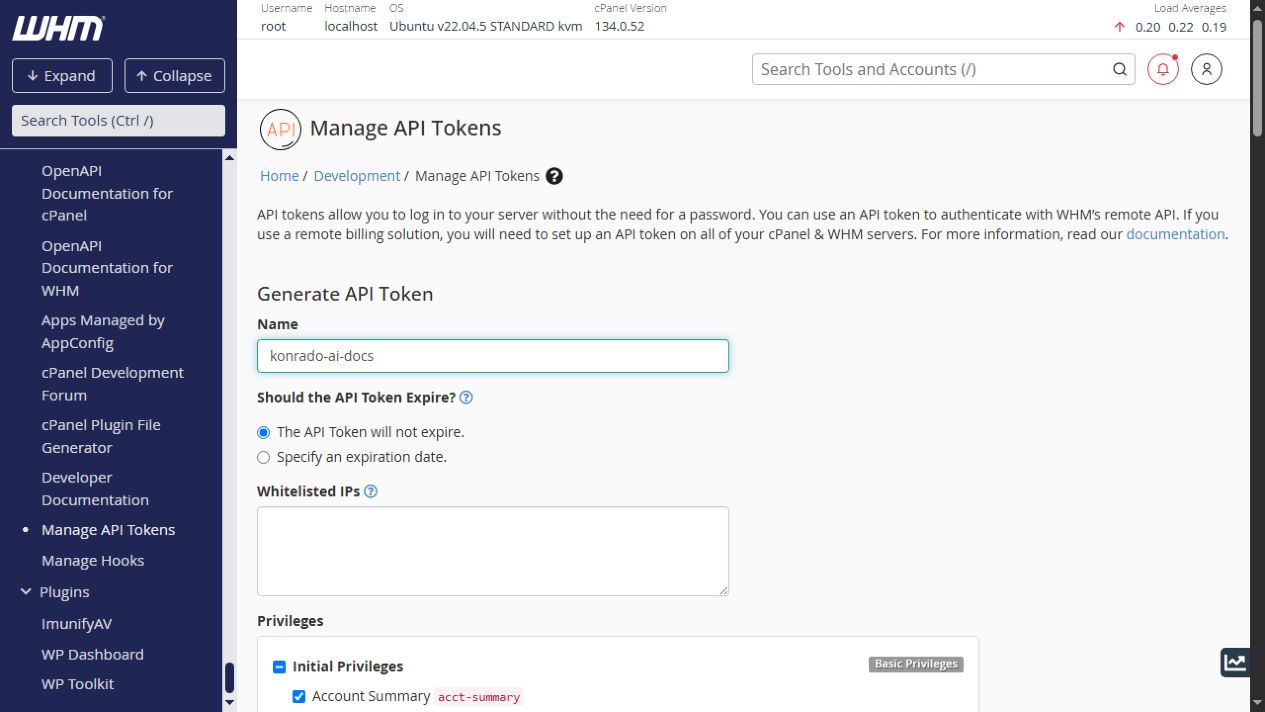
In Privileges, deselect permissions that the integration does not need. Allow the following read and proxy privileges:
| # | WHM privilege | API value |
|---|---|---|
| 1 | Account Summary | acct-summary |
| 2 | Basic System Information | basic-system-info |
| 3 | Basic WHM Functions | basic-whm-functions |
| 4 | Perform cPanel API and UAPI functions through the WHM API | cpanel-api |
| 5 | Manage DNS Records | manage-dns-records |
| 6 | MySQL Information | mysql-info |
| 7 | SSL Information | ssl-info |
| 8 | Track Email | track-email |
| 9 | List Accounts | list-accts |
| 10 | View Server Status | status |
| 11 | View Server Information | stats |
Do not enable account creation, termination, suspension, password changes, service restarts, Manage API Tokens, or Create User Session. Those permissions are not required and can bypass the token's intended restrictions.
The server-level cPanel tool requires root-equivalent scope. In WHM this may require All Features (all), which grants the token complete root access even though Konrado.AI calls only read operations. Prefer reseller scope unless server-wide health is essential, and protect any root-equivalent token with IP restrictions and regular rotation.
Click Save. WHM displays the generated token only once. Copy it immediately and store it in a password manager, then confirm that you saved it.
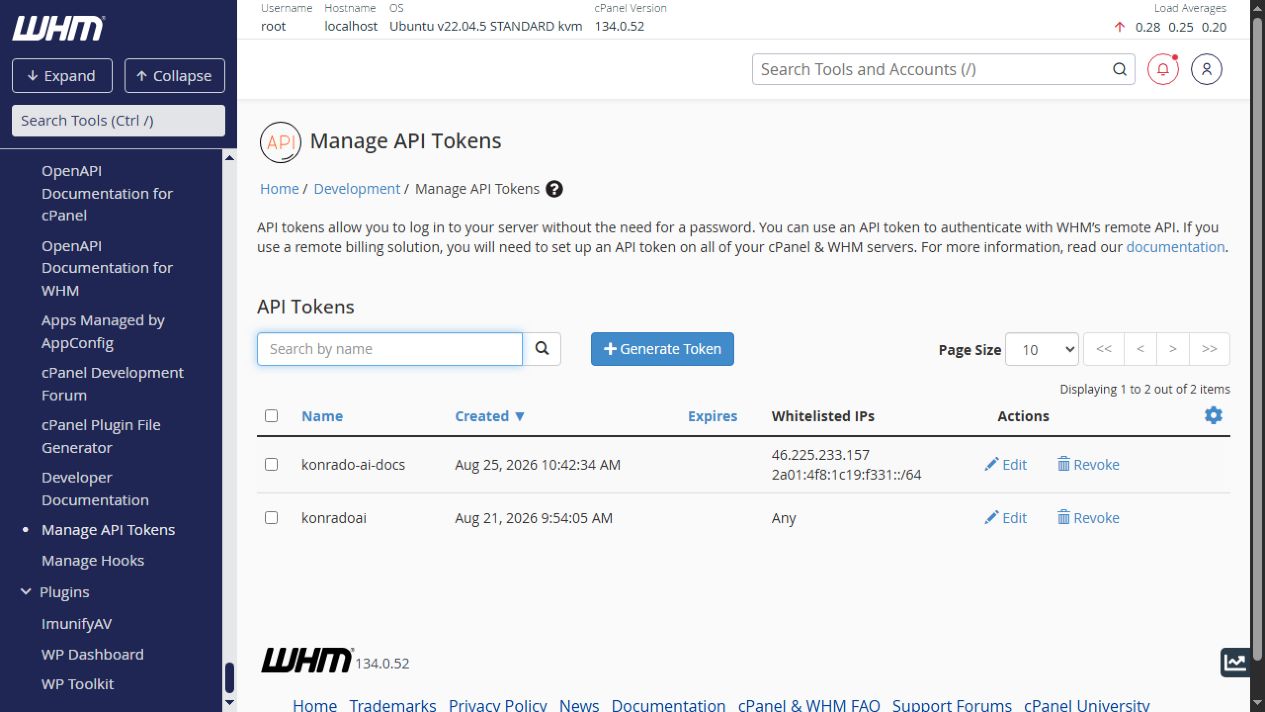
Never reveal the WHM API Token in documentation, tickets, or screenshots. If the one-time value is lost, revoke the token and create a replacement instead of sharing the WHM account password.
cPanel documents token creation in Manage API Tokens in WHM and authentication in API Tokens in WHM.
Connect cPanel API
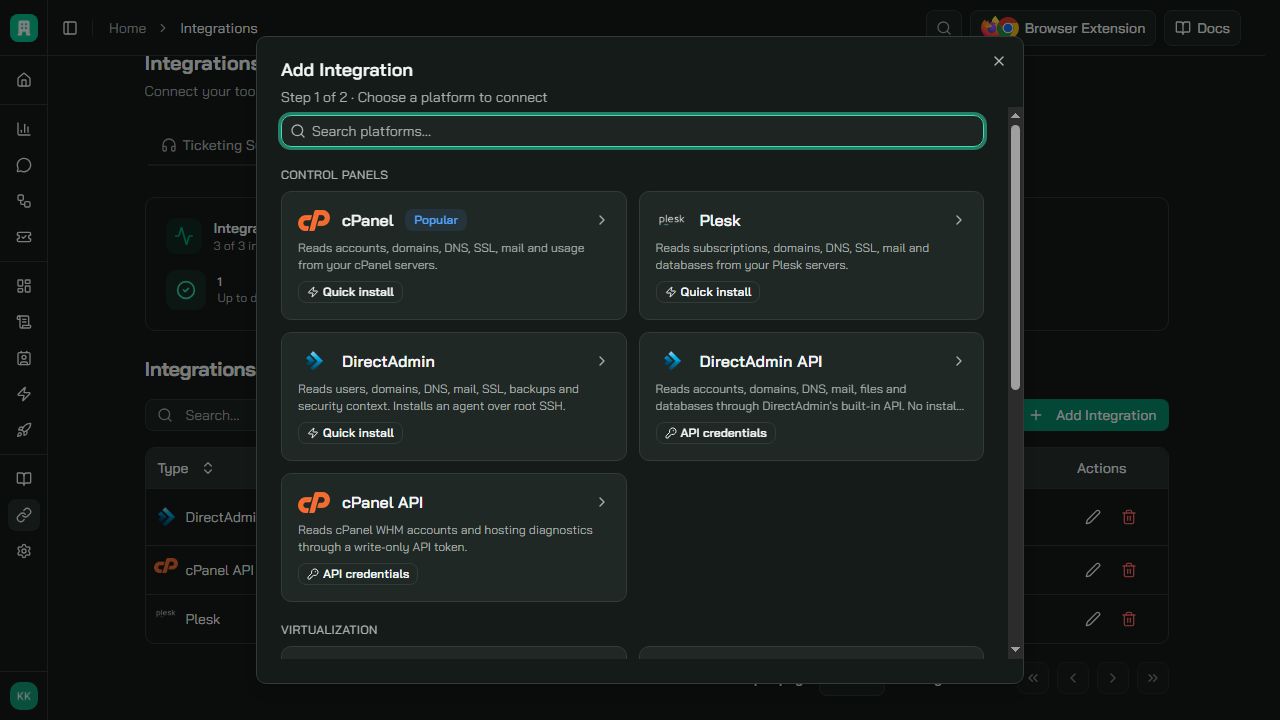
In Konrado.AI, open Integrations > Applications and click Add Integration. Choose cPanel API, not the legacy cPanel option marked Quick install.
Enter the connection details:
| Field | What to enter |
|---|---|
| Integration Name | A descriptive name such as cPanel EU or Production WHM |
| WHM URL | The public WHM URL, for example https://panel.example.com:2087 |
| Username | The root or reseller account that created the API Token |
| API Token | The dedicated token generated in WHM |
If the URL does not include a port, Konrado.AI uses port 2087. Do not use a cPanel user URL on port 2083, and do not include credentials, query parameters, or a fragment in the URL.
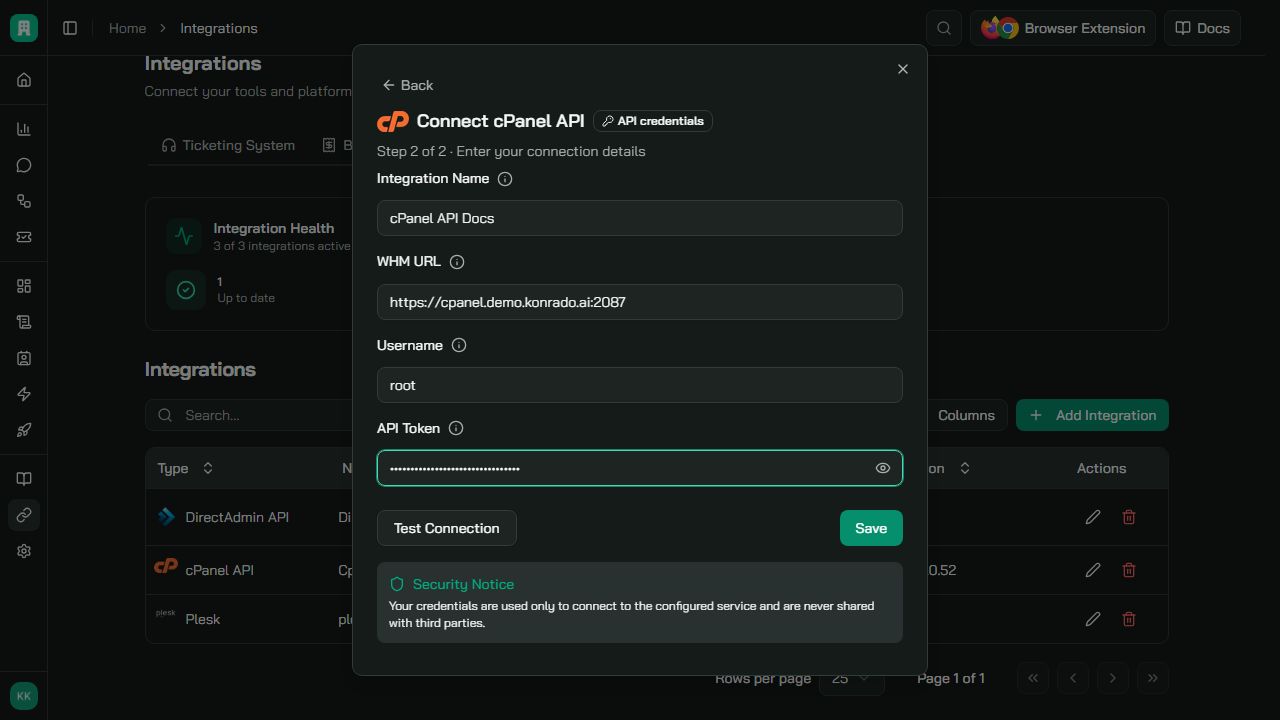
Click Test Connection. A successful test confirms the token, detects its WHM scope, and reads the cPanel version. Click Save to add the integration.
Verify the Connection
The Applications table should show cPanel API, the WHM hostname, a Connected status, and the detected cPanel version.
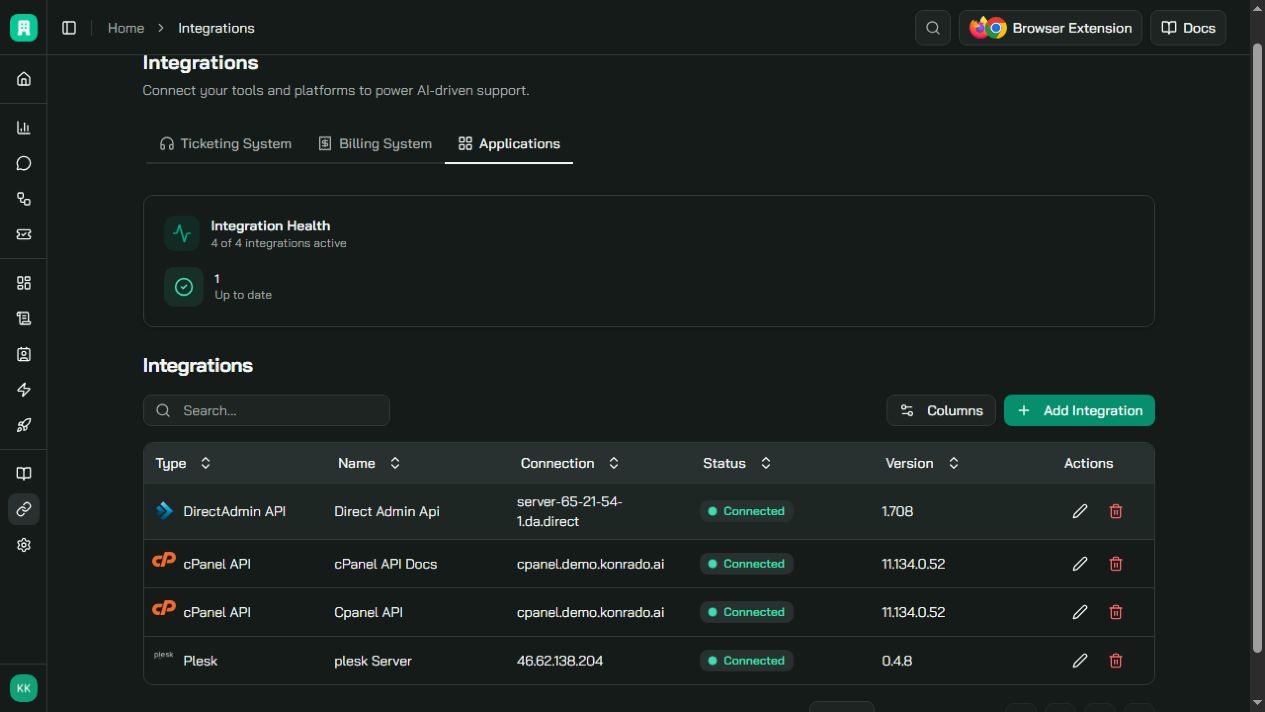
When editing the integration later, leave API Token empty to keep the stored token. Re-enter the token when changing the WHM URL or username, or when rotating the credential.
Troubleshooting
| Issue | What to check |
|---|---|
| cPanel WHM URL must use HTTPS | Use a complete public https:// WHM URL; plain HTTP and cPanel port 2083 are not supported |
| TLS verification failed | Install a valid certificate for the WHM hostname and include the complete certificate chain |
| Host resolves to a private address | Use a public DNS name that resolves only to public addresses; private and split-horizon targets are rejected |
| cPanel rejected the configured WHM API token | Confirm the username created the token, the token was copied completely, and it has not expired or been revoked |
| This cPanel token cannot read that capability | Review the token ACLs and the reseller's account scope |
| Connection times out or is unavailable | Confirm WHM and port 2087 are publicly reachable and allow the Konrado.AI static IP addresses |
| Server health is unavailable | Server-wide load, disk, service, and component context requires root-equivalent token scope |
| Wrong domain or account is selected | Confirm the ticketing or billing integration maps the ticket to the correct service and domain |
Remove
Delete the cPanel API integration in Konrado.AI, then revoke its dedicated token in WHM > Development > Manage API Tokens. No server-agent uninstall command is needed.