

Quickstart
From sign-up to an agent that answers on your website and in your help desk.
At the end of this page your agent answers visitors on your website, drafts a reply for every ticket, and you know how to let it send replies on its own.
Before you start
- Your work email address and your website's address.
- To put the chat on your site: a way to edit your pages, or your WHMCS client area.
- To connect your help desk: WHMCS admin access to install the addon, or an API token and one macro in SupportPal.
- The account that creates the organization is its owner. Only owners and admins see Workspace Settings.
Steps
Create your account
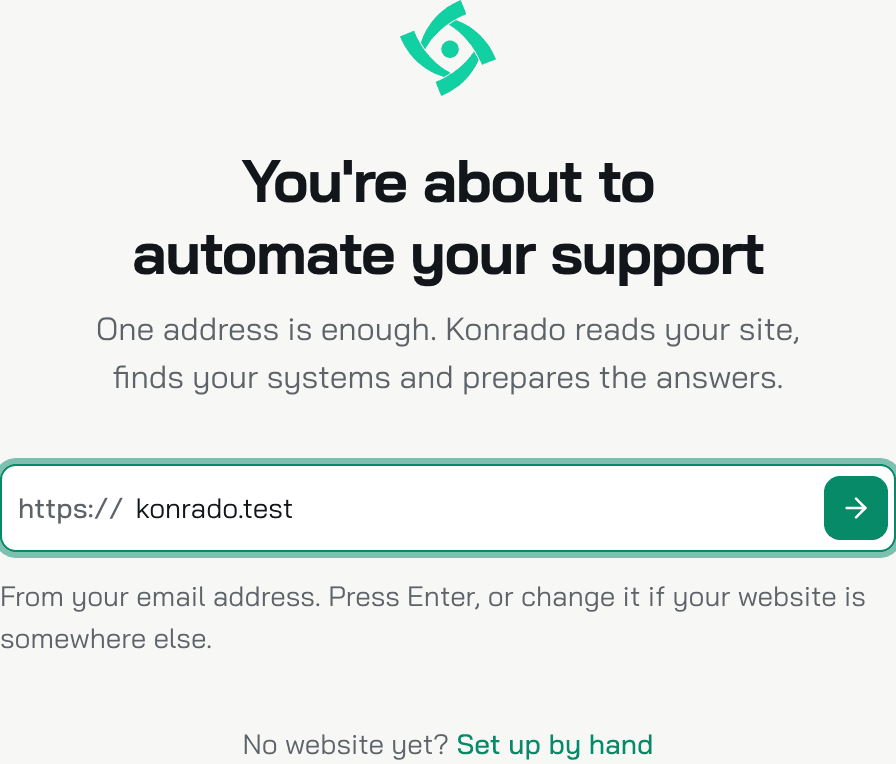
Go to app.konrado.ai/sign-up, enter your work email and click Create free account. Konrado then asks for your website. Type the address and press Enter. The scan is read-only, nothing gets installed. Enter the 6-digit code from the email to finish.
Your decision: the website address. It is where Konrado learns what you sell and which systems you run. No website yet? Click Set up by hand and add pages later.
Every new organization starts with a 14-day trial: 500 credits, no card. Then it is on the Free plan, with 50 credits a month. See plans and credits.
Let Konrado read your business
The screen says Konrado is reading your business. Konrado tells you what it found, one line at a time: what you do, which systems you run, where your documentation is, what you offer. It writes your agent's instructions and greeting in your tone, then reads your pages. This takes a few minutes. Stay and watch, or close the tab: you get an email the moment it is done.
Nothing to decide here. If Konrado could not read your site, the screen says so. Allow the user agent KonradoAI in your firewall and click Try again, or click Continue with an empty agent.
Meet your agent
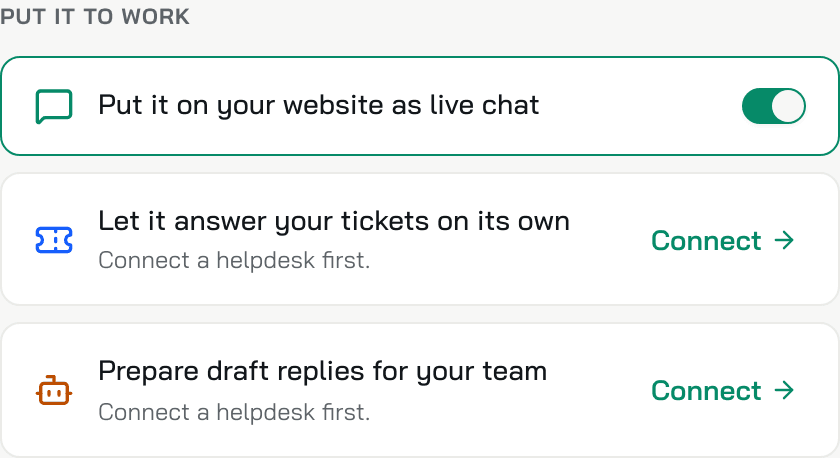
The next screen says Meet and your agent's name. Click Meet your agent. You land on its Overview: a test chat on the left, and Put it to work on the right.
Ask the test chat something the way a customer would. Your decision: does it answer the way you want? If not, open Instructions in the agent's menu and change who it is, what it handles and what it must never do.
Put it on your website
On the Overview, the row Put it on your website as live chat leads to the Install page. Pick your platform and copy the snippet onto every page of your site. On WHMCS you copy one file into includes/hooks/ instead, and the chat shows in your client area. Reload your site: the chat button appears in the bottom corner. Install the chat has every platform and the test link.
Your decision: where the chat may load. The Domains tab on the Install page lists the websites allowed to show it. A site where customers sign in can also tell the chat who they are.
Once the chat has been seen on your site, the row on the Overview becomes a switch.
Connect your help desk
The rows Let it answer your tickets on its own and Prepare draft replies for your team both say Connect a helpdesk first. Click Connect, or Connect on the Helpdesk row in the agent's menu, and pick your help desk:
- Connect WHMCS: WHMCS admin access, to install the Konrado addon.
- Connect SupportPal: an API token and one SupportPal macro.
- Custom help desk: any other help desk, through a small API your developer builds.
Your decision: which tickets Konrado may process. The ticket scope and the blocked tags are set on the connection, and Copilot and Auto replies share them.
When the connection is live, the agent's menu shows Helpdesk with your help desk's name, and under it Copilot, Auto replies and AI instructions. Learn what the channel reads.
Turn on Copilot
Back on the Overview, switch on Prepare draft replies for your team. From now on Konrado writes a draft for every ticket in scope as it arrives. Your team sees the draft beside the reply box in your help desk, with one-click insert, through the browser extension.
Nothing else to decide: every team member installs the extension once, from the Chrome Web Store (Chrome, Edge, Brave, Opera) or Firefox Add-ons (Firefox 115 and newer), and signs in with the same account as the console. The links are on the Copilot page. Install the browser extension.
The Copilot page keeps score: how many drafts in the last 7 days, and what share of the answered ones went out unchanged. Each draft costs 2 credits. Set up Copilot.
Try auto replies in shadow mode
Open HelpdeskAuto replies. The Status tab has three modes: Off, Shadow and Live. Choose Shadow. Konrado now decides on every new ticket but sends nothing. After a few days the page tells you how many messages it would have answered on its own in the last 7 days.
Your decision: the Rules. The Confidence bar is the lowest confidence at which a reply goes out without review. It starts at 90%. Below it, the draft waits for a person. Under Always hand to a person, list the tickets that must never be answered on their own: refunds, cancellations, legal topics.
Go live
When the shadow numbers look right, choose Live on the Status tab. Konrado asks Start sending replies? and shows the shadow record. Click Go live. From now on Konrado sends the reply itself when it is above your bar and your rules allow it. Everything else stays a draft. You can switch back to Shadow or Off at any time.
Reply settings needs an Assigned Agent, a user from your help desk, before Live can be turned on. Go from Shadow to Live has every rule and what it does.
Check it works
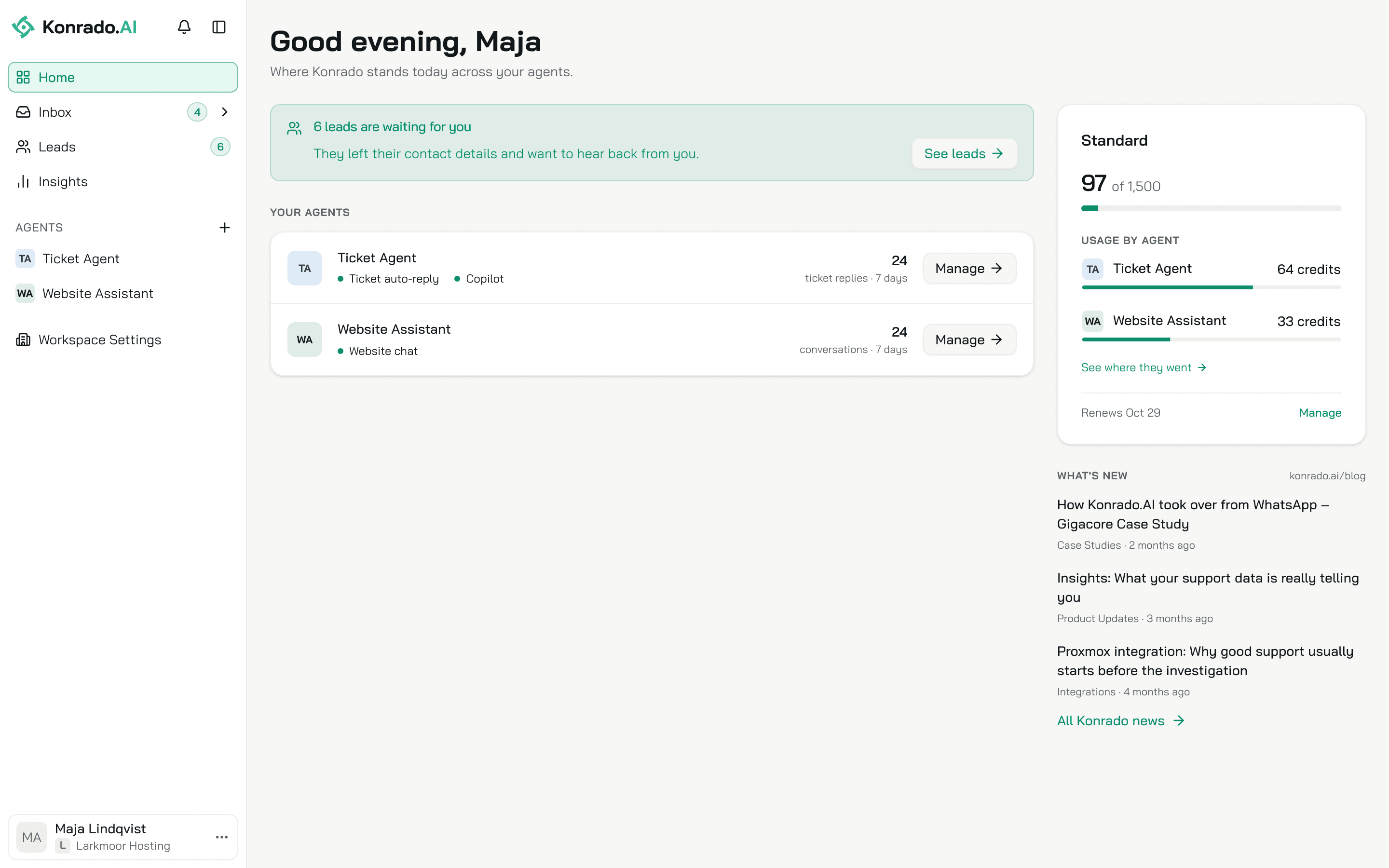
Open Home. Each agent shows its channels and what it did in the last 7 days: conversations for the chat, ticket replies for the help desk. The Inbox has one row per channel, and Needs a human is where Konrado handed over. The chat's Status page shows the conversations, what Konrado resolved, the leads it captured and what it passed to your team.
If something is wrong
| What you see | What to do |
|---|---|
| We couldn't read your site during setup | Your firewall blocked the scan. Allow the user agent KonradoAI and click Try again, or Continue with an empty agent and add pages in the Knowledge Base. |
| No chat button on your site | The snippet is not on that page, or the domain is not in Domains on the Install page. Fix the install. |
| Prepare draft replies for your team still says Connect a helpdesk first. | The agent has no help desk channel. Connect one under Workspace SettingsIntegrations. |
| No drafts in your help desk | The extension is not installed, or it is signed in with another account. Sign in with the account you use in the console. |
| Live does not turn on | The page lists what is missing, usually the Assigned Agent under Reply settings. |
| A banner says all credits are used | This period's credits are spent. See plans and credits. |
Last updated on