

Automation
Configure automated workflows for ticket processing
The Automation section lets you configure how Konrado.AI automatically replies to tickets without manual intervention.
What This Helps You Improve
Automation is for mature workflows where your Knowledge Base, integrations, and Tweaking rules already produce reliable replies. Start conservative, then expand automation after reviewing reports.
Common Support Scenarios
| Scenario | Recommended handling |
|---|---|
| Simple billing or FAQ tickets | Allow automation when confidence is high |
| Refund, cancellation, abuse, or legal tickets | Keep in manual review or require specific scenario behavior |
| Server troubleshooting with incomplete context | Require manual review until integrations are reliable |
| New product or policy rollout | Temporarily raise the confidence threshold and monitor Reports |
Success Signals
- Automated replies stay within your quality threshold.
- Agents spend less time on repetitive tickets.
- Missed replies and manual rewrites do not spike after enabling automation.
- Reports show stable or improving adaptation and quality metrics.
Overview
Navigate to Automation in the sidebar. The page provides several tabs for configuring different aspects of automated responses.
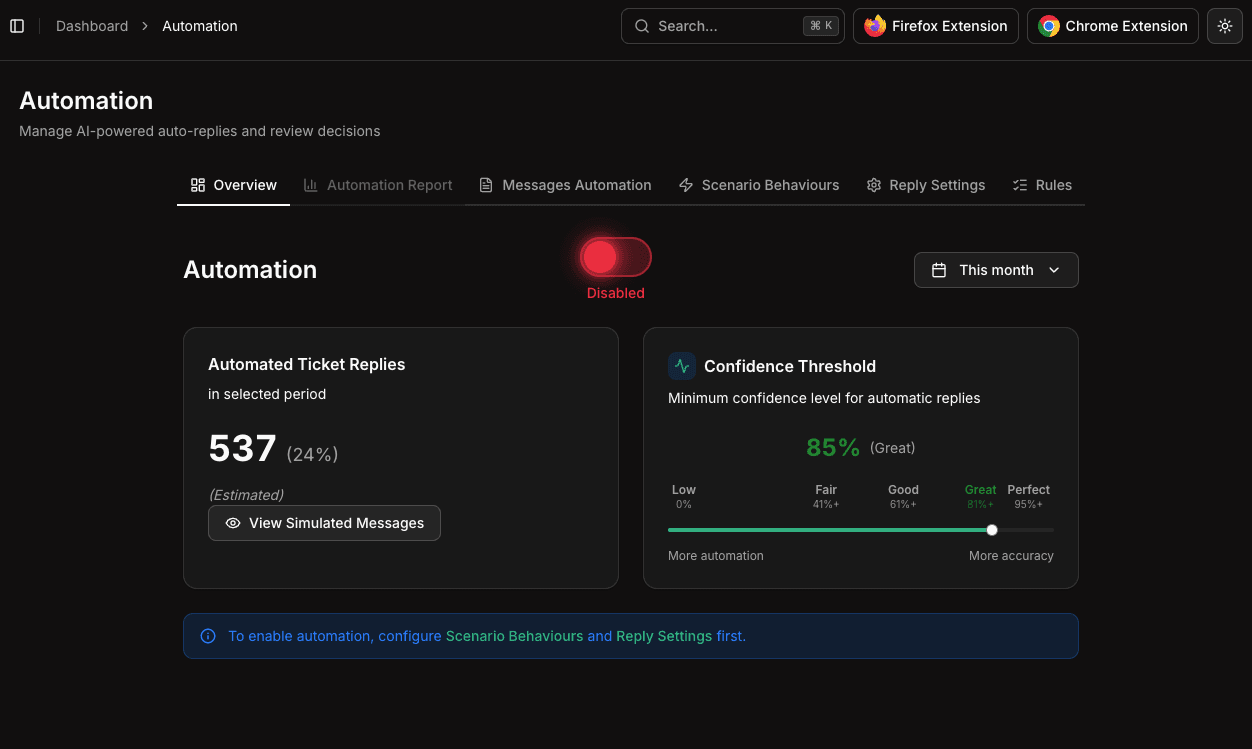
Tabs
| Tab | Description |
|---|---|
| Overview | Main dashboard with automation toggle, confidence threshold, and statistics |
| Automation Report | Performance data on automated replies |
| Messages Automation | Configure which message types trigger automation |
| Scenario Behaviours | Define how the AI behaves in different ticket scenarios |
| Reply Settings | Control reply formatting, signatures, and delivery options |
| Rules | Set up conditional rules for automation logic |
Confidence Threshold
The confidence threshold controls the minimum quality score required for an AI response to be sent automatically. Adjust the slider between:
- Low (0%) — More automation, sends more replies automatically
- Fair (41%+) — Balanced approach
- Good (61%+) — Default setting, good balance of automation and accuracy
- Great (81%+) — Higher quality bar
- Perfect (95%+) — Maximum accuracy, only the best responses are auto-sent
Getting Started
- Configure Scenario Behaviours to define how the AI handles different ticket types
- Set up Reply Settings for formatting and delivery preferences
- Adjust the Confidence Threshold based on your quality requirements
- Enable automation with the toggle switch
- Monitor results in the Reports section
Automation works together with your Tweaking instructions and Knowledge Base content. The more context the AI has, the better your automated workflows perform.