

Widget Settings
Customize how the Konrado.AI widget behaves and integrates with your workflow
The Konrado.AI widget includes a settings panel that lets you personalize its behavior. Settings are stored locally in your browser, so each team member can have their own preferences. Changes persist across page reloads and sessions.
Accessing Settings
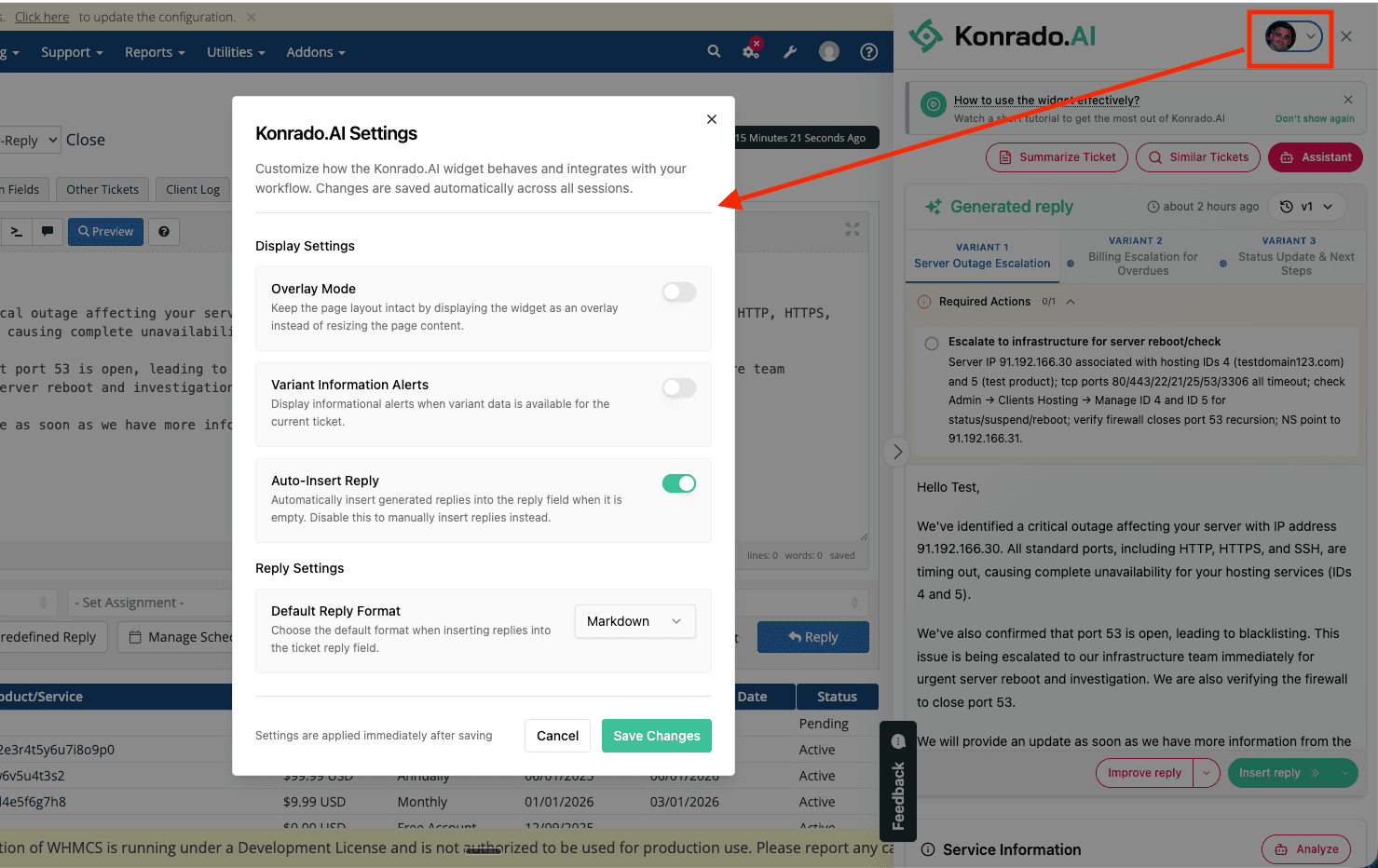
Click on your avatar in the top-right corner of the widget to open the account menu, then select Settings.
Display Settings
Overlay Mode
| Type | Toggle (on/off) |
| Default | Off |
When enabled, the widget is displayed as a floating overlay on top of the page. When disabled (default), the widget resizes the page content to make room for itself.
Use overlay mode if you prefer the page layout to remain unchanged, or if the widget is interfering with your ticketing platform's layout.
Variant Information Alerts
| Type | Toggle (on/off) |
| Default | On |
Controls whether the widget shows informational alerts when multiple reply variants are available for the current ticket. When the AI generates more than one response variant, an alert banner appears at the top of the generated reply, prompting you to review each variant.
Disable this if you find the alerts distracting and prefer to check for variants manually using the variant tabs.
Auto-Insert Reply
| Type | Toggle (on/off) |
| Default | On |
When enabled, the widget automatically inserts the generated reply into the ticket's reply field — but only if the reply field is currently empty. If the field already contains text, the reply will not be inserted automatically regardless of this setting.
Disable this if you prefer to review every reply in the widget first and manually click Insert reply when ready.
You can always insert a reply manually using the Insert reply button or the keyboard shortcut Cmd+Enter (Mac) / Ctrl+Enter (Windows/Linux), regardless of this setting.
Reply Settings
Default Reply Format
| Type | Dropdown |
| Default | Markdown |
| Options | Markdown, HTML, Plain Text |
Sets the format used when inserting replies into the ticket reply field:
- Markdown — Preserves formatting like bold, lists, and headings using Markdown syntax. Best for platforms that render Markdown in the reply editor.
- HTML — Converts the reply to formatted HTML. Use this if your ticketing platform uses a rich-text editor that accepts HTML input (e.g., WHMCS with a WYSIWYG editor).
- Plain Text — Strips all formatting and inserts the reply as plain text. Useful if your reply editor does not support any formatting.
You can also override the format on a per-reply basis. Click the dropdown arrow next to the Insert reply button to select a different format without changing your default.
The reply format only affects how the text is inserted into the reply field. The generated reply inside the widget always displays with full formatting.
Saving Changes
Click Save Changes to apply your settings. They take effect immediately for the current and all future sessions.
Clearing Cache & Resetting Settings
If you need to reset all settings to their defaults, you can clear the extension's cache:
- Click the Konrado.AI extension icon in your browser toolbar to open the popup
- Under Extension Settings, click the Clear button next to Clear Cache
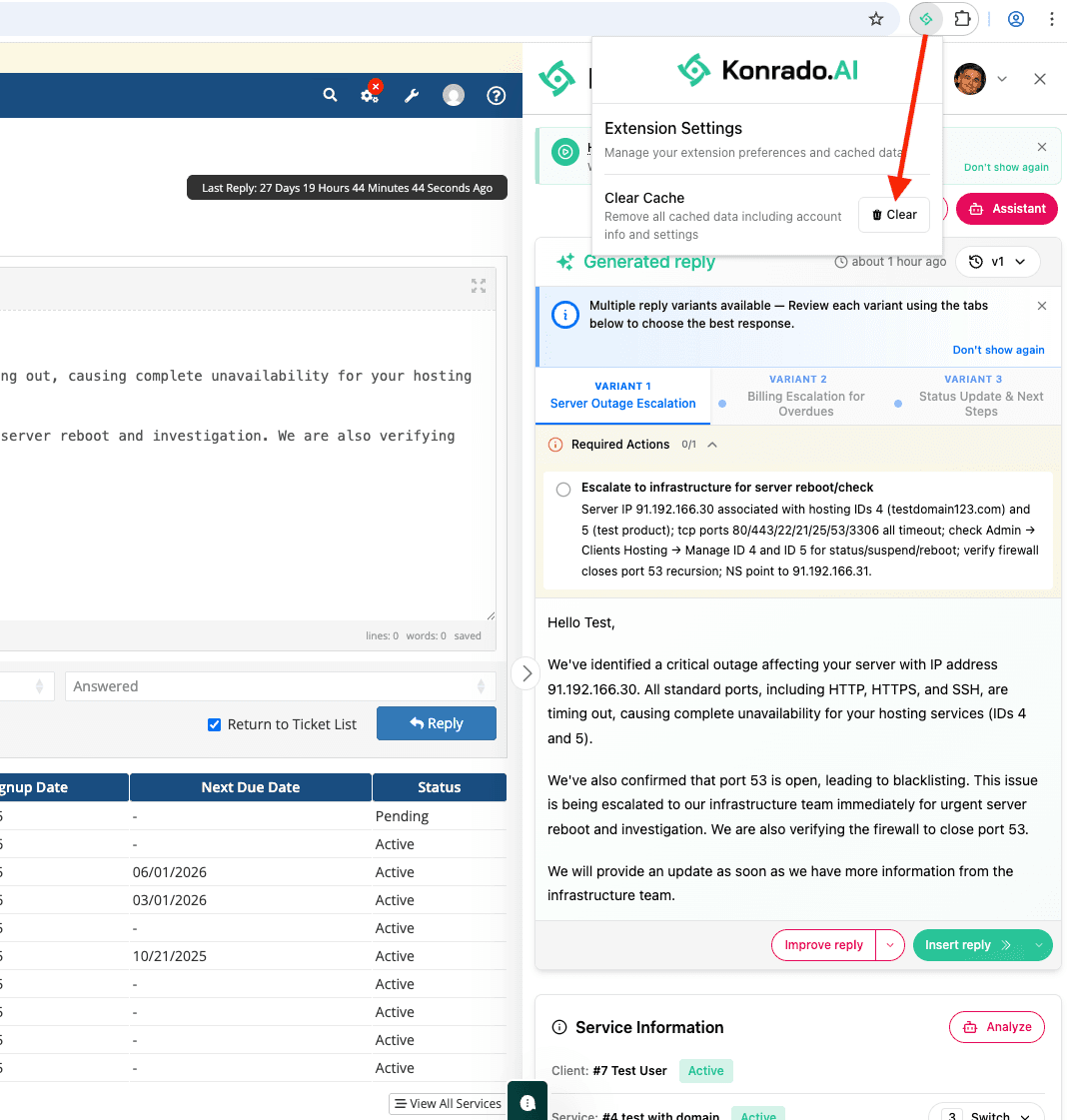
This removes all cached data including your account info and settings, effectively resetting the extension to its initial state.
Clearing the cache will log you out and reset all preferences. You will need to log in again after clearing.